
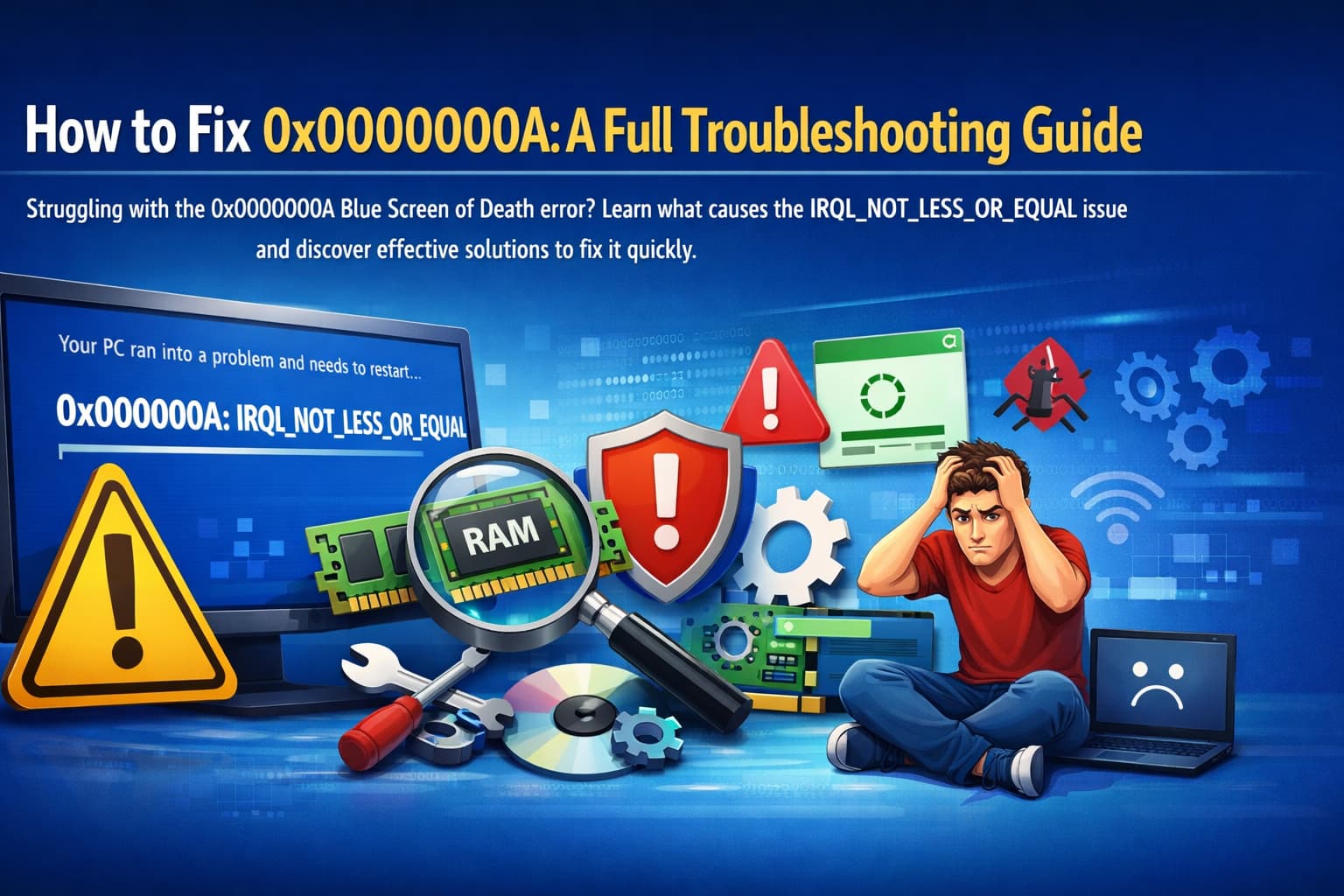
There are few irritations as maddening working on some important project and that big blue screen shows up out of nowhere. You’re not alone if you are staring at a Blue Screen of Death (BSOD) with stop code 0x0000000A. Unfortunately, this is also one of the most common types of errors that Windows users encounter and can sometimes be difficult to diagnose without the right direction.
The upside: This mistake is rarely a death sentence for your machine. It usually indicates a software conflict or driver problem that can be fixed without needing to visit a repair shop. We’ll be covering exactly what this error is, why it’s affecting your system, and the recommended fixes to eradicate it for good in this guide.
What Is the 0x0000000A Error?

The 0x0000000A error is actually a pretty common stop code and goes by the name IRQL_NOT_LESS_OR_EQUAL. Though that sounds like some complex developer jargon, the concept is easy to understand.
Your computer’s memory (RAM) is organized into addresses. The addresses are not accessible to the processes and drivers. This error happens when a kernel mode process or driver tries to access a memory address for which it does not have permission or at a time too early in the boot process.
Think of it like a library. A driver attempts to swipe a book from a banded section, without the librarian’s key. Windows knows that such an illegal move could potentially corrupt data or pose a security risk, so it immediately shuts down the system to avoid damaging itself. Like all your blue screens — when you see that shutdown.
Common Causes

Once you understand the cause, you can apply the appropriate remedy. The most frequent culprits include:
- Corrupt/Outdated Drivers: That’s the prime suspect. If a hardware driver is not compatible with the version of Windows you’re using, it’s going to misbehave.
- Bad Hardware: It can be rarer, but bad RAM sticks or something overheating can cause this.
- Software Conflicts: Sometimes antivirus, or other newly installed software can interfere with system files.
- Windows Updates: Sometimes a defective Windows update can cause instability.
How to Solve 0x0000000A: Step-by-Step Solutions
Before you jump into fancy solutions, try restarting your computer. In some cases, a quick reboot can help clear out temporary memory issues. If the problem continues, try these steps in order.
Update Your Drivers

Because poor drivers are the primary culprit for this stop code, that should be your first port of call.
- Right-click the Start button, and then click Device Manager.
- Check for any devices that have an exclamation mark to their left.
- Right-click on the device and choose Update driver.
- Choose Search automatically for drivers.
Pro Tip: Keep a close eye on your Graphics Card, Network Adapter, and Audio drivers as well. These are frequent offenders.
Try the Windows Memory Diagnostics Tool

If you’re okay on the driver front, test your physical RAM sticks. This is the kind of thing that Windows has a built-in tool for.
- Hit Win-key + R to launch the Run dialogue.
- Type mdsched.exe and hit Enter.
- Choose Restart now and look for problems.
Your computer will reboot and run some blue screen test (not the bad kind). The process can take about 15-20 minutes. If it does, you probably need to replace one of your RAM sticks.
Check for Corrupted System Files

Windows has a tool called System File Checker (SFC) which is designed to search for and fix the corrupted system files.
- Type cmd in your search bar on Windows.
- Right-click on Command Prompt and choose Run as administrator.
- In the black window, type sfc /scannow and hit Enter.
- Let the process reach 100%. If not and the message is, “Windows Resource Protection found corrupt files and successfully repaired them,” reboot your PC to check if this fixes the problem.
Remove Recently Installed Software

Was the 0x0000000A problem appearing after you installed a new program or antivirus? Sometimes third-party tools can cause trouble with the Windows kernel.
The most recently installed software may be what is causing the trouble so try removing it. If you have 3rd party antivirus, disable it temporarily and check if system gets stabilized or not.
Update Windows

Microsoft is constantly pushing out patches for known bugs.
- Open Settings > Update & Security > Windows Update.
- Click Check for updates.
- Update your system and reboot if there are updates.
Best Practices and Prevention Tips
You want to know that the problem stays fixed once you’ve identified it. Here are some habits to maintain a healthy system:
- Update Your Drivers: Too often, I see people ignore those update notifications from their manufacturer.
- Make Restore Points: Get System Restore turned on, and try to get in the habit of creating a restore point every week.
- Cool Down Your Computer: Heat is the enemy of virtually all electronics. Make sure your fans are functional/case is also dust-free.
Common Mistakes to Avoid
What Not to Do: Don’t Keep Trying, It Won’t Work
Aggravating the error is bad practice! All those hard drive crashes can eventually corrupt your data.
Downloading “Driver Fixer” Tools
Avoid dubious third-party software promising to fix all drivers in one fell swoop. Just use Windows Update or the manufacturer’s official site.
Frequently Asked Questions
How do I fix stop code 0x0000000A?
To resolve this stop code, make sure that software and drivers are compatible. Begin by updating all critical drivers (video, network etc.), running the Windows Memory Diagnostics tool to test your RAM, and running an sfc /scannow in the command prompt to fix system files.
What causes the 0x0000000A error?
The mistake is generally triggered by the driver or application program trying to gain access to such an inappropriate memory location. It’s typically caused by mismatched drivers, system corruption, or conflicting antivirus.
Is there a cause to this error such as hardware?
Yes, absolutely. Most of the time drivers are its cause, but defective RAM modules can also physically sabotage access to memory, which is the condition responsible for throwing up the 0x0000000A code.
Conclusion
The 0x0000000A error may sound alarming, but it’s a fixable problem. By running through your drivers, searching its memory, and fixing system files, you can resolve the conflict that’s causing the crash.
Remember, the aim is to prevent unauthorized memory access. Your system will be stable once you find the funny driver or other piece of hardware not following the rules.
Do something about it right now — begin by scanning your drivers to check if any are out of date and then perform a free memory scan to analyze your computer’s RAM status on the spot!
Leave a Comment