
Few things are scarier to a Linux user than waking up and discovering that your computer is no longer booting into X — or worse, it’s booting into an empty black screen. If you’re staring at the error message “Kernel panic – not syncing: Attempted to kill init,” do not despair. Though it appears catastrophic, your data is probably safe, and the operating system can generally be salvaged.
This happens when the Linux kernel doesn’t able to find the init (n1) program, that is the first process that needs to be started by the kernel as part of booting. Without init, it would not work at all. Whether this occurred during a scheduled software update, a fresh install of your OS, or a random shutdown, we would be walking through troubleshooting steps to bring the system back online.
Trying to Kill Init Error Explained
To solve it, it helps to know what the hell just happened.
In the process of booting a computer, the kernel is loaded into memory and then invoked by a small program in the master boot record called init. This task is given Process ID 1 (PID 1). Everything else on your system is a child of it. Among other things, it is in charge of booting up your system and its services, mounting filesystems, and taking you to your login screen.
“Kernel panic – not syncing: Attempted to kill init” means something was responsible for PID 1 exiting or dying. The kernel needs this to maintain the state and cannot ignore the situation on those levels (just like user space could not); so it has no choice but to resort to what is called a stop—or—”panic” early in order to prevent data corruption.
Why Does This Happen?
There are several common culprits:
- Broken initramfs: Your initial ram file system image that assists in mounting your root filesystem may be missing or damaged.
- Filesystem Corruption: There could be some errors with your root partition that are preventing files from being read.
- Bad Updates: If the install process was stopped and not completed, a “kernel panic attempted to kill init after update” scenario is likely.
- Configuration Errors: Invalid Root UUIDs in your GRUB bootloader configuration.
- Hardware Problems: Sometimes bad RAM or a damaged hard disk can lead to this.
Reasons and Solutions to Kernel Panic – Not Syncing: Attempted to Kill Init
We’re going to begin with the simplest non-destructive fixes and work our way up to more involved troubleshooting.
Boot into an Older Kernel (Quickfix)
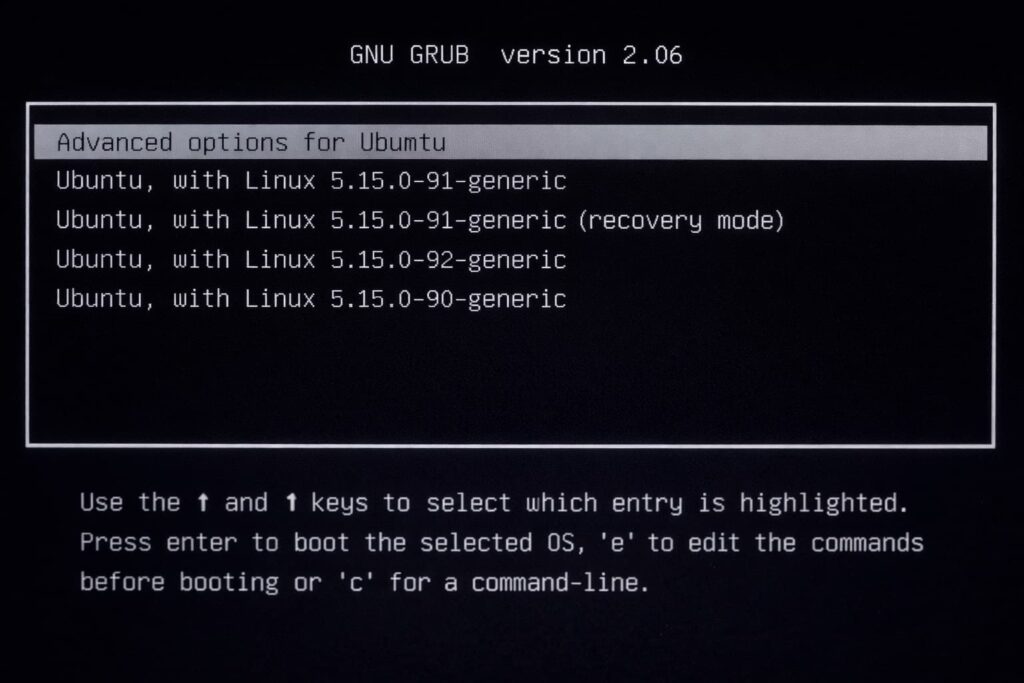
If you encounter the panic attempted to kill init after a reboot directly after a system update it is probably related to the kernel version currently booted.
Many Linux distributions actually maintain older kernel versions as a backup.
- Restart your computer.
- Hold the Shift key (for some UEFI systems press Esc) after the BIOS splash screen to access the GRUB menu.
- Select “Advanced options for Ubuntu” (or your distro’s name).
- Press the arrow keys to highlight an alternative kernel from the one at the top of the list (look for a lower version number).
- Press Enter.
If your system properly boots, then the issue is narrowed down to the new kernel package or generated image. You may want to fall back on that old kernel while you fix the new one.
Manually Fixing the Initramfs (The Real Solution)
This is the best way to fix kernel panic attempted to kill init on Ubuntu, Debian, and other derivatives. You need a Live USB drive (the installation media for your Linux distro).
- Step 1: Boot into Live Media
Put your USB stick in and make it bootable. Select “Try Ubuntu” (or Live Session), not install. - Step 2: Identify Your Partitions
In a terminal window, type:lsblk
Orsudo fdisk -l
Find out the partition where your Linux lives on (i.e., /dev/sda2 or /dev/nvme0n1p2). - Step 3: Chroot into the System
You got to chroot in your installed system from the live environment:sudo mount /dev/sdXY /mnt
If you have a separate boot partition, also mount it:sudo mount /dev/sdXX /mnt/boot
Now, mount essential system directories to communicate with your drive on the live system:for i in /dev /dev/pts /proc /sys /run; do sudo mount -B $i /mnt$i; done
Chroot into the environment:sudo chroot /mnt - Update Initramfs and GRUB
After all these processes are complete, you should update initramfs and then grub (we need to install GRUB in UEFI mode). For Ubuntu/Debian:update-initramfs -u -k allupdate-grubFor CentOS/RHEL:dracut -fgrub2-mkconfig -o /boot/grub2/grub.cfgFor Arch Linux:mkinitcpio -Pgrub-mkconfig -o /boot/grub/grub.cfg - Unmount and Reboot
Exit the chroot:exit
Unmount:sudo umount /mnt/boot(if you mounted that partition)sudo umount /mnt
Reboot.
Verify for File System Errors (fsck)
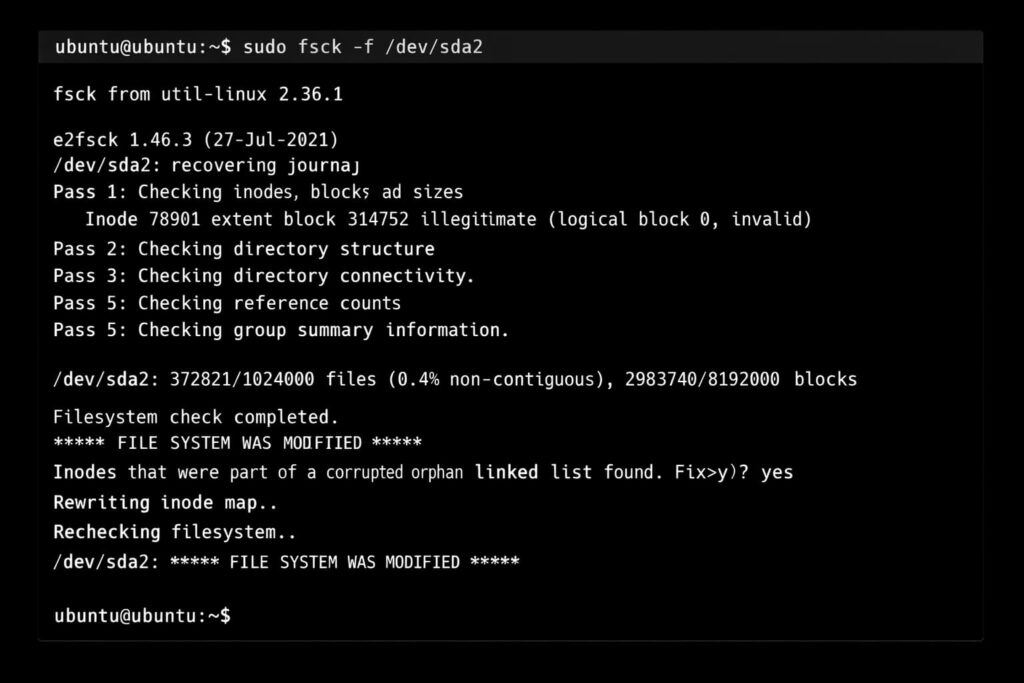
Sometimes init crashes because it’s unable to read a file (if the disk is corrupted, for example).
Now, reboot from your Live USB once more. Open a terminal (don’t mount the drive again).
Your root partition is the operating system. Run a file system check on your partition:sudo fsck -f /dev/sdXY
If it wants to fix issues, type y and hit Enter.
Fixing Kernel Panic on Certain Platforms
The root issue is likely the same, but it may affect how you delve into the fix.
How to Fix Kernel Panic by Attempting to Kill Init in VirtualBox & VMware
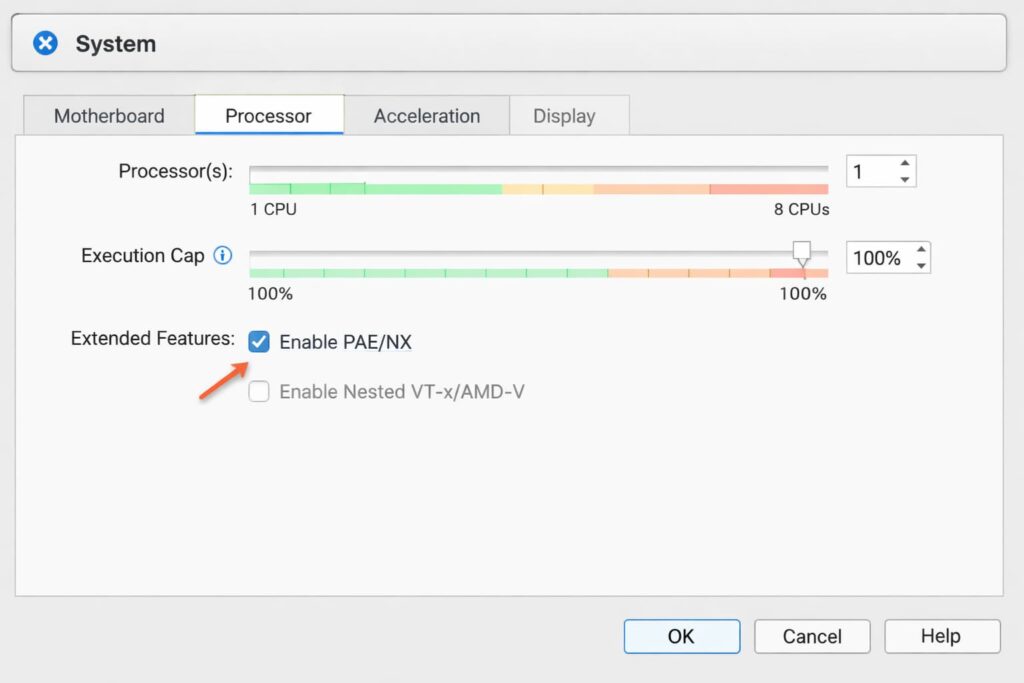
Virtualization is another layer of complexity. In case you’re observing kernel panic attempted to kill init on VirtualBox or VMware, the problem is usually due to the virtual hardware as opposed to what is contained in it.
- Verify Memory Allocation: Linux kernels panic if they run out of memory while booting. Up the RAM on the VM (e.g., 512Mb to 2Gb).
- CPU Settings: In VirtualBox, under Settings > System > Processor, check “Enable PAE/NX“.
- Disk Controller: Changing the type of storage controller (SATA to IDE and vice-versa) in VM settings can help in resolving boot path problems.
Kernel Panic: Attempted to Kill Init Arch Linux
Kernel panic attempted to kill init Arch Linux users often get this when they did a pacman -Syu and the boot partition has not been mounted correctly yet during the update process.
- Boot into the Arch ISO.
- Mount your partitions (e.g.,
mount /mnt/bootandmount /mnt). - Chroot into the system:
arch-chroot /mnt - Reinstall the kernel:
pacman -S linux
This will cause hooks to automatically rebuild the initramfs image.
Issues with Docker Containers
When you see kernel panic attempted to kill init on Docker, it is almost never a real kernel panic (as the host has one kernel and containers share it). It typically indicates that the entry point script (PID 1 in the container) exited.
Fix: Validate your Dockerfile CMD or ENTRYPOINT. Please, let the script go in the foreground. So when your script is done running, the container ‘dies’, which makes it appear as if init failed.
Common Mistakes & Prevention
How do you prevent this from happening again? The vast majority of users get this error because they make the simplest mistake in the book!
- Do Not Interrupt Updates: Stopping the computer while apt upgrade or
pacman -Syuis rewriting kernel images is one of the main causes behind it. - Check /boot partition Full: If the /boot is full, the entire initramfs image will not be written by the system. So it’s a zero-by-zero bytes or a truncated file that makes the panic. Regularly do
sudo apt autoremoveto get rid of old kernels. - Watch SELinux: On particular RedHat-based systems, if an incorrect label was placed on critical binary files, init will not be able to execute. You may also have to boot with selinux=0 in the kernel parameters to figure it out.
Frequently Asked Questions (FAQ)
Can the error message “not syncing” mean anything useful?
“Not syncing” would mean that the kernel stopped so abruptly that it did not even manage to sync data from memory on your hard drive. This is another preventive measure to avoid writing damaged data back on the disk.
What if I cannot fix the boot error, can I retrieve my files?
Yes. “kernel panic – not syncing: Attempted to kill init” shows up when trying to boot-initialize the OS, not the data destruction. You should be able to boot up something like Ubuntu (or SystemRescue) from a Live USB stick. Then mount your hard drive and copy document folders to an external hard drive.
Is this a hardware failure?
Usually, no. It is software configuration more than anything else. But, if fixing it and it randomly arises, or fsck keeps on reporting errors regularly then you might have failing HD or RAM sticks.
Why does this occur after dist-upgrade?
Large distribution upgrades (like going from Ubuntu 20.04 to 22.04) will exchange almost all core packages. If the bootloader (GRUB) isn’t updated to reference new UUIDs of the file system, then the kernel will boot and fail to locate the root partition due to init.
Conclusion
You might panic (pun intended!) when you see the “Kernel panic – not syncing: Attempted to kill init” message, but don’t worry because it’s never fatal to your computer. The kernel is working, but it simply forgot where everything else in the OS lives.
Reboot to an older kernel or a live environment and regenerate your initramfs and for most systems, the problem is fixed in less than 15 minutes. Remember to keep your boot partition lean, and always let system updates complete all the way to prevent this panic in the future.
If you’ve done this and recovered your system, then do one last update soon and back up immediately to have a stable system.
Leave a Comment