
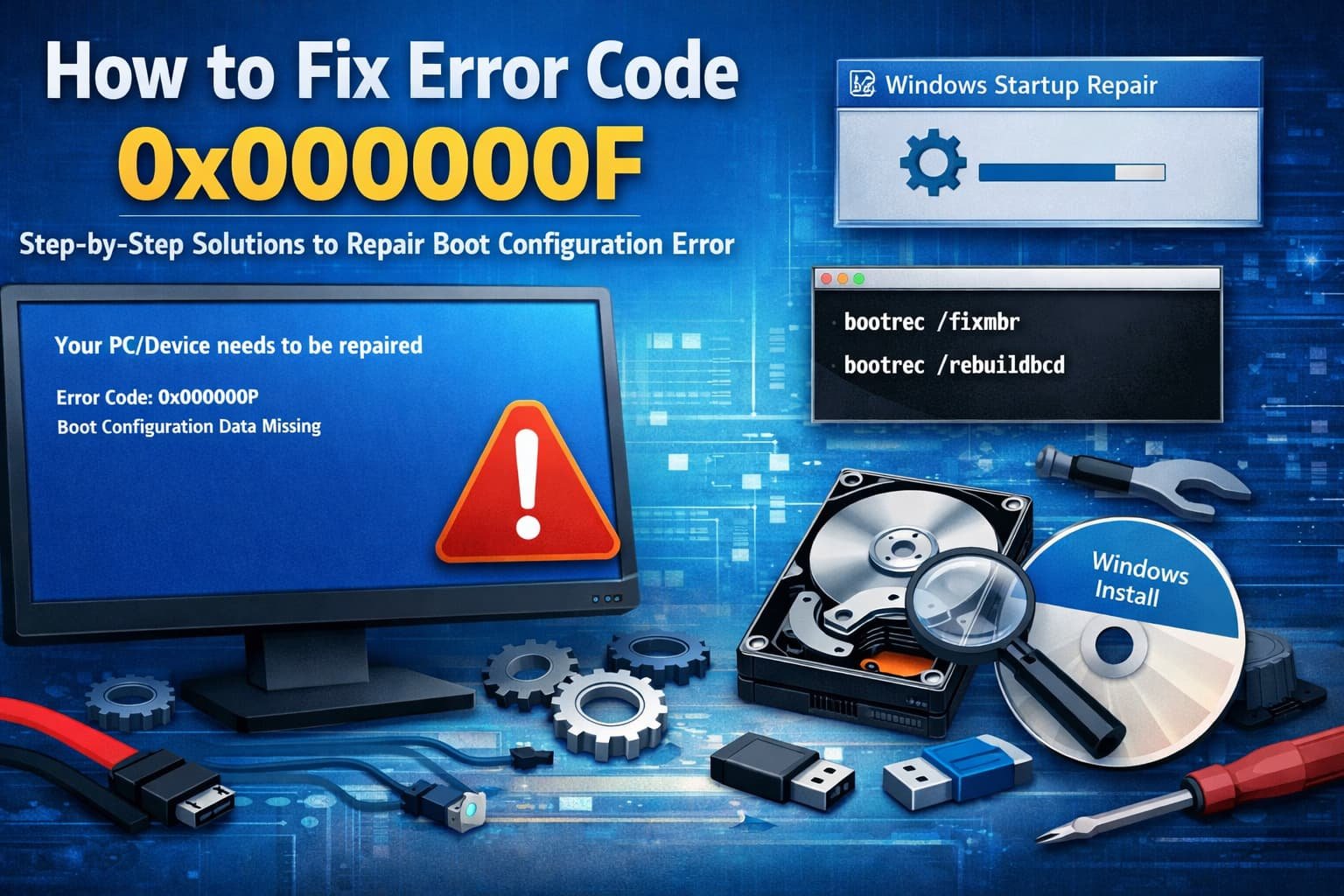
How to Fix Error Code 0x0000000F: The Complete Guide
When your computer boots up to a blue screen, it can be quite frustrating. If you are seeing the 0x0000000F error on your screen, it implies Windows is unable to find files that are essential for the boot up. This stop code indicates an issue with the Boot Configuration Data (BCD) Store. We know this can be seriously frustrating, and that’s why we’ve put together this simple guide to help you fix the 0x0000000F error – our solutions are quick, programmatic and clear.
Understanding the 0x0000000F Error
0x0000000F represents a Windows Critical boot error. It shows on a blue screen or black screen upon computer startup, and usually comes with the message: “Your PC/Device needs to be repaired” or “An error occurred while attempting to read the boot configuration data.”
This means that your system is unable to find a file in which it had the capability of looking.? It does not like what it finds and throws up this error message. Without a proper BCD, Windows doesn’t know which drive to boot from and where the OS items presents are.
Common Reasons for This Error to Occur
There are lots of reasons that can cause your BCD file to become bad and cause the 0x0000000F error. Knowing the source will help you avoid repeating the issue.
Corrupt Boot Configuration Data (BCD)
I see this a lot. The BCD file can get corrupted through an improper shutdown, power failure, disk write error, and so on.
Corrupted System Files
Booting up requires a set of system files that malware may have removed or corrupted after an update failed.
Broken Hard Disk or SSD
Your storage drive may have physical errors, bad sectors, corrupting data and making the BCD unreadable.
Wrong Boot Order in BIOS/UEFI
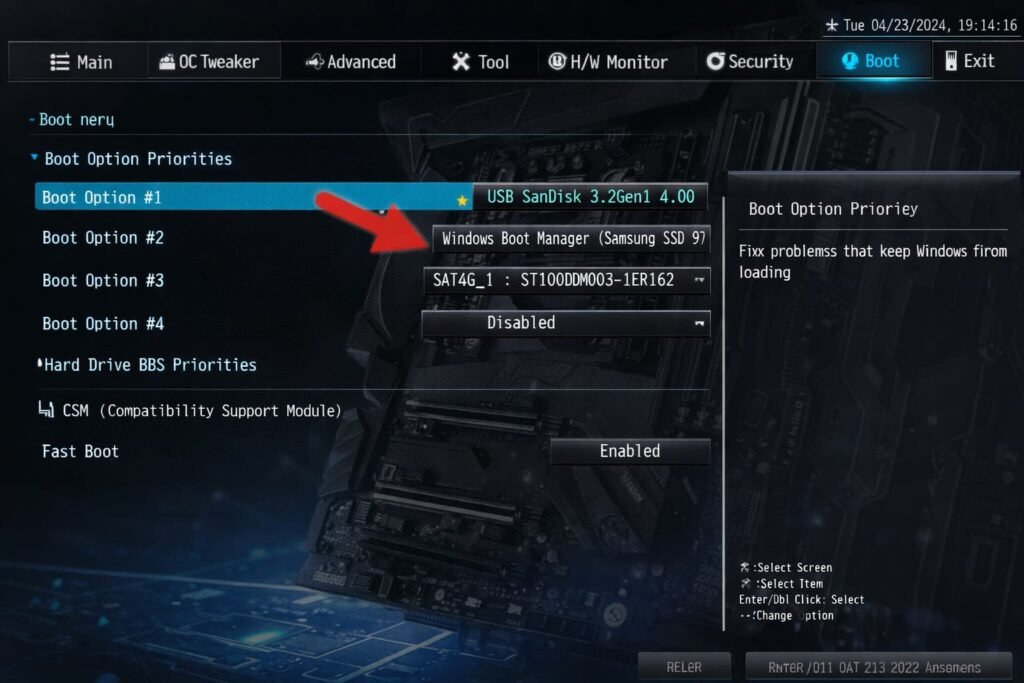
When the computer attempts to boot from the incorrect place, it can’t find the necessary files.
Bad Data Cables
If you have a computer that has failing hardware, it might not be telling you the full story. An unreliable or malfunctioning SATA/IDE cable can also cause some data transfer problems with your hard drive.
How to Fix the 0x000000F Error: Step by Step Solutions
Before you begin repairing Windows, you must have a bootable Windows installation USB drive or DVD. If you don’t have a device, you can use another working computer to create one on the official Windows Media Creation Tool site.
When you have your installation media, perform these methods in the given order.
Method 1: Boot off Windows Startup Repair
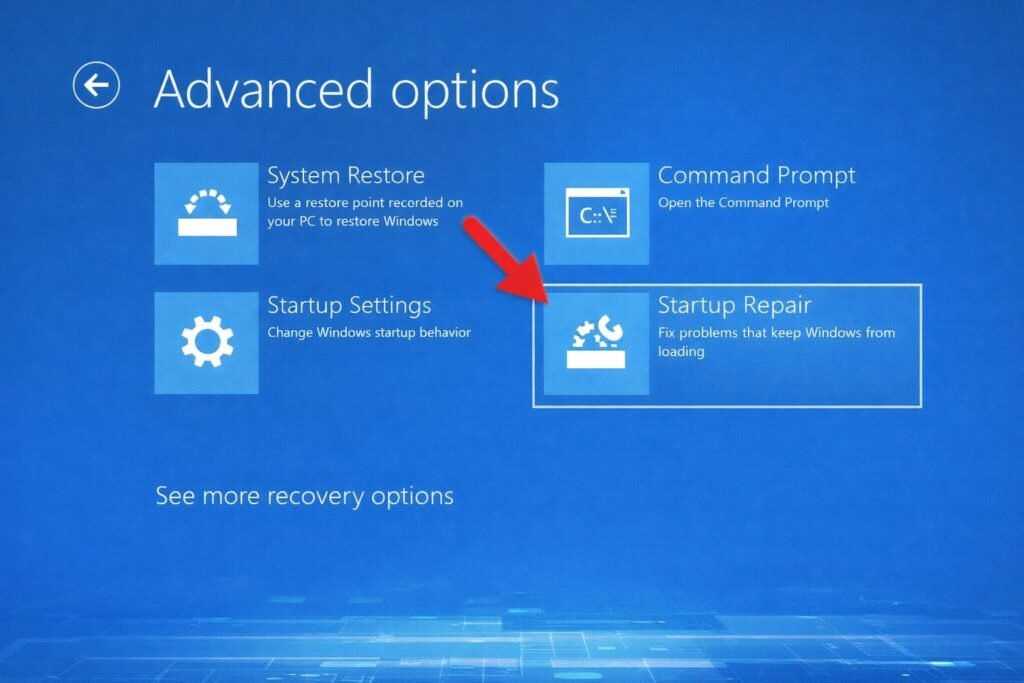
There is a Windows-native tool that can automatically repair common startup issues. This is the very first thing you should ever do.
- Plug in the Windows bootable USB into your computer or put in the Windows bootable CD/DVD and restart your PC.
- Press the appropriate key (usually F2, F12, DEL, or ESC) to enter your system’s BIOS/UEFI setup.
- Set the system to boot from the USB or DVD drive.
- Save the changes and exit. Your computer will now start from the installation media.
- From the Windows Setup screen, choose your language and click Next.
- Click Repair your computer in the lower left corner.
- Go to Troubleshoot > Advanced options > Startup Repair.
- Select your operating system. Now the tool will scan for issues and try to fix them.
- Once the process is done, eject the installation media and reboot your computer to check if the error is removed.
Method 2: How to Manually Rebuild the BCD
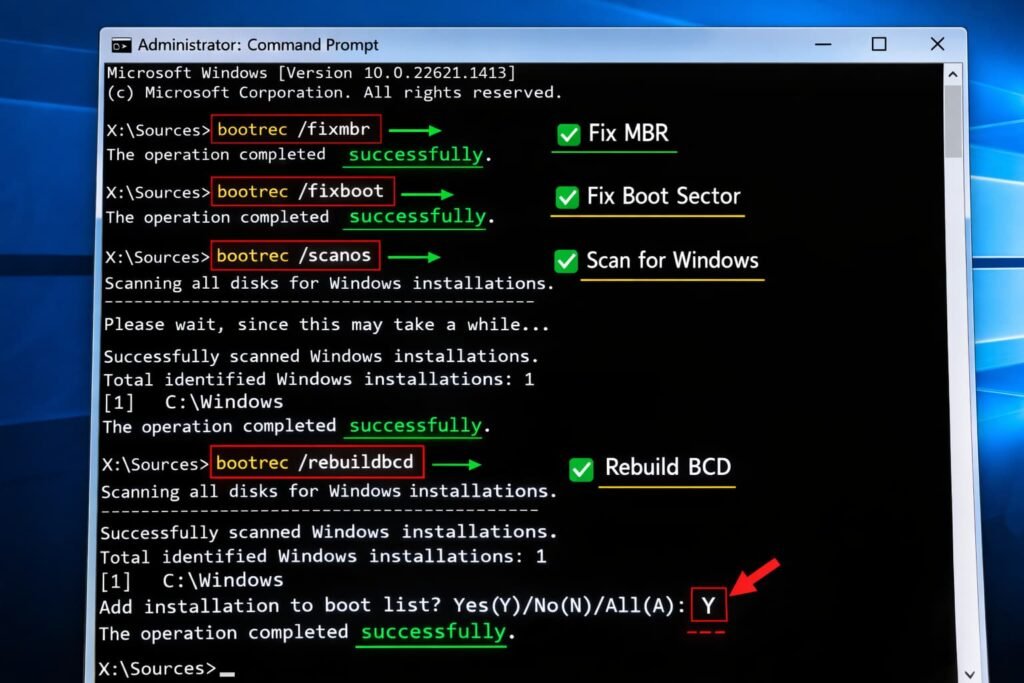
In case Startup Repair is not successful, you may have to rebuild the BCD manually. This is one of the best ways to fix the 0x0000000F boot error.
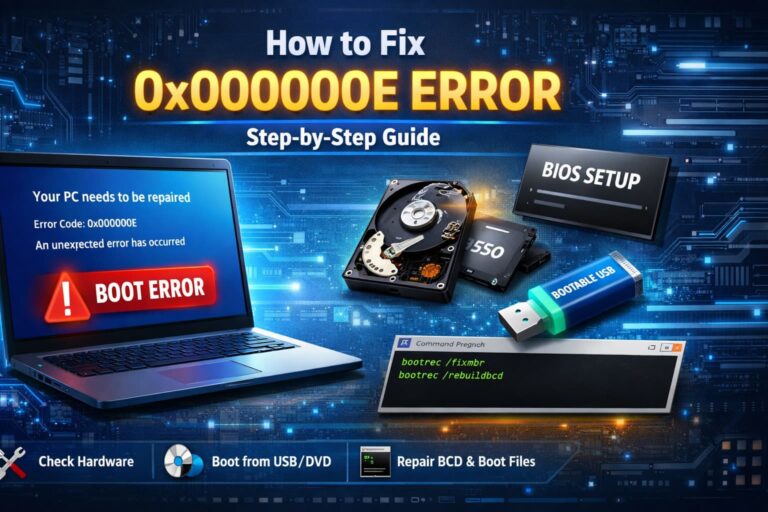
- Boot to your Windows installation disc or USB then go to Troubleshoot > Advanced options > Command Prompt.
- In the window that opens (the Command Prompt), type each of the following commands, and press Enter after typing each command:
- bootrec /fixmbr
- bootrec /fixboot (Should you come across an “Access is denied” message, continue to the next command).
- bootrec /scanos
- bootrec /rebuildbcd
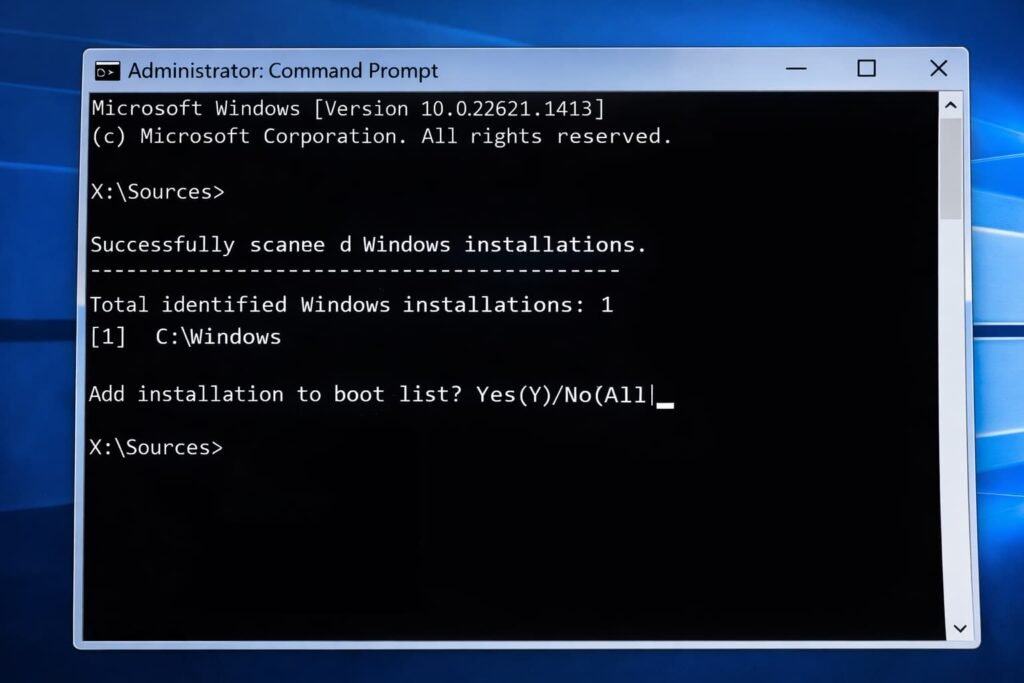
The last command will search for Windows installations. If it does, it will ask you whether you want to add it to the boot list. Type Y and press Enter.
- Not yet saving the command prompt, close it, eject your installation media, and restart the computer.
Method 3: Confirm that the Hardware and Cables are Working Fine
It can be easy for a hardware problem to disguise itself as a software one. If software solutions for the above problems don’t work, you may need to test and replace certain components.
Unplug External Devices
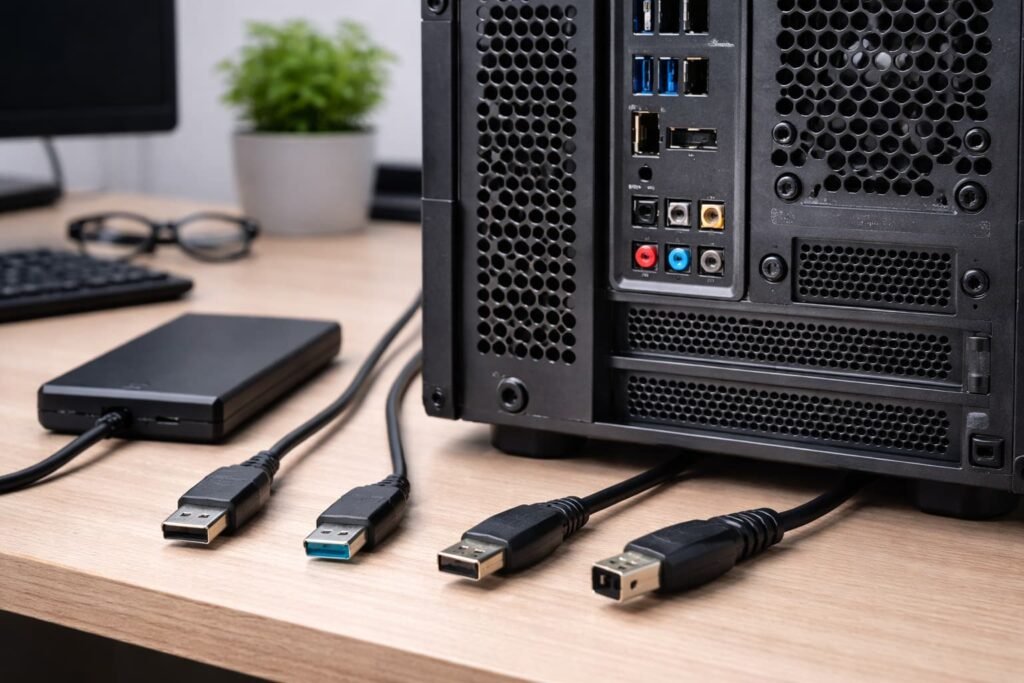
Disconnect all non-essential USB devices (external hard drives, printers, and webcams) to reboot the system. In some cases, a bad piece of peripheral can get in the way, preventing a successful boot.
Check the Cables
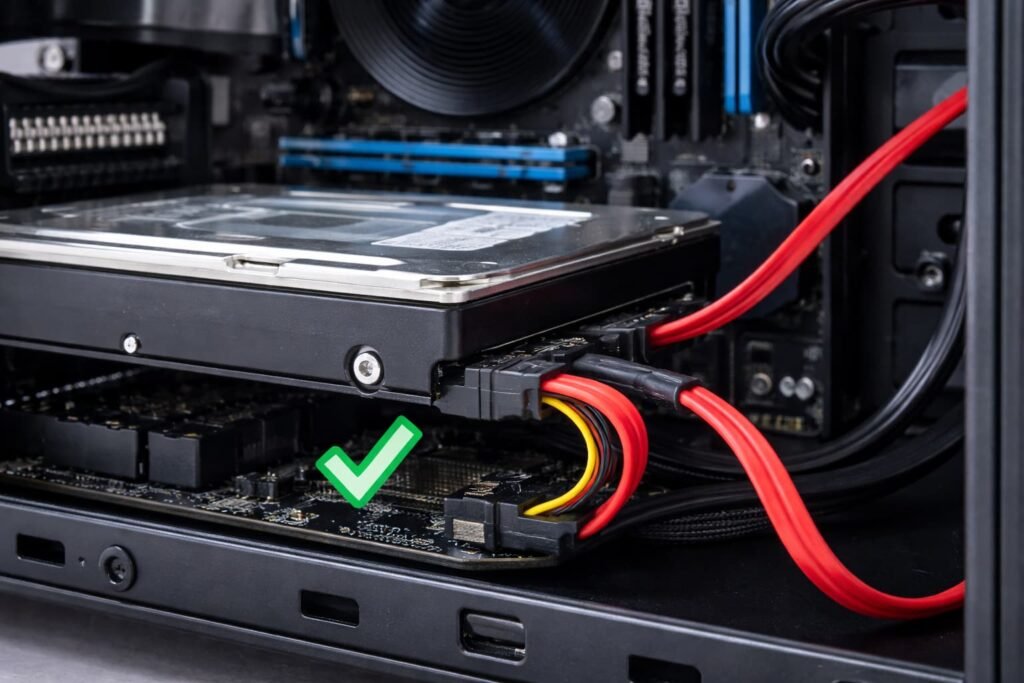
Power down your computer and remove the case. Make sure the SATA cable running from your drive (either hard drive or SSD) to the motherboard is plugged in securely at both ends. If you have a spare cable, see if the problem goes away using another one.
Run a Disk Check
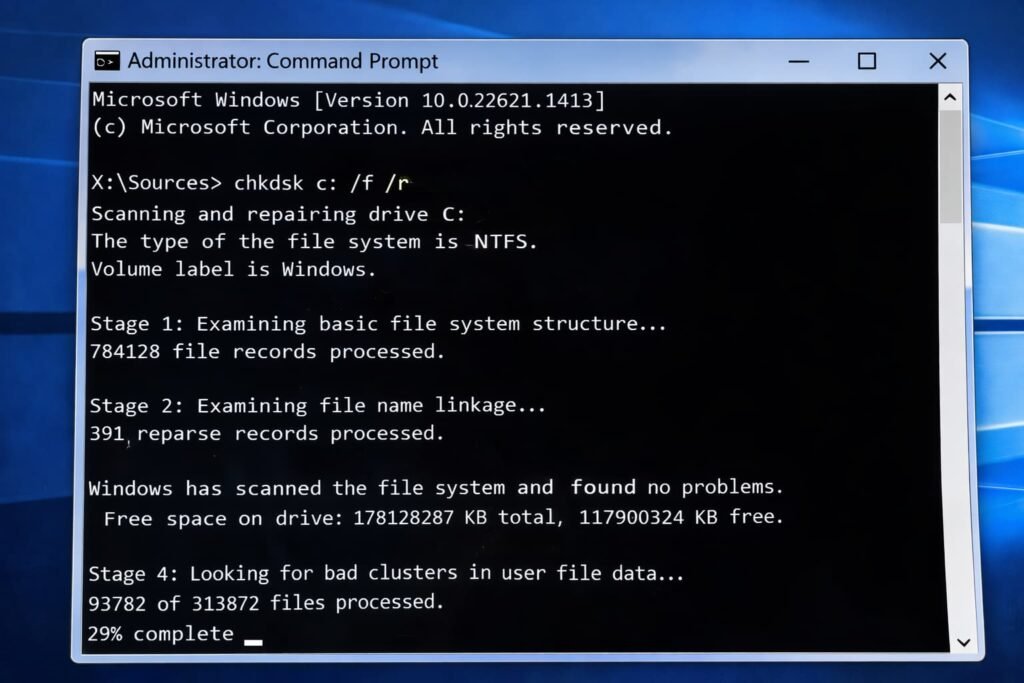
Start the Command Prompt as in Method 2. Now type chkdsk c: /f /r and hit Enter. This command will check your drive for errors and attempt to fix them.
Common Mistakes & Prevention
Additionally, solving the 0x0000000F error is a lot easier than it seems! Here are some pitfalls to avoid and best practices to pursue.
Improper Shutdowns
Make sure you always shutdown Windows via the Start menu. When you turn your PC off by pressing the power button for a few seconds, emptying your RAM (boot) can ruin system files like BCD.
Overlooking the Health of Your Drive
Hard drives and SSDs do not live forever. Keep an eye on the health of your drive using built-in Windows tools or third-party software, and stop using it if it seems likely to fail soon.
Installation of Non-verified Software
Malware can corrupt important system files. Download and install software only from trusted sources and ensure your antivirus program is up to date.
Backups
The best cure is strong backups. Maintain backups of your digital files and perhaps even a system image to restore if there’s an irreparable issue.
Frequently Asked Questions
What causes the 0x000000F error?
It is caused due to a bad or missing BCD (Boot Configuration Data) file. This may be caused by a power failure, a disk error, or a malware infection with a strong likelihood of the latter if an unstable system is further entangled by software to not boot at all.
How do I rebuild the BCD?
One way would be to connect a Windows installation media (USB/DVD), get to another advanced repair options from the Windows installation media Command Prompt, and execute bootrec /rebuildbcd. This command searches for your Windows installation and returns the results, and then adds it to a boot list.
Is error 0x0000000F caused by a faulty hard drive?
Yes, absolutely. If your hard disk has bad sectors or is failing, then Windows will not be able to read the BCD file, which can result in the Error 0x000000F. Running a chkdsk can help analyze this issue.
Do I have to have a Windows disk to resolve this error?
You’ll need some bootable Windows installation media, which can be a DVD or (much more common now) the USB flash drive. You can create one for free using an official tool on another PC. This media may be needed to access the advanced recovery tools required for repair.
Conclusion
Fixing the 0x000000F error will typically require troubleshooting, but it’s possible to repair without risking your personal files. Beginning with the automated Startup Repair and then moving on to manually rebuilding the BCD will cover most people who find themselves in this boot issue. Don’t forget to look for the easy stuff first (e.g., loose cables) as well.
You should then be able to get your system up and running again by following the steps in this guide! (As always: The key to avoid such problems in the future is to make sure safe-shutdown practices aren’t ignored and that you back up important data on a regular basis.)
Leave a Comment