
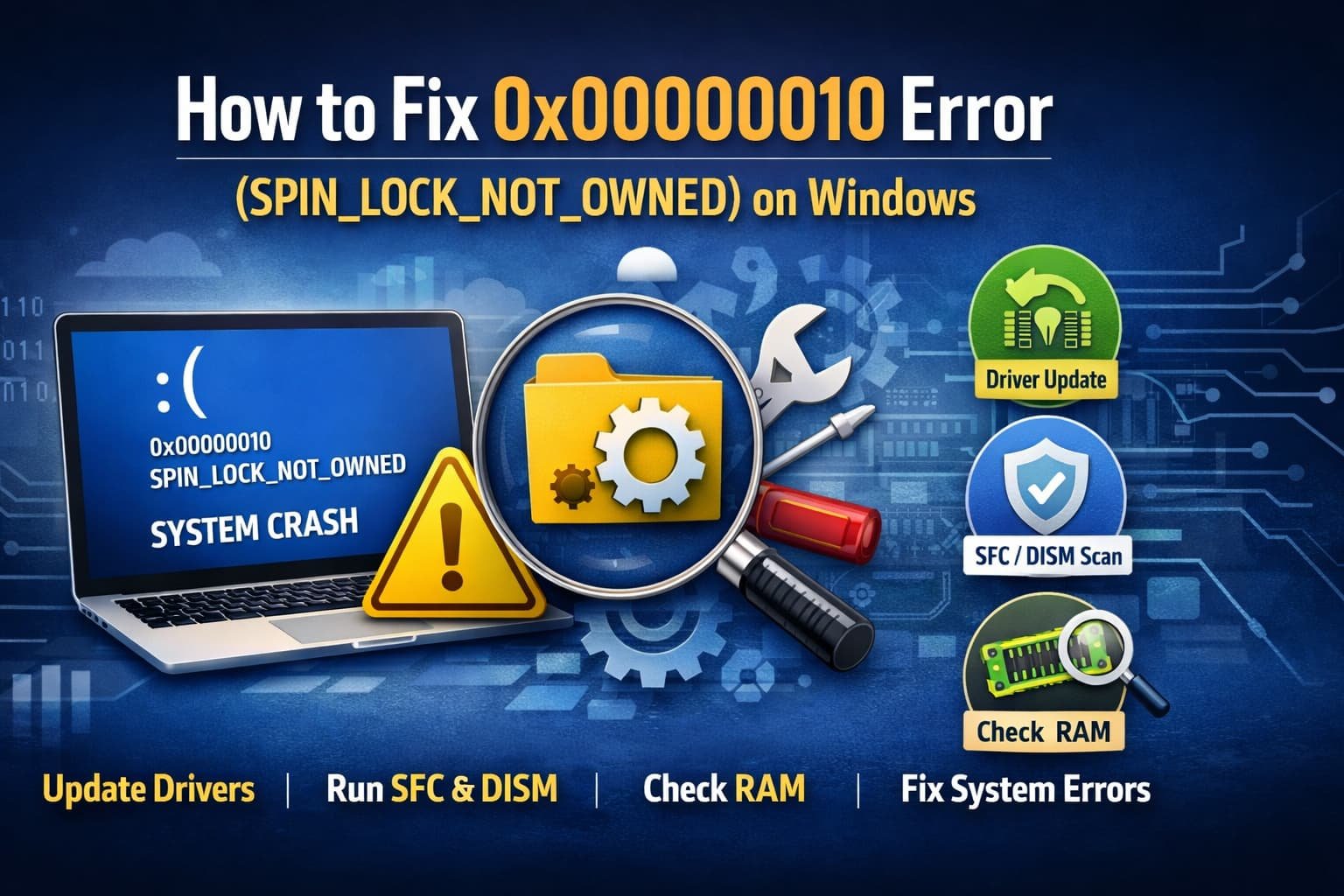
Few things are more frustrating than soaking in a good groove with an important project, and BAM! just like that it all comes crashing down. If you are experiencing 0x00000010 Blue Screen and your computer screen has turned blue then it is a common windows error. This error usually appears suddenly causing your computer to restart so that it can protect itself from any data loss.
Though those technical error codes can seem daunting, they’re just your computer’s way of telling you what went wrong. The 0x00000010 error is fixable, and you don’t often have to spend a lot of money to get rid of it. This guide will help you go through some spotting checks to trace back the problem, and bring your system back on track.
0x00000010 Error Explained: What Is It?
The 0x00000010 bug is called as SPIN_LOCK_NOT_OWNED.
To see why, think about a book you borrowed from the library. A Spin, actually a spin lock is a resource-management concept used by Windows. It makes sure that only one part of the system can use a file or piece of hardware at any given time. The problem arises when a driver attempts to “return” (release the lock on) a book it never “checked out” (owned).
In layman’s terms, there’s a bit of miscommunication happening between your OS and the hardware controlling it (the drivers). Nearly always, it’s a software (or sometimes a driver) conflict.
Common Causes of Error 0x00000010
Before discussing the solutions, it’s useful to understand why this is occurring. The most frequent culprits include:
Old or Corrupt Drivers
This is by far the most common reason. An outdated driver is not compatible with the current rules of your operating system.
System File Corruption
Important Windows components could have been corrupted by malware or forceful shutdowns.
New Software Or Windows Update
You have installed a new software or update that has created issue with current configurations.
Hardware or Driver Issue
Some faulty RAM could cause these types of driver errors, except for an issue with the hard drive.
How to Repair 0x00000010 Blue Screen of Death on Your Own Effectively Guide
If you’re currently stuck in a restart loop, try booting your computer into Safe Mode before trying these fixes. Safe Mode will load Windows with only the necessary drivers available, so this error cannot crash your system while you’re able to work.
Update or Downgrade Your Drivers
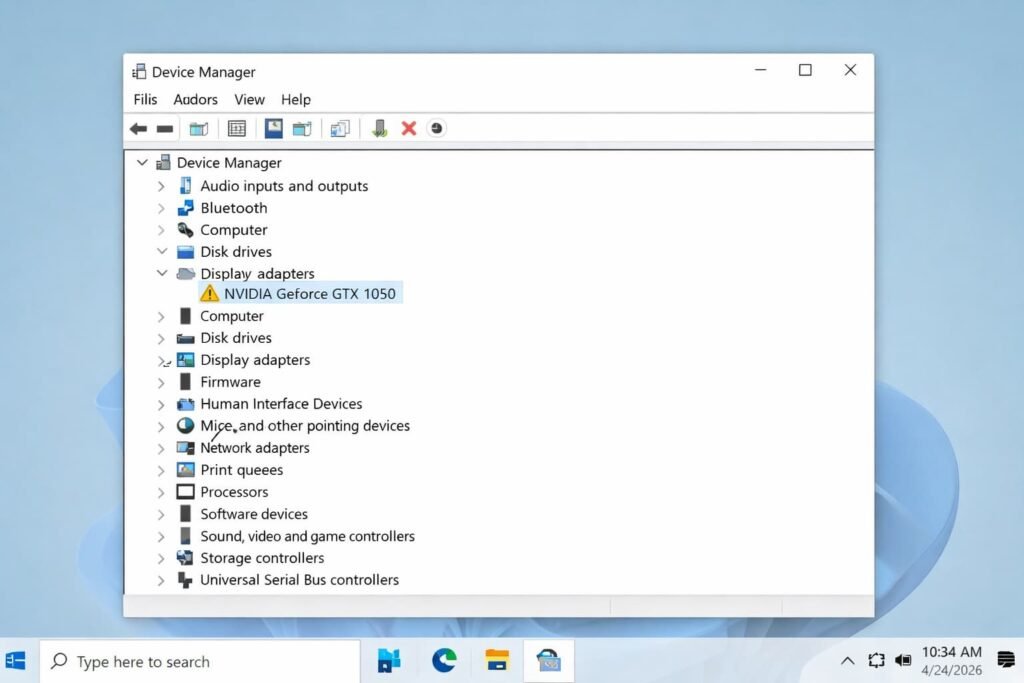
As the SPIN_LOCK_NOT_OWNED error is generally driver related, updating drivers proves to be effective in fixing it.
How to Update Drivers:
- Right-click the Start button, and choose Device Manager.
- See if there are any devices with a yellow exclamation point (!). Here are the suspects.
- Even if no warning is listed, look under Display Adapters and Network Adapters.
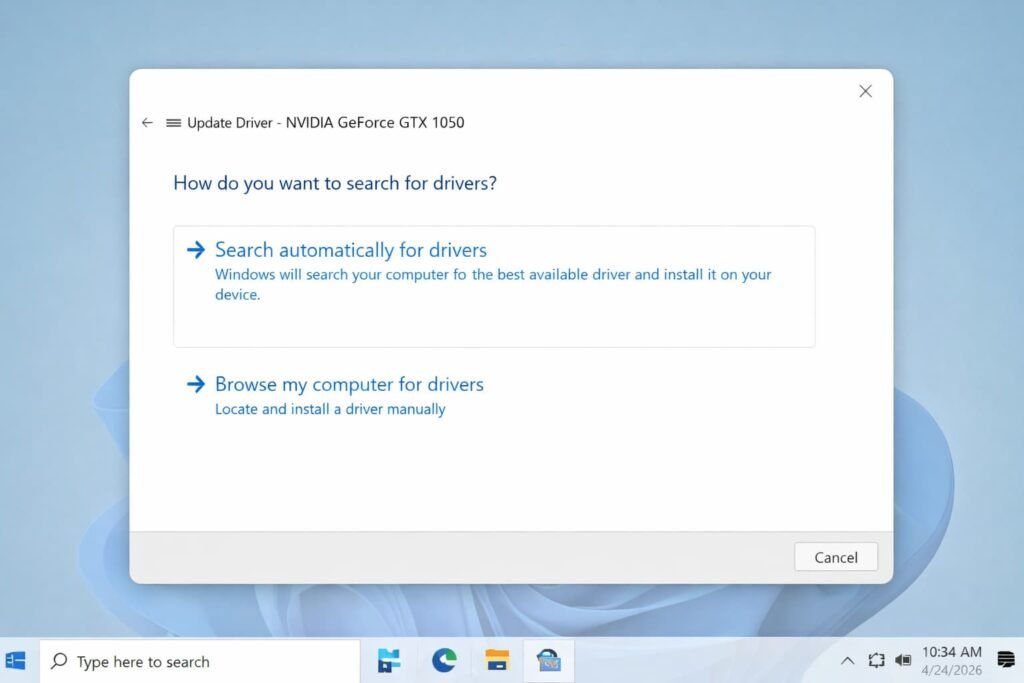
- Right-click on the device and choose Update driver.
- Choose Search automatically for drivers.
How to Roll Back Drivers:
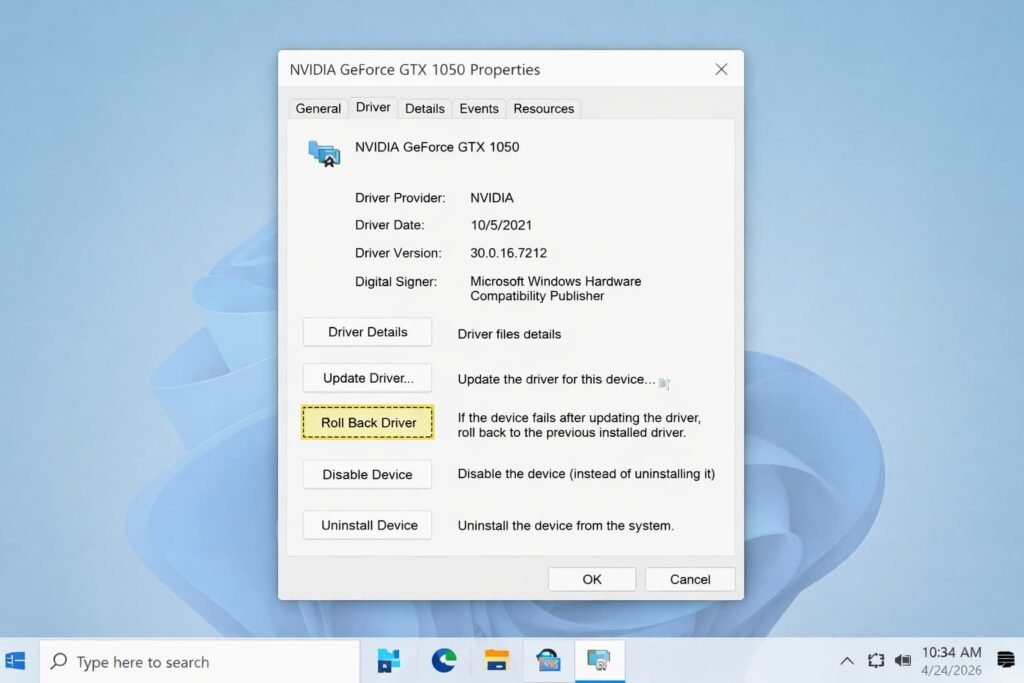
If this problem began soon after you updated a driver, then the new version could be buggy.
- Right-click the device in Device Manager and then click Properties.
- Go to the Driver tab.
- If it is listed or available, click on Roll Back Driver.
Run the SFC (System File Checker) to Repair Windows
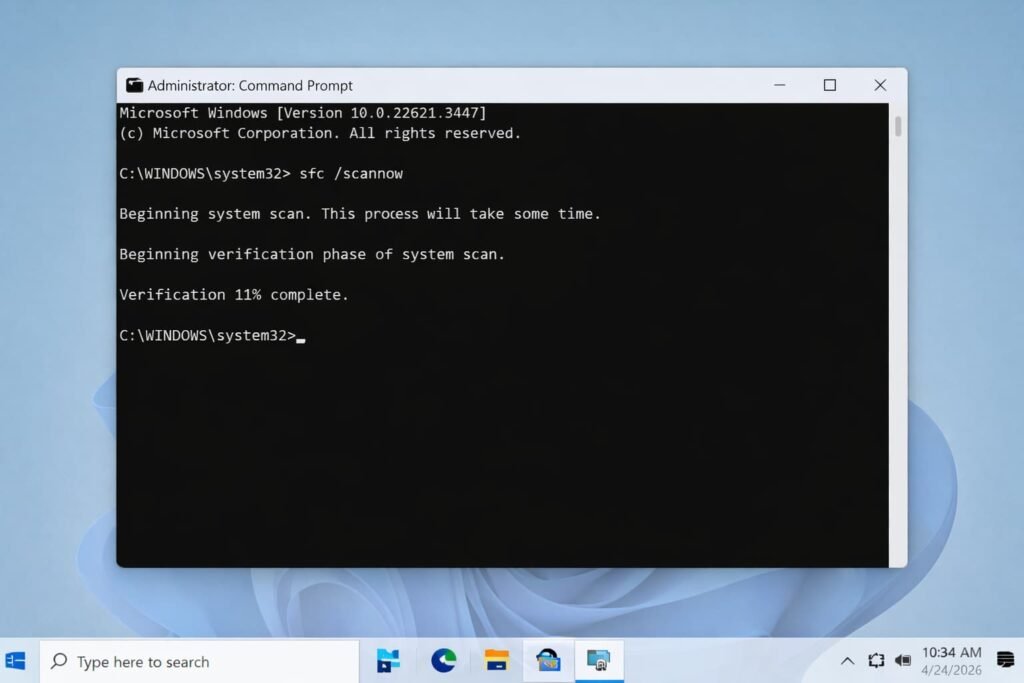
The great thing is that Windows has an integrated solution to detect and repair system files that are corrupt, which will probably trigger the 0x00000010 crash.
- The Window Search bar: Type “cmd“ in the window search bar.
- Right-click on the Command Prompt and choose Run as administrator.
- Into the black window, type the command below and press Enter: sfc /scannow
- Wait until the process is at 100%. If corrupt files are found, Windows will attempt to fix those.
- Restart your computer once finished.
Use the DISM Tool for a Healthier Windows Image
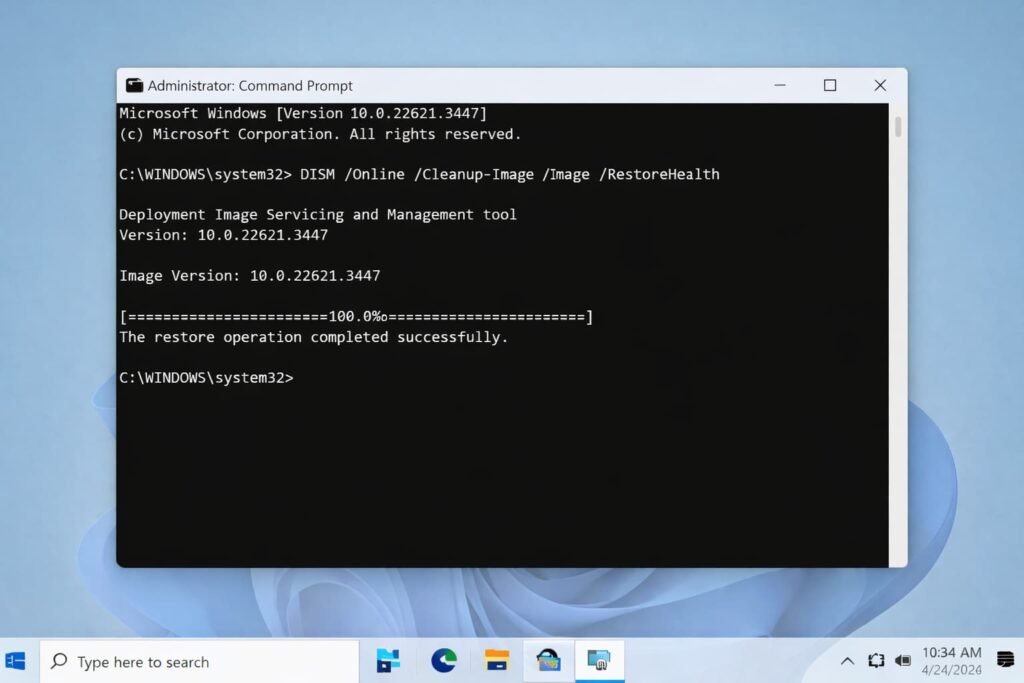
If the SFC command didn’t repair your system files, this means that you will need to use the DISM tool instead.
It the SFC scan doesn’t fix your problem, the next step is to dive a bit deeper and have DISM scan through your system. It does repair the Windows system image itself.
- Open Command Prompt as admin once again.
- Enter the following command and hit ENTER: DISM /Online /Cleanup-Image /RestoreHealth
- This should take 10-20 minutes. Do not shut down the window until it finishes.
Check for Windows Updates
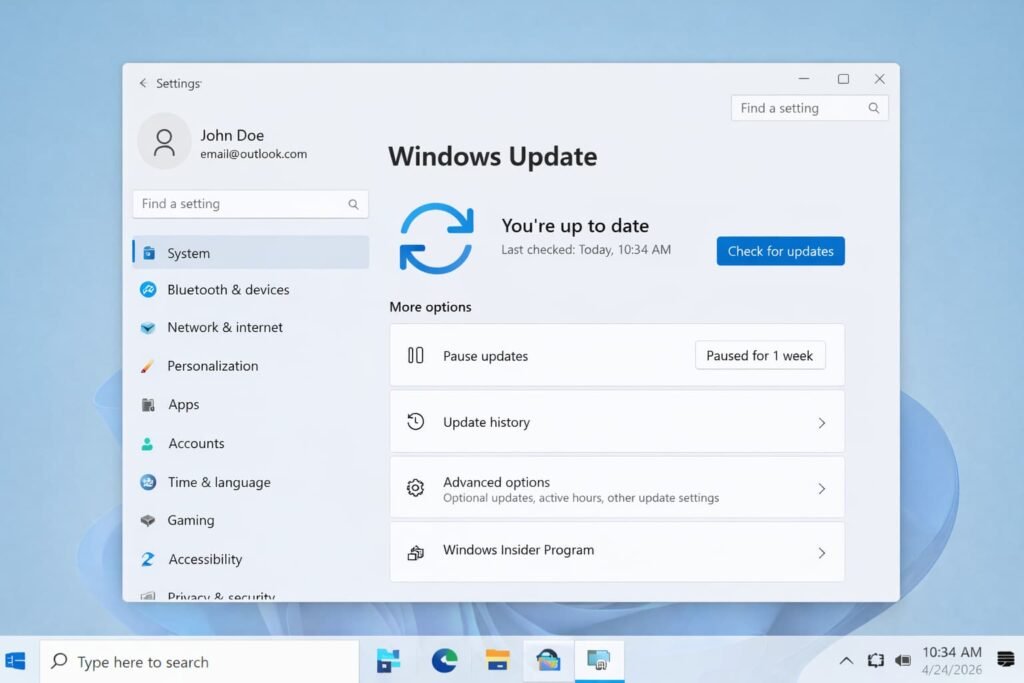
Microsoft often releases patches for known “Blue Screen of Death” errors.
- Open Settings by pressing the Windows Key + I.
- Head to Update & Security (or Windows Update on Windows 11).
- Click Check for updates.
- If there are updates, install them and reboot your computer.
Test Your Memory (RAM)
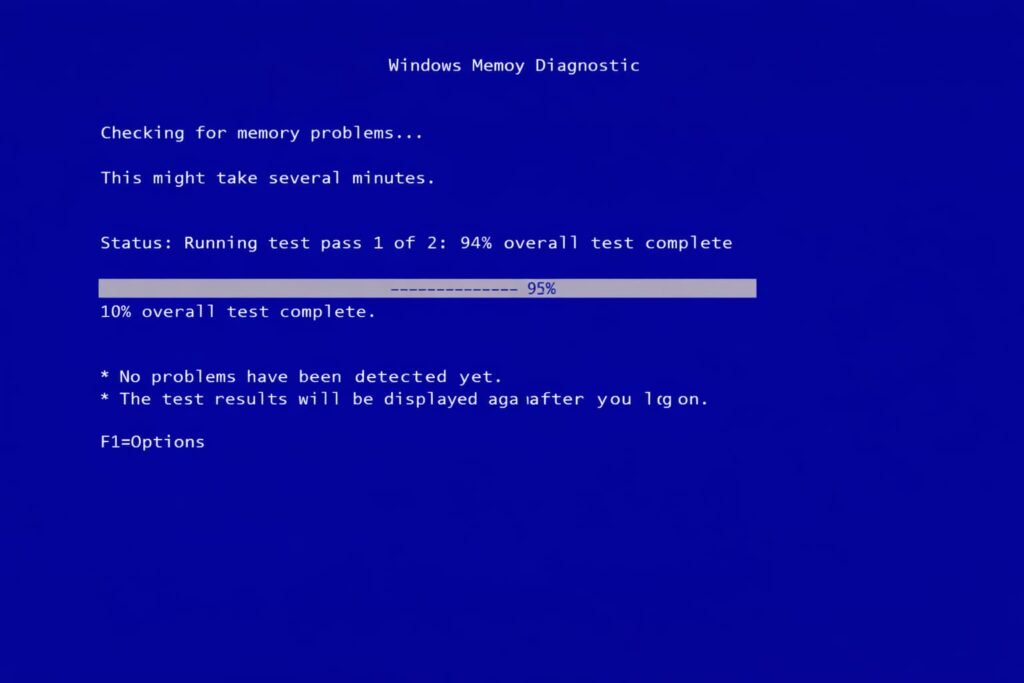
If updates aren’t working, your computer’s memory might be failing.
- Click on Windows Key and then press R key.
- Type mdsched.exe and press Enter.
- Choose Restart now and check for problems.
- Your system will reboot and launch a diagnostic exam. If so and if it encounters errors, you might need to swap out a RAM stick.
Common Mistakes & Prevention
Technical troubleshooting can be a catch-22 if you’re not careful. Wondering how you can avoid the most common mistakes while attempting to fix 0x00000010 error?
Error #1: Downloading Driver Software from Unfamiliar or Third-Party Websites
There may be fake; sometimes inexpertly generated driver listings inundate the marketplace. So the user panics and downloads “automatic driver updaters” from some random website. These software would inevitably come with malware, or wrong drivers.
Prevention:
Only install drivers from your hardware manufacturer’s website (HP, Dell, ASUS, etc) or Windows Device Manager.
Mistake 2: Ignoring the Problem
It might be tempting to ignore the crash if the computer restarts and appears to be running normally. But the BSOD error doesn’t often resolve on its own. Neglecting them can even result in total hard drive failure or data corruption down the road.
Prevention:
Research the error when it occurs for the first time. Go to your event logs and check what generated the error.
Mistake 3: Overheating
At times, overheating of hardware leads to driver failure resulting in the error.
Prevention:
Don’t cover up the heat vents on your laptop with blankets. If you’re using a desktop, verify that all the fans are working.
Frequently Asked Questions (FAQ)
Can a virus trigger the 0x00000010 error?
Indeed, malware can destroy system files or emulate driver actions which effectively dumbfound the Windows kernel. Performing a full scan with Windows Defender (or another, well-regarded antivirus program) is a clever troubleshooting step.
Does resetting Windows to factory settings solve the 0x00000010 BSOD?
Reinstalling Windows is the nuclear option. It will almost certainly solve the problem if it is software related, but you should only do this as a last resort. Well, run through the driver updates and sfc/dism commands first to save yourself the hassle.
Is 0x00000010 a hardware failure?
It’s typically an issue with the software (driver). But if you’ve updated all your drivers and done the above, yeah, it’s looking like failing hardware—which would probably be RAM or motherboard in this case.
How can I determine which particular driver is causing the crash?
You can use a tool like “BlueScreenView” to keep your data, or check out the Windows Event Viewer. Search for “Error” entries with a red timestamp of the date and time your computer crashed. It will even directly say which file (ex: nvlddmkm.sys for NVIDIA graphic cards) caused the crash.
Conclusion
The 0x00000010 error is the Hexadecimal format of the error caused, this is a common type of Windows issue that cannot always be directly explained. Although the “Blue Screen of Death” is frightening, for many of us it’s a solvable hardware or drive issue that even those without a computer science degree can fix. This is basically because the driver, Windows and all other utilities are out of date. Here I will post 5 steps to simply fix FSQA AutoPunc error step1 Download and install Driver Easy.
Remember to act immediately and not sit for the next crash. As with a stable car, it begins with drivers that are healthy and maintenance that is consistent.
Actionable Takeaway:
Go to Device Manager right now, and first look for those warning! icons. There’s nothing that makes good this error very no installing or updating any incompatible driver.
Leave a Comment