
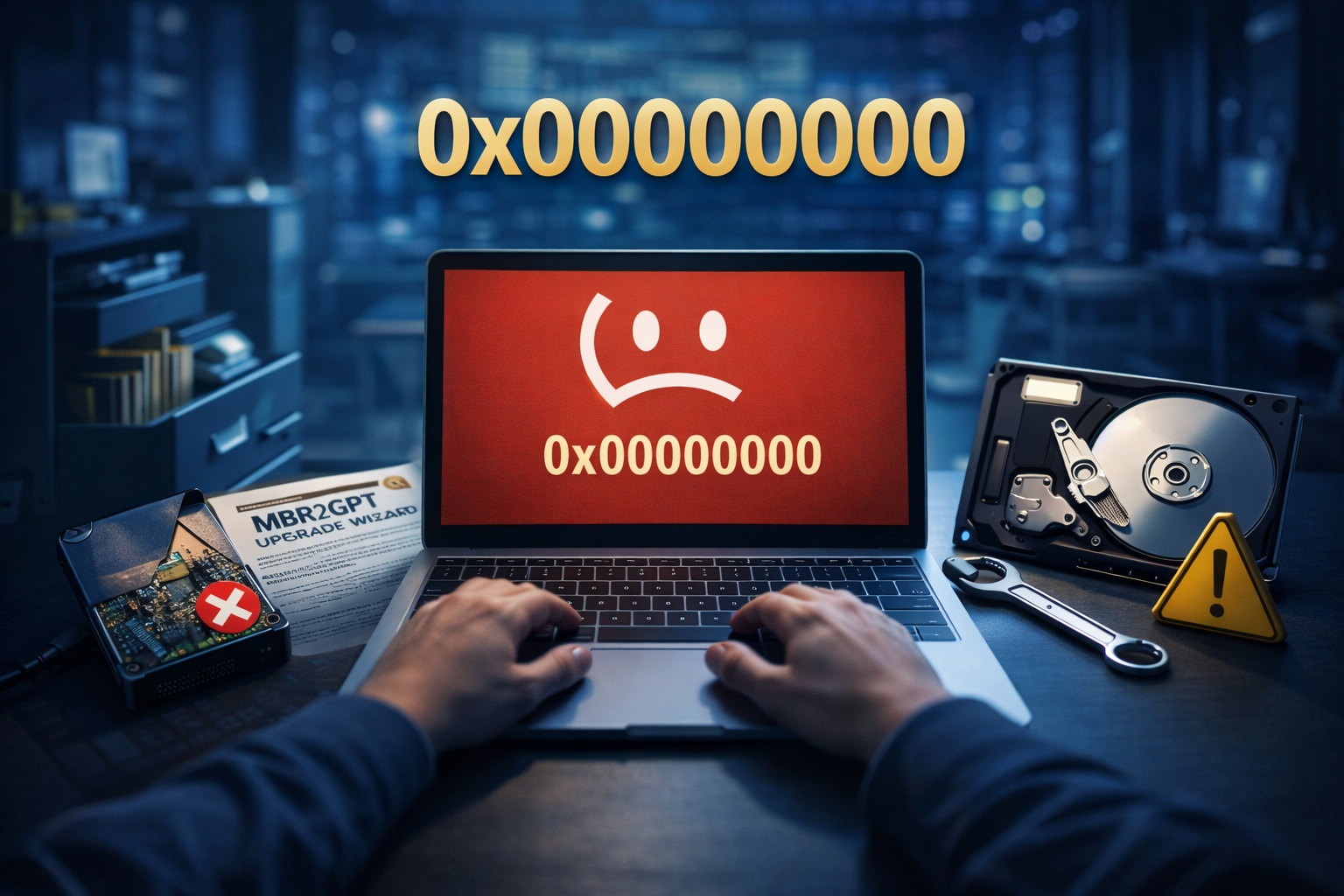
The error code 0x00000000 is one of the most annoying issues for many Windows users. This error usually occurs when your computer’s boot files, system files, or disk is corrupted. Although it sounds technical, knowing the reason behind this error will enable you to resolve it in an efficient manner. In this guide, we will explain why the 0x00000000 error can happen, and how you can fix it.
By the time you finish reading this article, you will know what to do when this error occurs on your system and how to prevent future occurrences for a smoother experience. Let’s dive into the details!
What is Error 0x00000000?
When the driver code violates a condition (for instance, it tries to divide by zero), or Windows kernel generates an exception while some critical error has occurred (like making illegal access to memory), you may see the bug check code on the STOP screen. It may also appear during system startup, installation, or while attempting to upgrade your system. The error means that Windows is unable to load specific files or carry out critical operations due to an issue.
Although this error may seem complicated, there are a few common causes and corresponding fixes that work to resolve it. The error frequently appears when, for example, you are using the MBR2GPT tool, or there are corrupt boot files or partition errors.
Causes of Error 0x00000000
Corrupt Boot Configuration
This is one of the most frequent causes of the 0x00000000 error. If there’s something wrong with your boot configuration, or it’s missing entirely, Windows won’t be able to start correctly, and you’ll see this error. This often occurs following an upgrade, a crash, or even sometimes after a problem with the hard disk.
Issues with the MBR2GPT Tool
The MBR2GPT utility is a popular tool used to change the disk type from MBR (Master Boot Record) to GPT (GUID Partition Table). The error can occur if the MBR2GPT validation fails, or incorrect disk layout is configured. It is very important that the disk configuration and the conversion process are done properly.
Disk Layout or Partition Errors
Error 0x00000000 can also be caused by a disk layout validation error. This can occur if the partition structure on the computer is not properly configured, or if there is a problem with the disk’s boot sector.
How to Fix Error 0x00000000
Step 1: Repair Disk Layout Issues with MBR2GPT
If you receive the MBR2GPT disk layout validation failed along with error 0x00000000, the MBR2GPT Tool can help resolve this issue. Here’s how you can fix it:
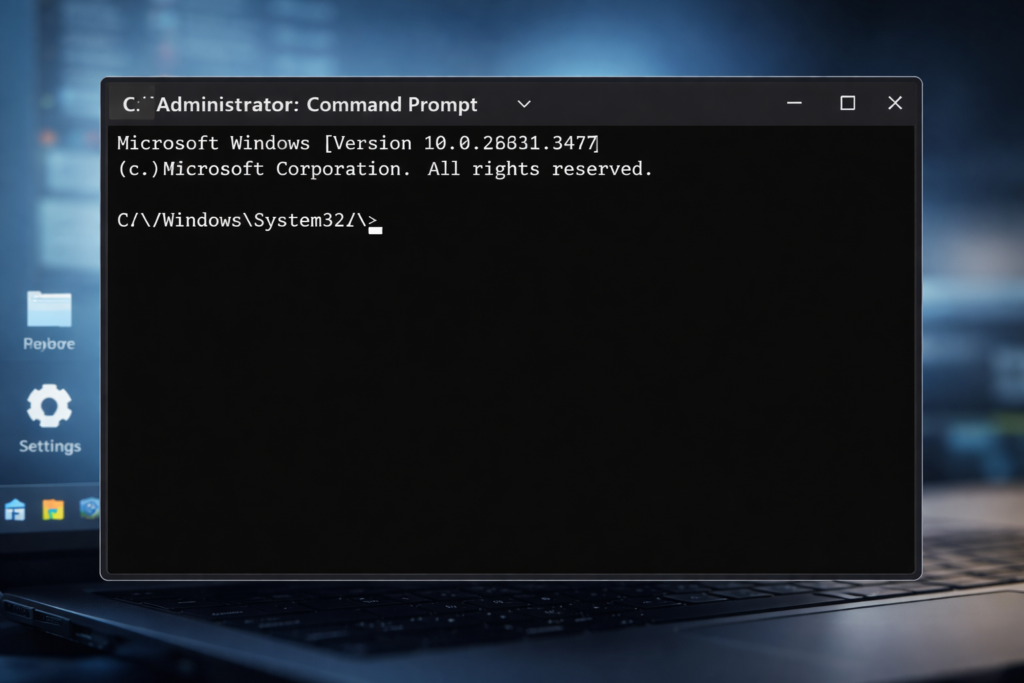
- Open Command Prompt as Administrator.
- You can check the disk like so:
mbr2gpt.exe /validate /disk:0 /allowfullos- The
/validateoption will determine whether the disk can be converted from MBR to GPT without actually performing the conversion. - The
/disk:0portion specifies what disk you are testing (usually0if you only have one disk). - The
/allowfullosenables the tool to run in a full operating system environment.
- The
- If validation does not pass, use the command below to convert:
mbr2gpt.exe /convert /allowfullosIf the validation is successful, it will convert your disk from MBR to GPT.
Step 2: Inspect and Repair the Boot Configuration
Another cause of 0x00000000 can be a missing or corrupt boot configuration. You can fix this with these steps:
- Turn on your device with Windows installation media (USB/DVD).
- From the Windows Setup screen, press Shift+F10 to open Command Prompt.
- Follow these steps to restore the Boot Configuration Data (BCD):
bootrec /fixmbr bootrec /fixboot bootrec /rebuildbcd - Once you do these steps, restart your PC.
Step 3: Perform a Disk Check
Disk errors may provoke the error 0x00000000. This is how to search for disk problems:
- Open Command Prompt as Administrator.
- Type the following command:
chkdsk C: /f /r- The
/fflag tells the tool to attempt to fix errors. - The
/rflag scans for bad sectors and tries to recover them.
- The
- Once the tool has finished running, follow the prompts to restart your computer.
Step 4: Reinstall Windows
As a last resort, if none of the above solutions helped and you continue to face the 0x00000000 error, then reinstalling Windows is an option. Don’t forget to back up your data before reinstalling everything.
Best Practices and Prevention Tips
To avoid the likelihood of running into the same issue in the future, consider following these best practices:
- Regularly backup your system to prevent data loss.
- Always shut down your system correctly to prevent damage to system files.
- Use disk utilities to keep your hard drive correctly partitioned.
- Update your system and drivers to avoid compatibility problems.
Common Mistakes to Avoid
- Skipping the Disk Validation Step: If you receive an error, it could be that you did not validate your disk prior to conducting the MBR2GPT conversion.
- Not Applying System Updates: Missing Windows updates can lead to incompatibilities and errors such as 0x00000000.
- No Data Backup: Always keep your data backed up before making changes to disk configurations or Windows installations.
Frequently Asked Questions
What is 0x00000000 error?
The 0x00000000 error is a STOP error caused by the computer having problems with its boot configuration, disk partitions, or boot files being corrupt.
What is stop error 0x00000000 and how do you fix it?
To troubleshoot the STOP error 0x00000000, use the MBR2GPT tool to confirm or convert the disk, fix the boot configuration using Command Prompt, or run Check Disk via chkdsk.
Why am I getting an error of validation failed when running MBR2GPT tool?
The MBR2GPT validation failed error generally appears if the disk with an incompatible or invalid layout is unable to convert from MBR to GPT. It can also occur if there are bad sectors or partition errors on your hard drive.
Conclusion
The 0x00000000 error is a nuisance problem that, hopefully, you can easily overcome on your own and restore your PC back to normal operation. Whether you face problems with boot configuration, MBR2GPT validation failure, or errors in disk layout, I hope that after applying the above-mentioned methods and troubleshooting tips, you will be able to resolve the issue for good. If you continue to have issues, try a reinstall of Windows as a last resort.
Taking precautions like regular backups and disk maintenance could mean that such errors will never bother you again.
Leave a Comment