
The 0x00000004 error message is a known problem that can cause problems for your system, and often leaving you scratching your head in confusion as to how to fix it. There’s nothing worse than the frustration of getting that message and not knowing what it is nor how to fix, but whether you’re a beginner or have been using it for awhile now, learning this error and how to solve it will save you some time and headache. In this guide, we are going to tell what the 0x00000004 error is, why you come across it, and how you can sort it out with some easy solutions.
Main Content
What Is the 0x00000004 Error?
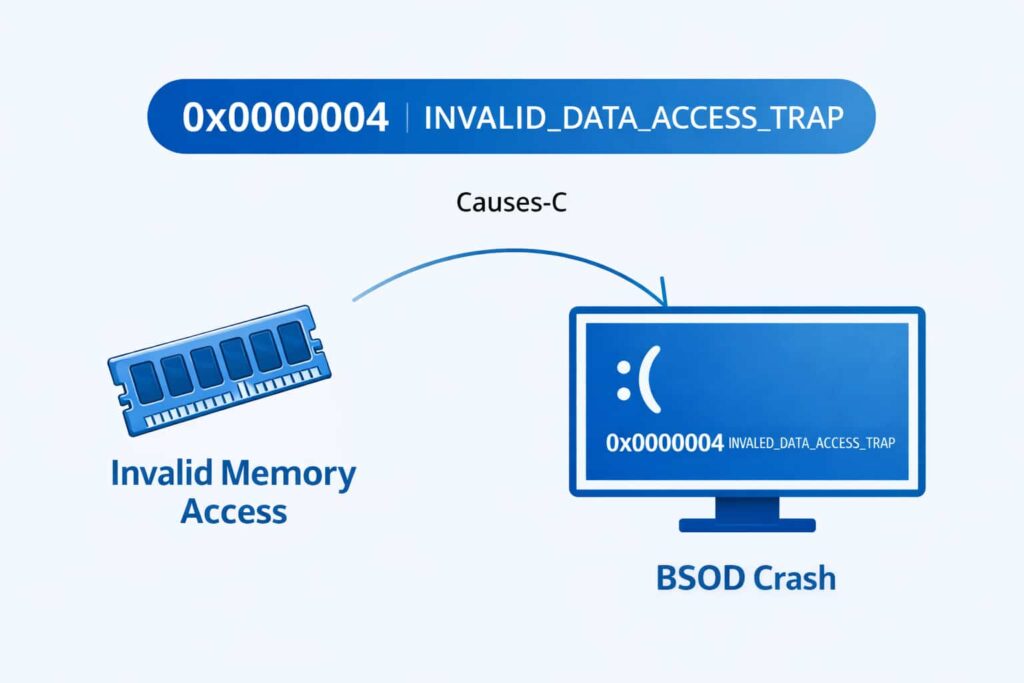
0x00000004 is an “INVALID_DATA_ACCESS_TRAP” error that occurs in Windows during a crash or BSOD. And this error means the OS found an access violation where it did not know how to handle it.
Why Does the 0x00000004 Error Occur?
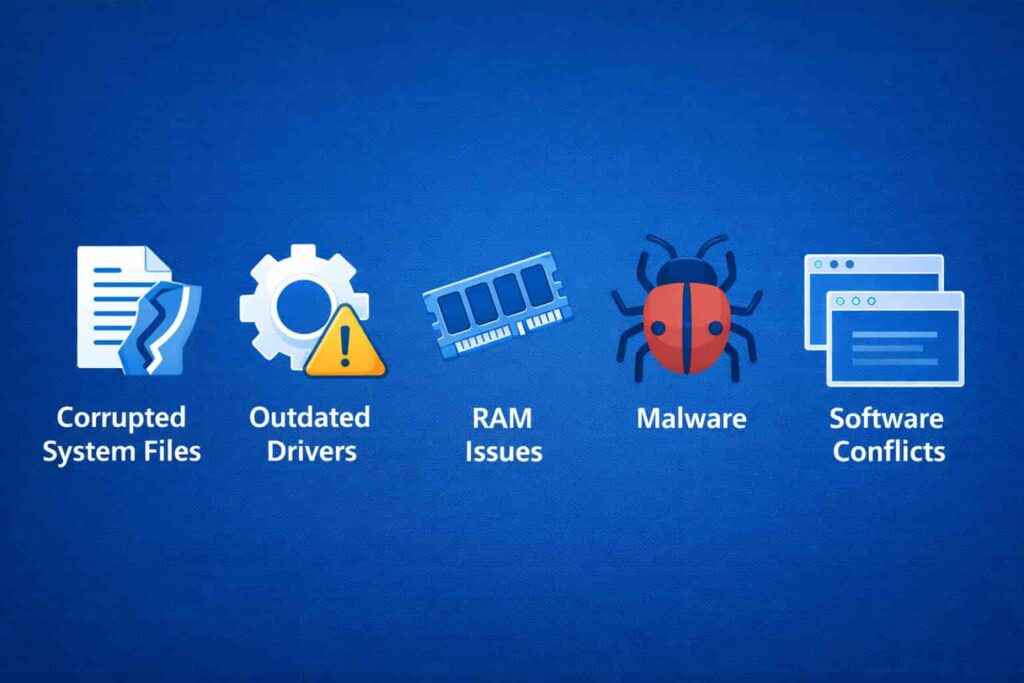
The 0x00000004 error can be caused by a variety of factors, and referenced above are several that may cause the system to shut down.
Missing Or Damaged System Files
Missing or damaged files can cause interruption in system operations.
Obsolete Drivers
Problems can occur when your hardware device is too old or not supported any longer.
Hardware Problems
RAM – memory access errors can occur when the RAM is bad.
Malware or Viruses
Some malicious programs can damage important system files.
Software Conflicts
Any newly installed applications or updates could clash with other functions of your system.
How to Solve the 0x00000004 Error
Follow these steps to troubleshoot the issue:
Restart Your Computer
A lot of times, the simple reboot can help get rid of any temporary bugs that cause the error.
Perform an SFC Scan File Checker for Windows
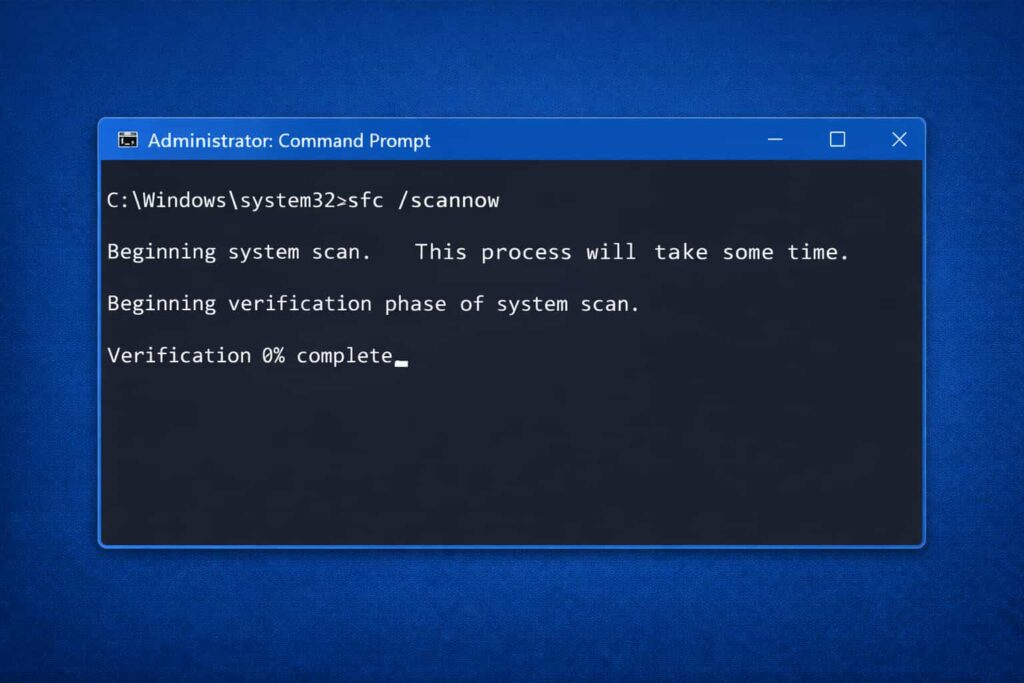
- Run the Command Prompt as an administrator.
- Type sfc /scannow and hit enter.
- Be patient for the scan to finish and follow any prompts on your screen.
Update Your Drivers
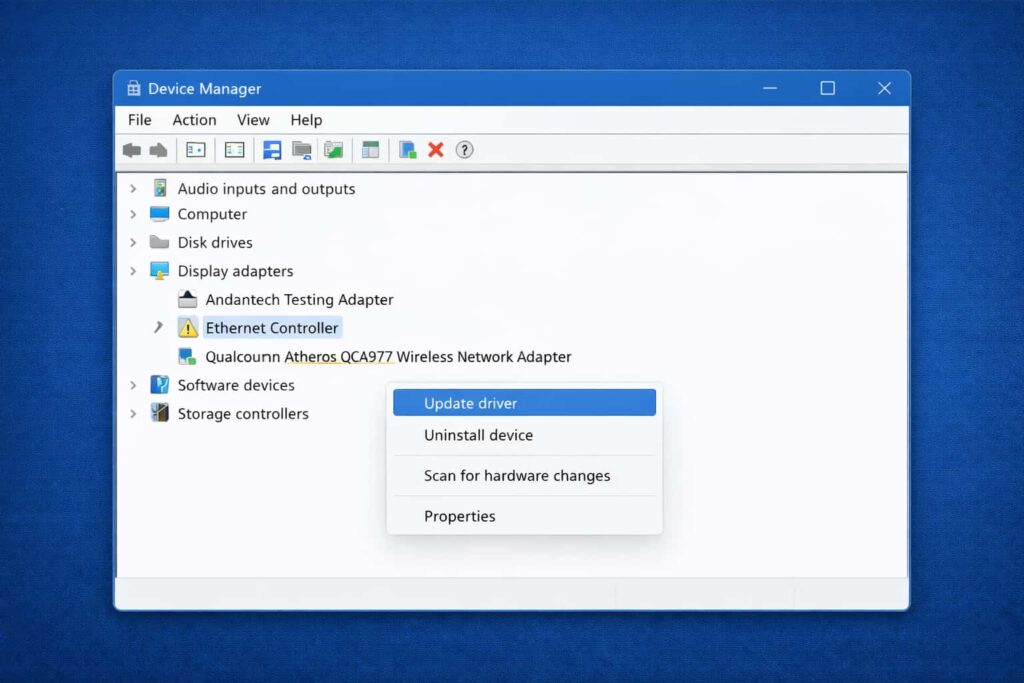
- Go to Device Manager (Win + X > Device Manager).
- Right-click on any device with a yellow exclamation point and choose “Update driver.”
- Or you can get new drivers from the manufacturer’s website.
Check for Windows Updates
- Access Settings > Update & Security > Windows Update.
- Click “Check for updates” and install any that are available.
Run a Memory Diagnostic Test
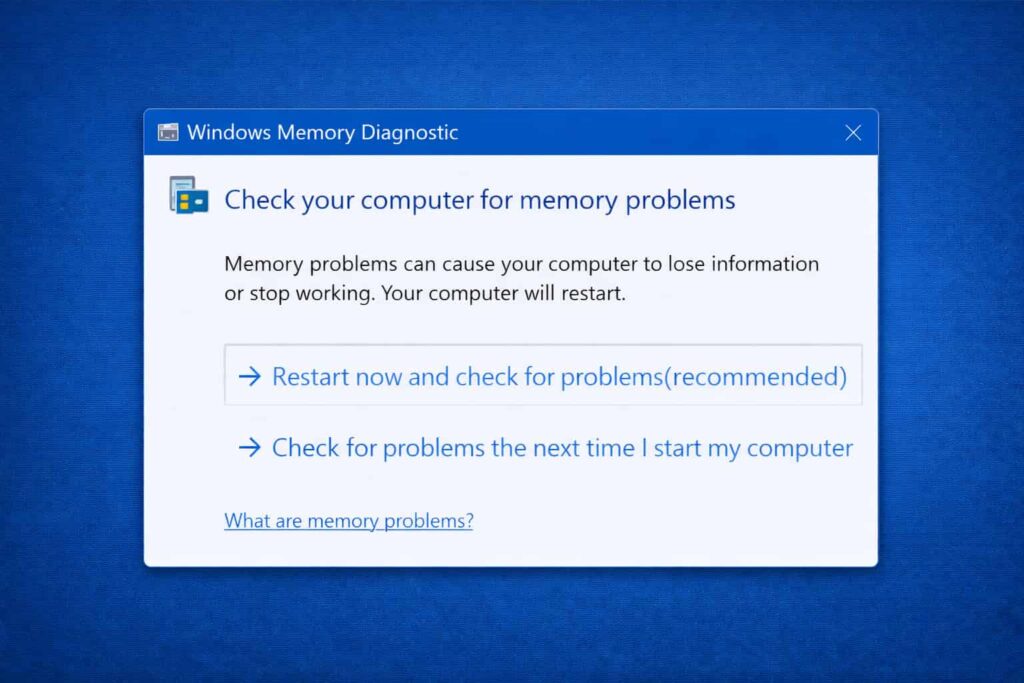
- Press Win + R, type mdsched.exe, and press Enter.
- Select “Restart now and check for problems.”
- Closely watch and read the results for any RAM problems you see.
Scan for Malware
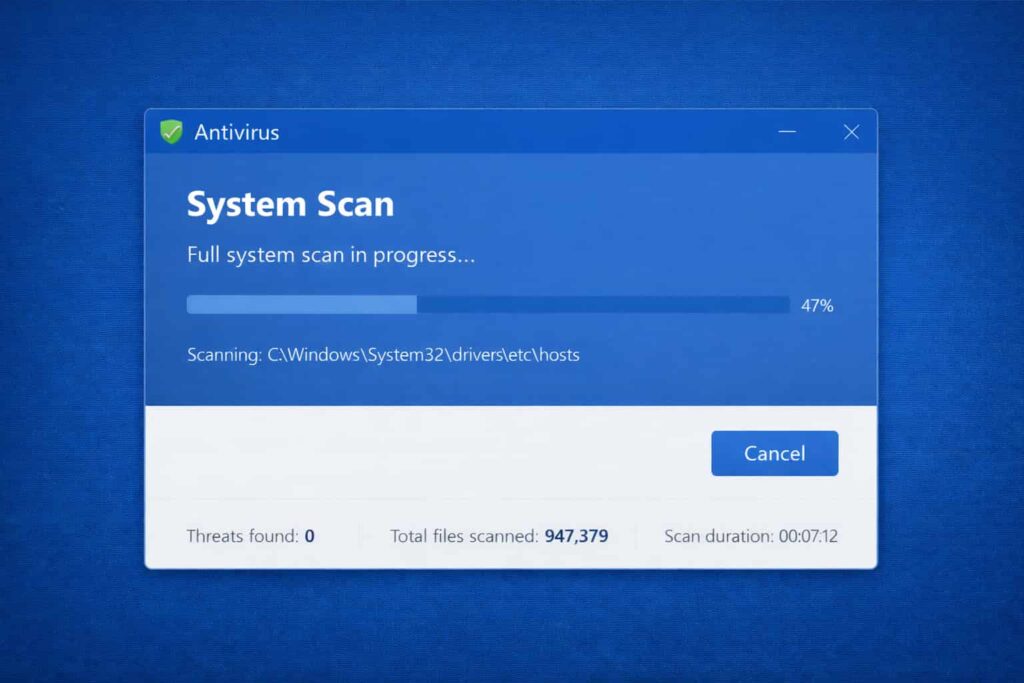
Run a full system scan with a reliable antivirus application. Remove any threats if found and reboot your PC.
Perform a Clean Boot
- Hit the Win + R key to open run time, and then type “msconfig” and click OK.
- Under the “Services” tab, select “Hide all Microsoft services“, and then click on “Disable all.”
- Restart your Computer and try if it doesn’t work.
Check Hardware Components
- Check the physical condition of your RAM and hard disk.
- Use something like MemTest86 for RAM and CHKDSK (enter) for HDD issues.
Best Practices and Prevention Tips
- Always keep your OS and drivers updated.
- Get a good antivirus program to guard yourself from malware.
- Do not install unauthorized software or make unauthorized system changes.
- Regularly back up your data to avoid the loss during system meltdown.
- Utilize diagnostic and physical tools to identify the health of systems in hardware.
Common Mistakes to Avoid
- Excluding system updates, which could allow for vulnerabilities to remain unpatched.
- Running on old or cracked software that could be incompatible.
- Bypassing hardware diagnostics, which can miss important issues.
Frequently Asked Questions (FAQs)
What is the 0x00000004 error?
Error 0x00000004 is basically a Windows stop code that shows up as an invalid memory address, and it usually ends in blue screen of death (BSOD).
Is there any way that I can repair 0x00000004 error without seeking professional advice or help?
Yes, for the majority of them, users could use some troubleshooting methods mentioned above like SFC scan or driver update to deal with this error.
How can I diagnose a hardware issue?
You may use MemTest86 to diagnose your RAM, and CHKDSK to find or repair hard drive errors.
How can I stop 0x00000004 error from happening again?
Keep your system up-to-date, have an antivirus program installed, and check the hardware regularly.
When do I need to see a health professional?
If all means attempted in this guide fail, it is highly recommended to ask help from an expert.
Conclusion
The 0x00000004 error is quite annoying, however, it can be solved with ease if treated correctly. With a little help from this guide — and a bit of patience, as the problem-cause shall be revealed now — you can learn why multi-line gradients cause your React Native app to crash and get rid of the error. If you have found this guide useful, please help us spread the word and share it with your friends.

Leave a Comment