
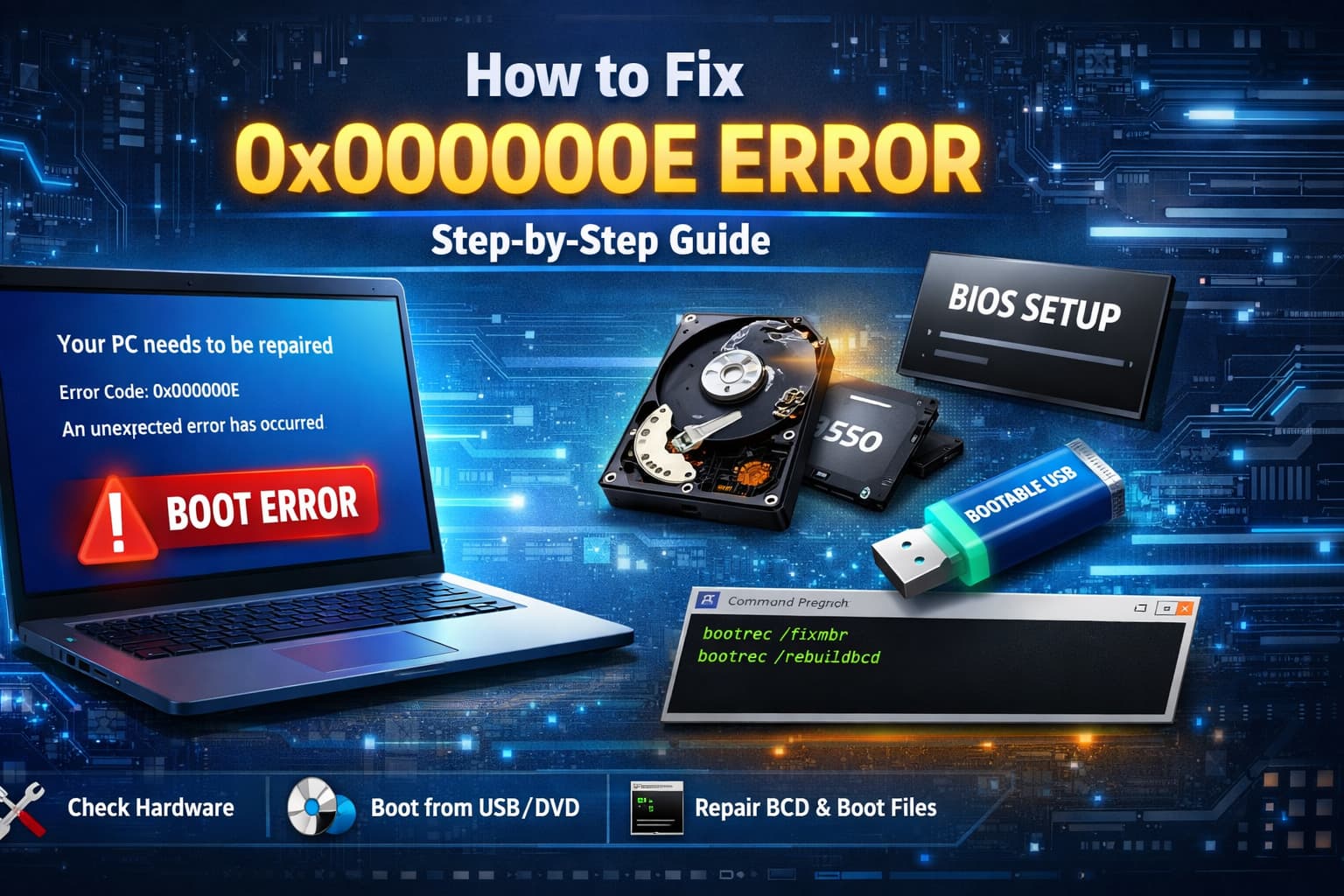
Seeing a blue or black screen with an error code on it can be very frustrating, particularly when your computer won’t start. The 0x0000000E error, sometimes also identified as the 0xc000000e error, means that Windows is unable to locate needed boot files to start. This guide will help you understand what this error is, why it happens, and how to fix it in a simple, step-by-step manner.
By following what is featured below, you’ll find out how to identify the problem and solve it to get your PC back on track. We’ll go over bootable USB drives and how to use them, plus other methods you might not have considered.
What Is the 0x0000000E Error?
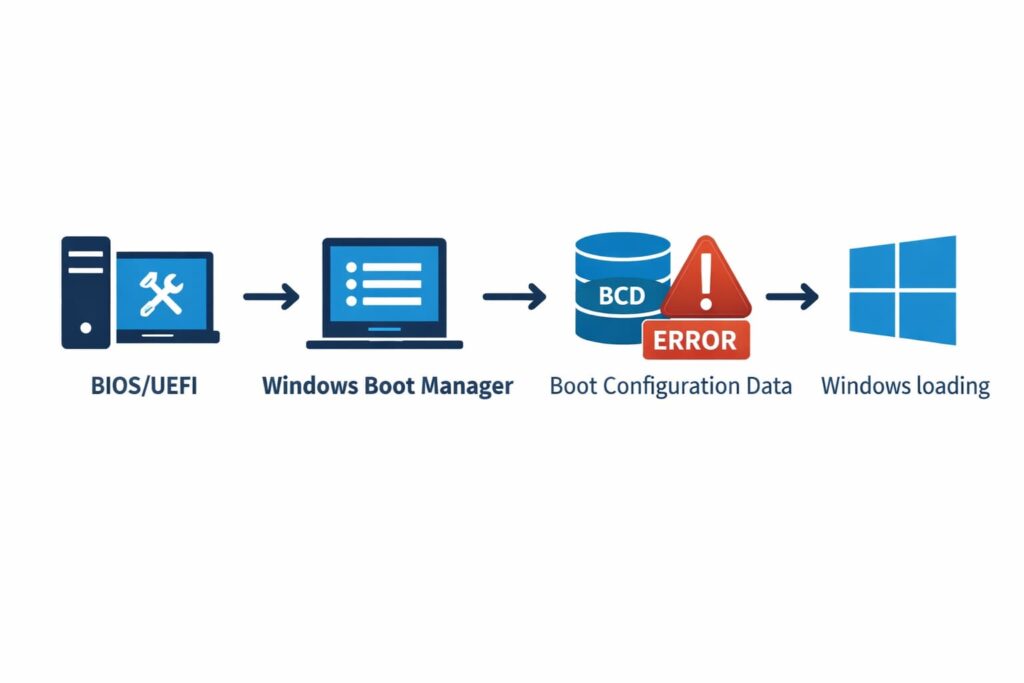
Bug checks 0x0000000E is a Windows boot error. It usually occurs when the computer is booting and indicates that a necessary device is inaccessible or that the BCD (Boot Configuration Data) file is missing or contains an error. Your screen might be showing a message that states something along the lines of “Your PC needs to be repaired” or “An unexpected error has occurred” — including this exact error code.
In effect, your computer’s BIOS or UEFI firmware closes the circle when it hands over control to the Windows Boot Manager. It’s getting that the Boot Manager cannot read or locate the necessary files from your hard drive and terminates the operation displaying this error. This means you can’t get to your desktop and boot up properly.
What Are the Causes of 0x0000000E Error?
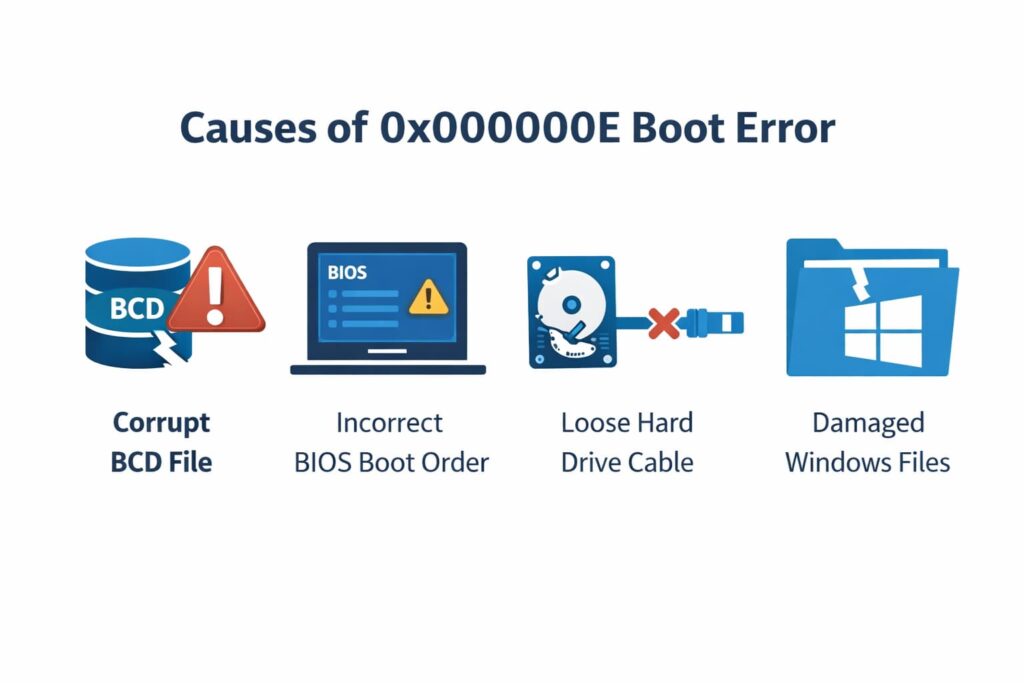
Several causes can be behind the boot failure. Knowing that can allow you to apply the right solution more quickly.
Corrupt Boot Configuration Data (BCD):
The BCD file contains the booting settings for Windows OS. If this file is corrupted or damaged, you might not be able to boot into Windows altogether. This is one of the most common reasons.
Incorrect BIOS/UEFI Boot Order:
This error is similar to the previous one and can be caused if your computer has the boot order set up incorrectly in its BIOS/UEFI settings.
Faulty Hardware Connections:
If the cable from your hard drive or SSD to the motherboard becomes loose or broken, you may not be able to access the boot device.
Corrupted Windows Files:
Essential Windows files needed to start the operating system fail due to improper shutdowns or unexpected power surges.
Hardware Failure:
It is possible that the hard drive or SSD on which the operating system is installed may have failed and has become unreadable, causing this booting problem.
How to Fix the 0x0000000E Error: Step-by-Step Guide
You are probably going to need a Windows installation media (USB drive or DVD) in order to resolve this error. If you don’t have one, use the official Windows Media Creation Tool on another working computer to create an installation media.
Once you have your installation media, perform these steps.
Step 1: Verify Physical Hardware Connections
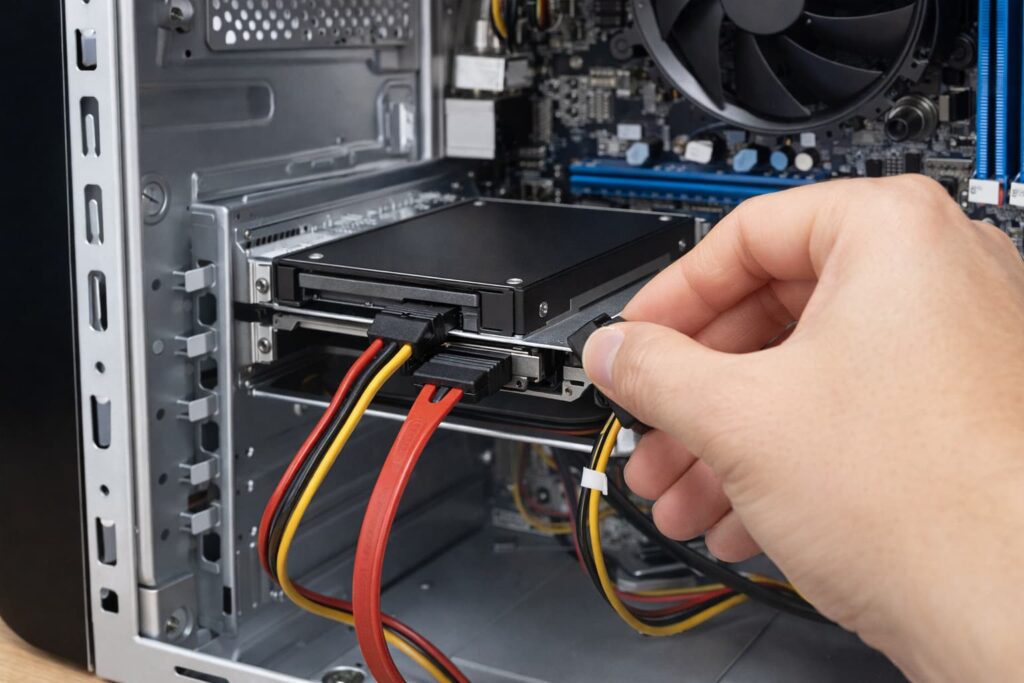
Check to make sure that the physical hardware is connected using the correct cables and/or adapters, as well as for any looseness in connections.
Before beginning the troubleshooting of software, confirm that your hardware is correctly connected.
- Shut your computer down and disconnect it from the wall power source.
- Open your computer case.
- Make sure the SATA and power cables are properly seated in your primary hard drive or SSD.
- Un-power and re-seat the cables at both the drive end and motherboard end.
- Shut the case, plug the computer back in, and attempt to boot. If the issue still exists, proceed to the next step.
Step 2: Check the BIOS/UEFI Boot Order
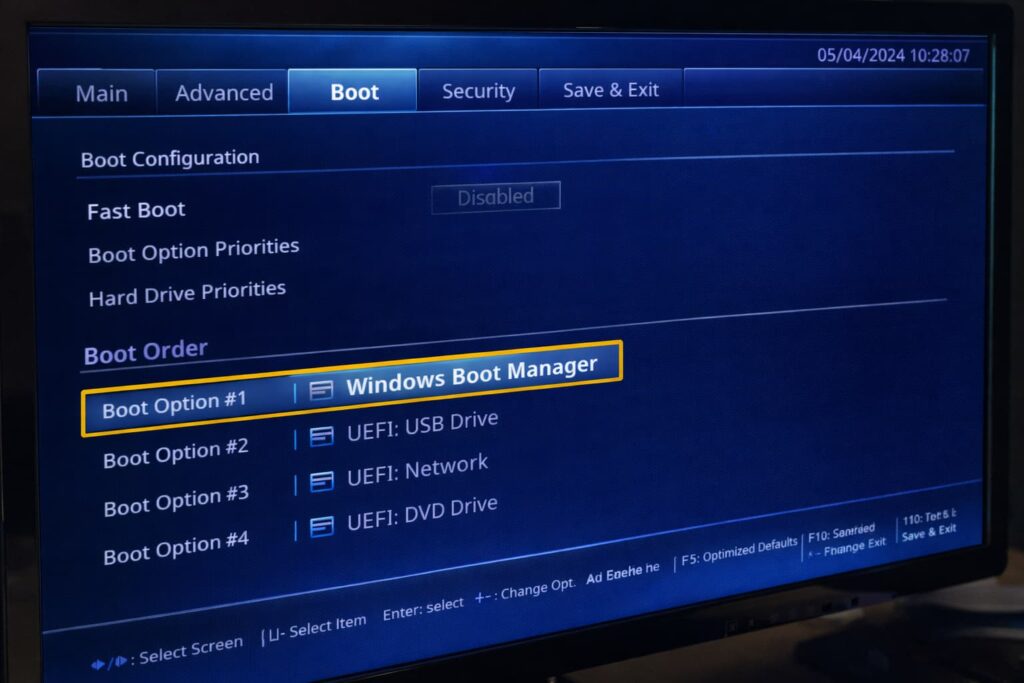
If a device in the list is grayed out, the computer can’t boot from that device.
If your PC is searching for Windows in the wrong place, an incorrect boot order could be to blame.
- Simply reboot your computer and press the key to enter the BIOS/UEFI setup (usually F2, F10, or Delete).
- Go to the “Boot” or “Boot Order” section.
- Make sure Windows Boot Manager or the hard drive containing an installation of Windows is listed as the first boot device.
- Save the settings and leave the BIOS/UEFI. Your computer will restart.
Step 3: Let Windows Automatic Repair Try to Fix/Repair Your PC
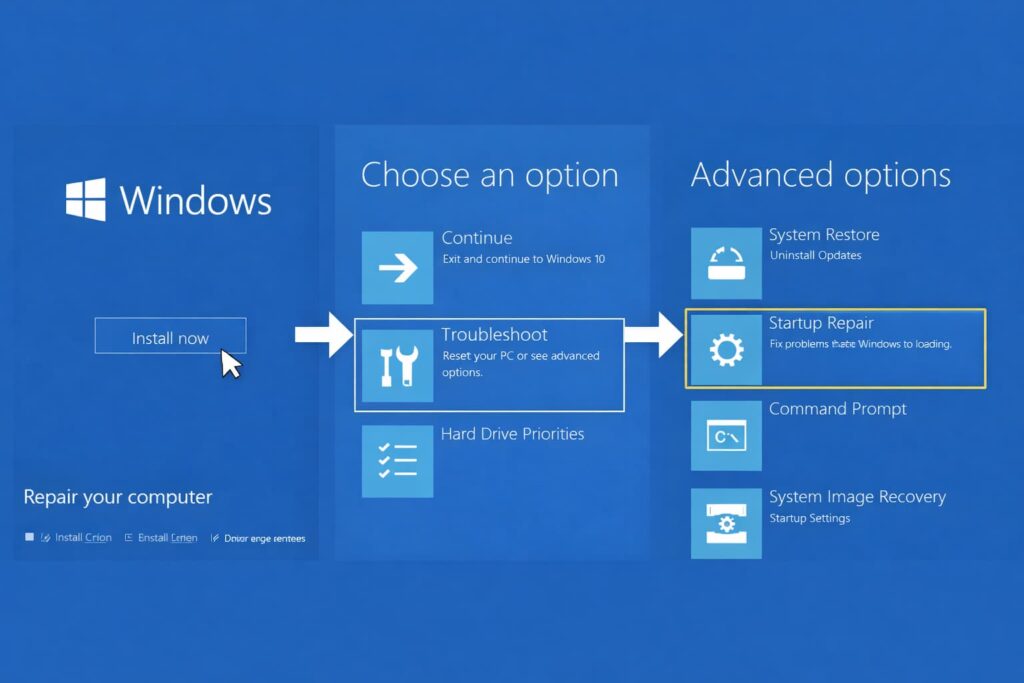
Windows comes with a feature that can attempt to fix certain types of boot problems automatically.
- Put in your Windows installation media and reboot.
- Select Boot From Disk and press the Enter key.
- Choose your preferred language then click Next.
- On the next screen, select Repair your computer in the bottom-left corner.
- Select Troubleshoot > Advanced options > Automatic Repair (or Startup Repair).
- Find your operating system below and follow the instructions to run the Network Adapter Troubleshooter. When it’s done, restart your computer.
Step 4: Repopulate the BCD (Boot Configuration Data)
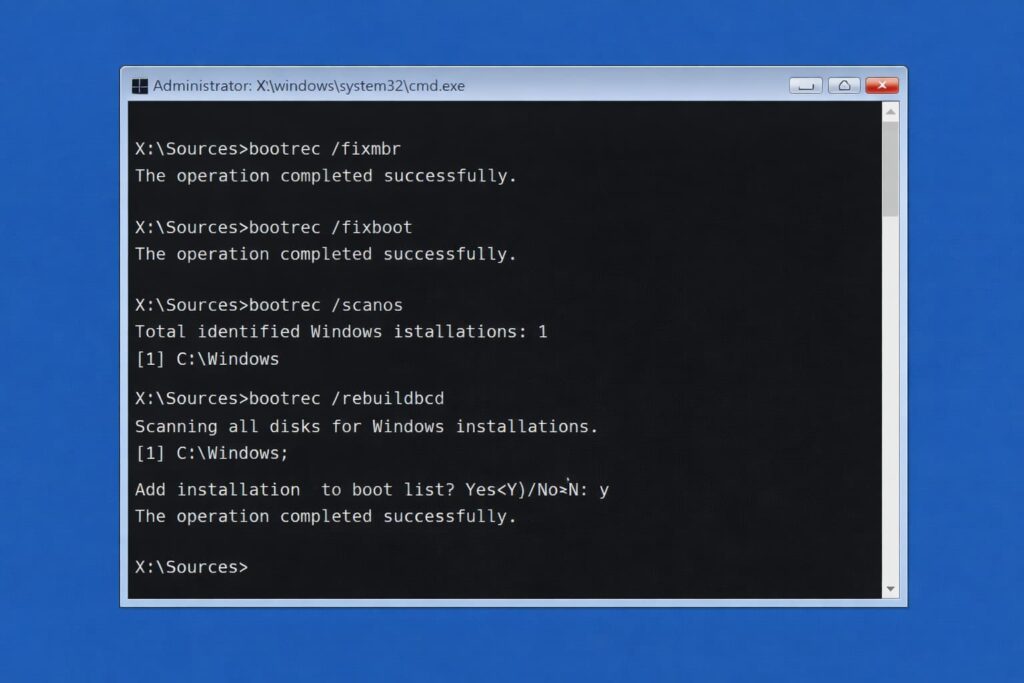
Store that turns on the F8 key boot menu option for Windows 10 to rebuild itself.
When Automatic Repair doesn’t work, manually rebuilding the BCD is usually the next best thing to try for this 0x0000000E error.
- Perform steps 1-4 of the Automatic Repair method to reach the Advanced options window.
- Select Command Prompt.
- At the Command Prompt, type each of the following commands individually followed by pressing Enter.
bootrec /fixmbr
bootrec /fixboot (if you receive an “Access is denied” prompt, move on to the next command).
bootrec /scanos
bootrec /rebuildbcd
- Press Y followed by Enter when asked to add the installation to the boot list.
- With the Command Prompt still open, close it and reboot your computer without the installation media.
Best Practices and Prevention Tips
To help you avoid the 0x0000000E error in the future, here are some of the best practices that you need to adhere to:
Shut Down Correctly:
Always use Shut Down from the Start menu. Do not force power off your PC by pressing the power button unless it’s absolutely necessary.
Use a Surge Protector:
Keep sudden power surges or outages at bay with your computer, as these can wipe files and harm the hardware.
Back Up Data Regularly:
Back up your important files regularly, and be sure to make a system image. This can prevent data loss in the event of a fatal error.
Update Drivers:
Update your hardware drivers, especially for storage controllers.
Run System Scans:
From time to time, you’ll want to run CHKDSK, a tool that checks your hard drive for errors, and the SFC (System File Checker) to repair system files.
Common Mistakes to Avoid
When in trouble, take care not to make these mistakes:
Dismissing Hardware:
Do not dismiss the possibility of a hardware issue. One possible, easy cause is a cable that is not snug.
Altering BIOS Settings Randomly:
Only change things that you know what they do, like the boot order. You can make things worse by a misguided BIOS hack.
Format the Drive Now:
You should really only use this option if you’re having a problem reinstalling Windows on your PC. Always try repair options first.
Frequently Asked Questions
What causes the 0x0000000E error?
Some of the most common reasons include a corrupted BCD (boot configuration data) file, problematic BIOS/UEFI boot order settings, outdated system drivers or hardware issues that have disrupted hard drive connections, damaged or corrupt system files, and bad sectors on the hard disk.
How do I solve the 0x0000000E error if I don’t have a USB stick?
Completely resolving this error without installation media is hard but not impossible. After your PC has boot failed several times, your computer will automatically go to the Windows Recovery Environment. From there, you will be able to get Troubleshoot > Advanced options and have a go at Startup Repair. Resetting the BIOS to default and rechecking that is one option; a misrouted boot order can do this too.
How can I avoid getting the 0x0000000E error?
To prevent such scenarios, make sure to shut down your PC the proper way, use a surge protector to avoid possible problems from sudden power fluctuations, back up your important data regularly, and run system maintenance tools like Checker Disk (CHKDSK) or System File Checker to preserve file system health.
Conclusion
Fixing the 0x0000000E error Most frequently, fixing the 0x0000000E error means repairing the boot files needed to start Windows. By testing out your hardware, checking your system’s BIOS settings, and exploring the wickedly powerful options available to you in the Windows Recovery Environment, our step-by-step guide can help you recover from a seemingly catastrophic situation without losing any of the data stored on your PC. The most stable remedy is to rebuild the BCD, which works to repair the master boot record and help Windows find the way during startup.
Don’t forget to take the preventive steps that can help avoid system instability. Armed with such solutions, you now have what it takes to work around this boot error and bring your computer back to life.
Leave a Comment