
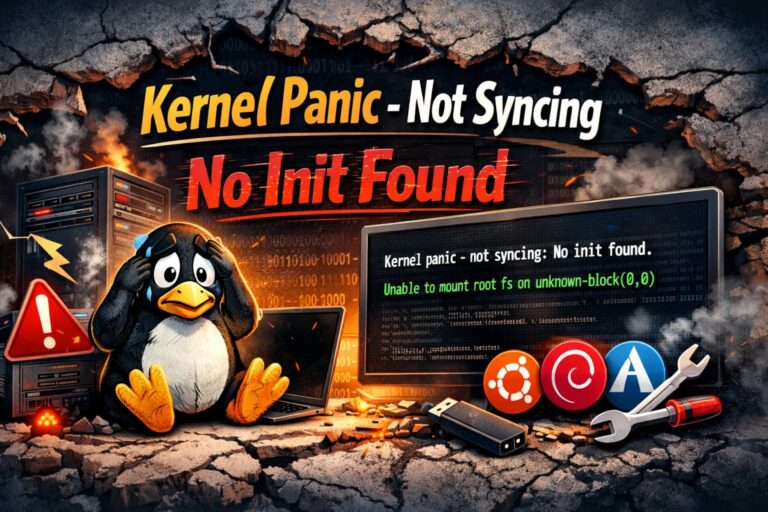
As a longtime Linux user, few things are as scary to me as booting up my computer and finding myself staring down a PC that is stuck on the black screen of death. It’s the Linux version of the BSOD. If you are here, you should be looking at a particular cryptic error message on your screen: Kernel panic – not syncing: VFS: Unable to mount root fs.
First, take a deep breath. Though “panic” sounds catastrophic, your data is probably safe. That error generally indicates that the system (or kernel) cannot find its files to boot with. It knows the door is somewhere, but it lost the key.
Below, we will take you through exactly what this warning means, why it presents itself, and how to fix it. Whether you use Ubuntu, Debian, or CentOS, we can help get your server back online.
So What Does This Error Really Mean?
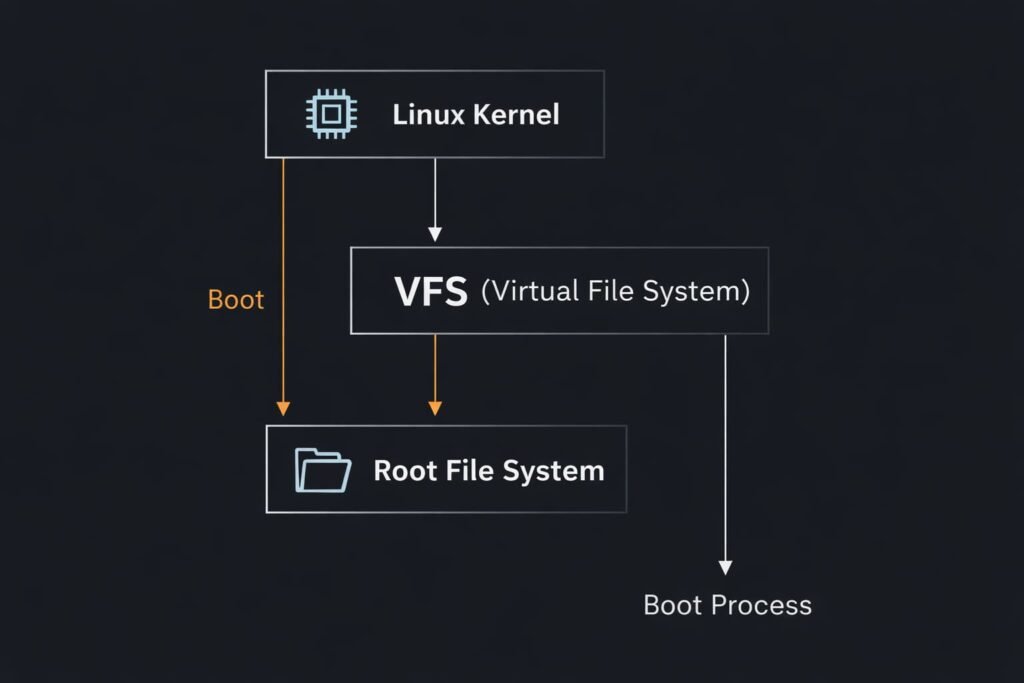
Kernel Panic
The core part of your operating system (the kernel) has an error of such significance that it believes it cannot safely continue running, and stops to avoid further data corruption.
Not syncing
The kernel terminated so early that it was unable to sync data to the disk.
VFS (Virtual File System)
The bit of the kernel that reads and writes files.
Cannot open root device
It should not be a coincidence that you have the problem described in this document if the dd commands above are incorrect! Kernel panic – not syncing: No init found. It is in the process of loading up your kernel and can’t find (or possibly read) the “root” filesystem, where all your OS belongs.
It is as if you wanted to start a car, but the engine cannot link with the fuel tank. The engine is operational, and the gas has been available, but the linkage is missing. That’s what’s going on here.
Causes of the VFS Kernel Panic
Damaged initramfs image
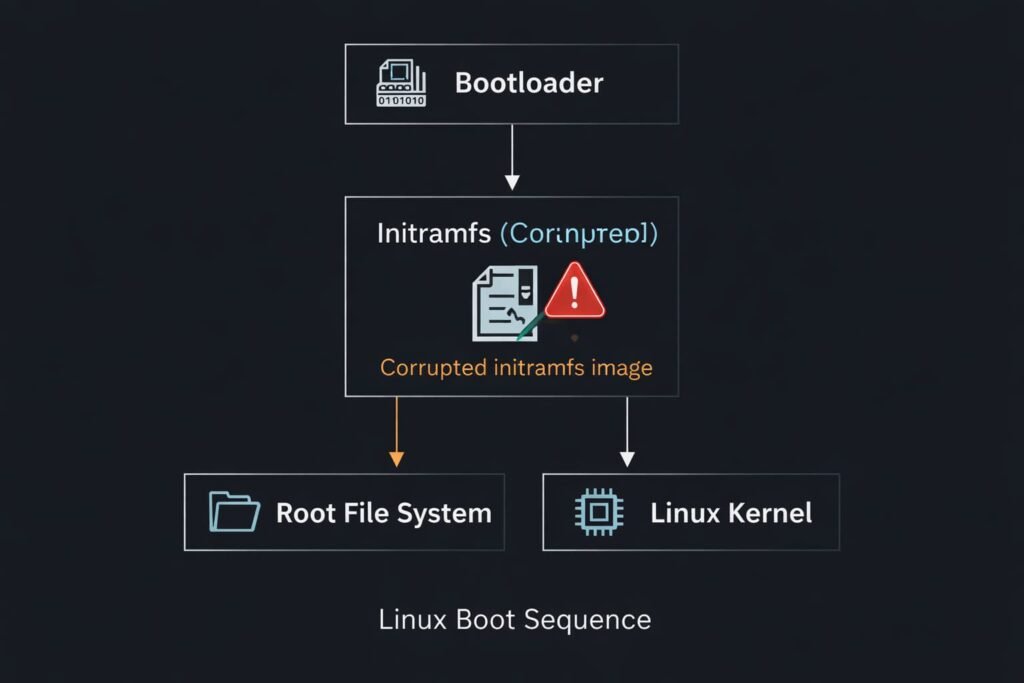
This is the most typical reason. The initramfs is a tiny bootstrap image for the kernel that loads drivers before other disk drives are available. When an update goes wrong, this file can be broken and your console may refuse to boot.
Kernels Fail to Patch
If after updating you get a kernel panic vfs unable to mount root fs, then the update process was interrupted, or GRUB is pointing at the incorrect kernel.
Bootloader Configuration Issues
Your GRUB configuration is correctly what could cause the wrong hard drive partition (UUID).
File System Corruption
A power failure or system crash may have corrupted the partition table.
Solution 1: Boot from an Old Kernel (The Quick Fix)
Before we get to the business of entering long and complex commands, let’s try the easy fix first. By default, many Linux distros retain backup copies of older kernels.
Steps to Boot from an Old Kernel
- Reboot your computer.
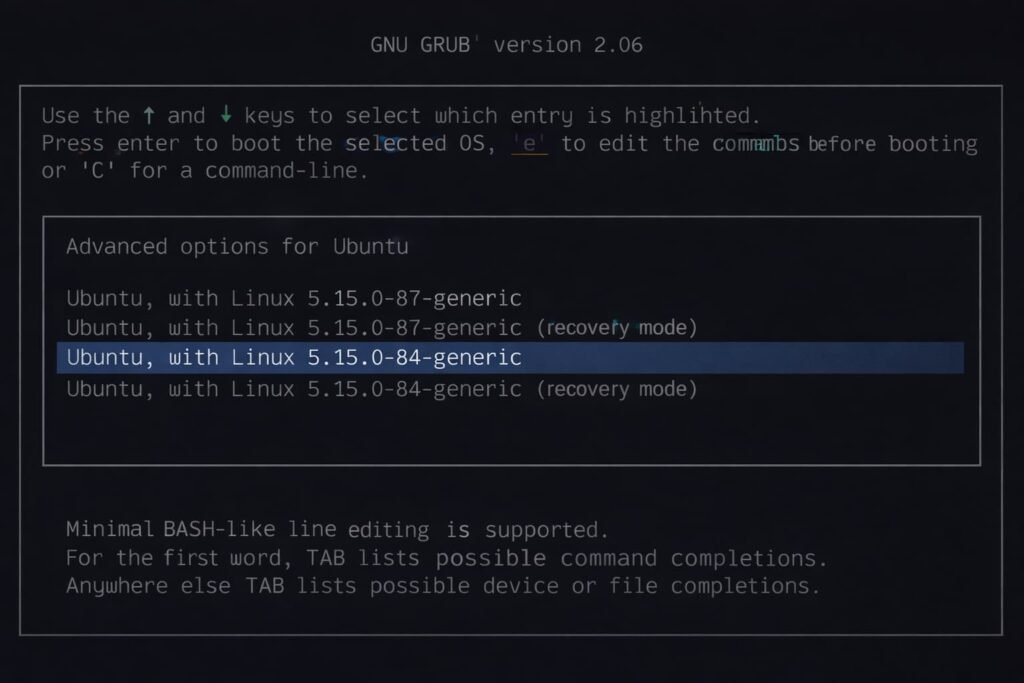
- If you smash Space at the splash screen, in most cases it will be enough to interrupt the kernel load and get you into the GRUB menu.
- Find a line that reads “Advanced options for Ubuntu” (or whatever your specific distribution is).
- Choose a kernel version below the top one. Most of the time, it’s the second version when you scroll down, which is the most recent working one.
- Press Enter.
If your system boots successfully, there would be something wrong with the particular new kernel file or its associated initramfs image. You just keep using the old kernel, as is quite normal, or you can move to Solution 2 and repair it.
Solution 2: Fix it by Repairing initramfs with the Help of a Live CD/USB
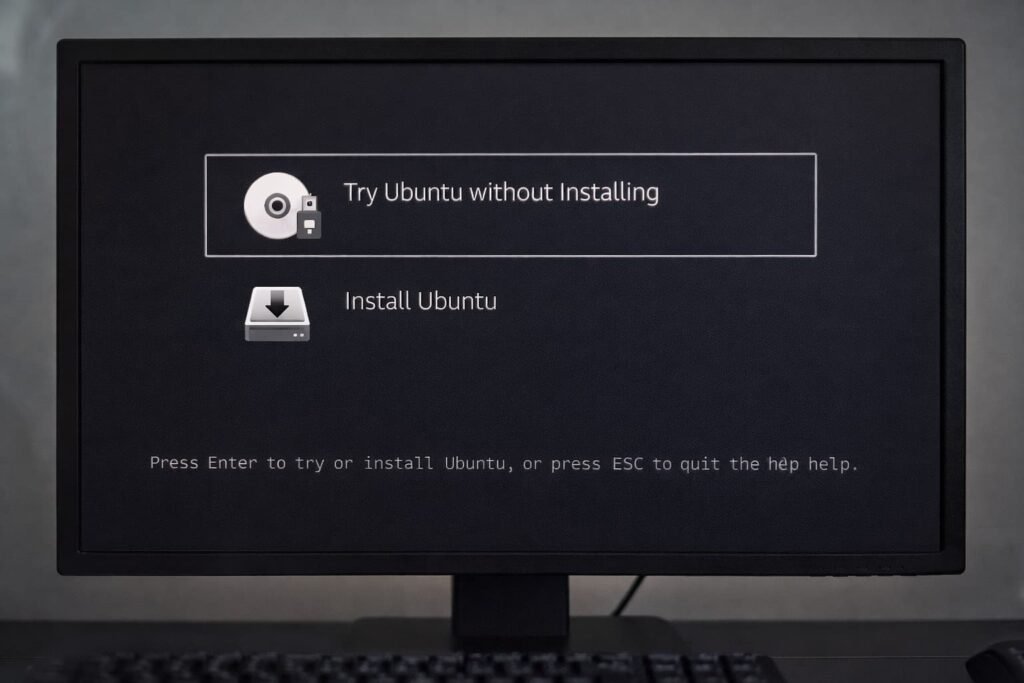
If the older kernel does not work, or if you want to fix your newest one, you will have to go solve the initramfs image. I hope you were able to fix the kernel panic vfs unable to mount root fs in your Ubuntu and Debian systems.
You’ll also need your “Live USB” (this is the drive you used to install Linux).
Steps to Fix initramfs with Live USB
Step 1: Start the Live Environment
To begin installing Ubuntu, you must be using a live DVD or a live USB.
Put in your Live USB and boot off it. Load without installing. Select “Try Use” (or your distro).
Step 2: Identify Your Partitions
Open a terminal. We need to know which partition your Linux installation is located. Type:
sudo fdisk -l
You should see one or more partitions, at least one of which is likely your main system (probably formatted ext4). For this guide, let’s assume it is /dev/sda1, please use your correct partition identification.
Step 3: Mount the System
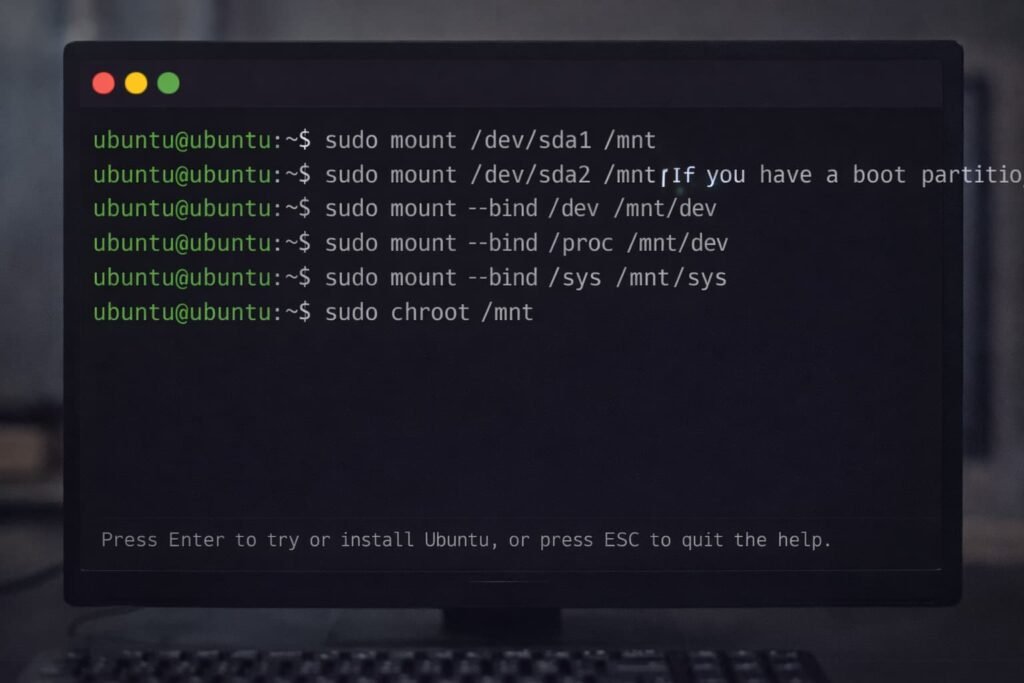
We have to hang your failed system so we can repair it. Run all these commands one by one:
sudo mount /dev/sda1 /mnt
If you have a boot partition (somewhat rare these days), also mount it (e.g., if /dev/sda2 is the boot partition):
sudo mount /dev/sda2 /mnt/boot
Now you can simply bind the system directories so that the live environment can talk to your installed system:
sudo mount --bind /dev /mnt/dev
sudo mount --bind /proc /mnt/proc
sudo mount --bind /sys /mnt/sys
Step 4: Chroot into Your New System
You are now “inside” your installation with this command:
sudo chroot /mnt
You are effectively root on your installed (broken) system, not the USB stick.
Step 5: Update Initramfs
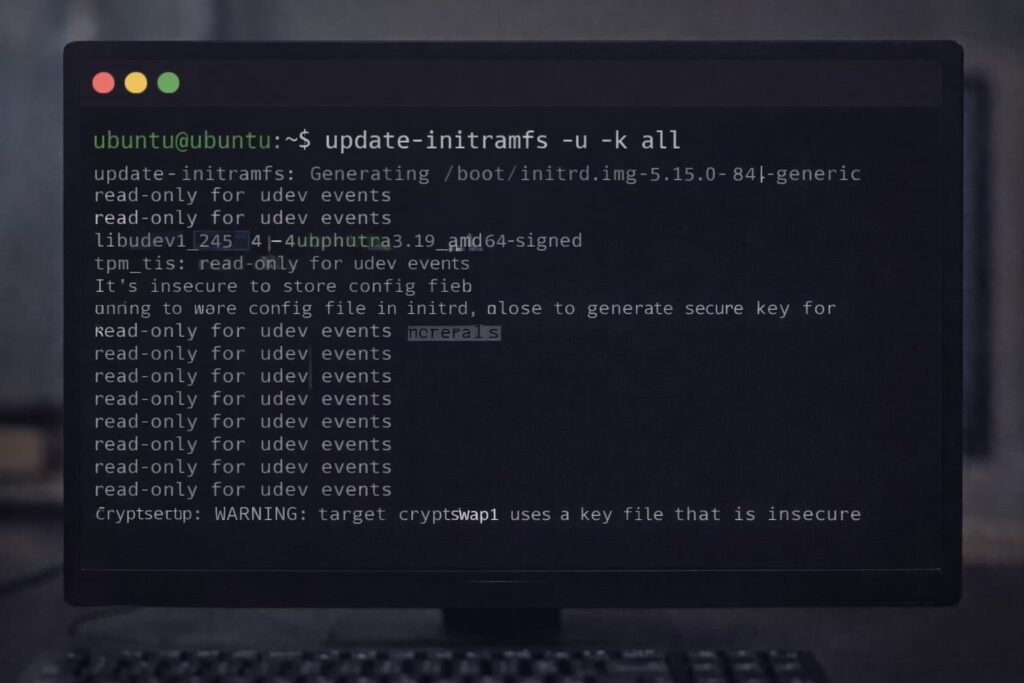
Then, create a new initramfs image.
For Ubuntu/Debian:
update-initramfs -u -k all
For CentOS/RHEL (Kernel panic vfs unable to mount root fs centos):
dracut -f
Step 6: Update GRUB
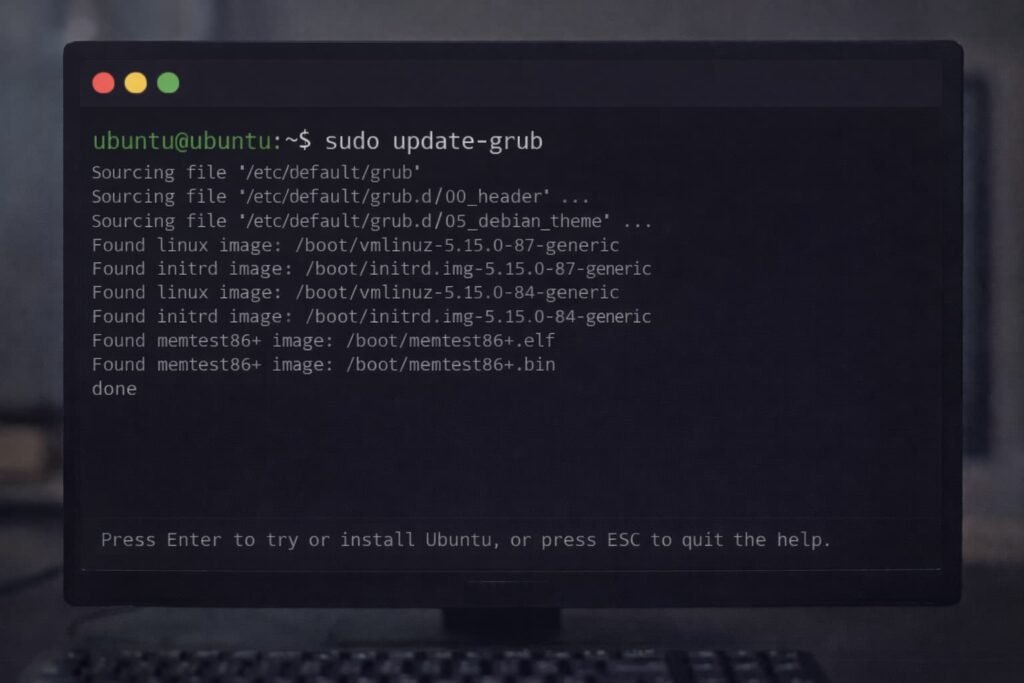
And finally, update the bootloader to make it aware of the new files.
For Ubuntu/Debian:
update-grub
For CentOS/RHEL:
grub2-mkconfig -o /boot/grub2/grub.cfg
Leave the chroot, unmount and reboot:
exit
sudo umount /mnt/dev
sudo umount /mnt/proc
sudo umount /mnt/sys
sudo umount /mnt
reboot
Remove your USB stick. Your system should now boot in normal mode.
Solution 3: Confirm the UUID (For Moved Hard Disk and Cloned)
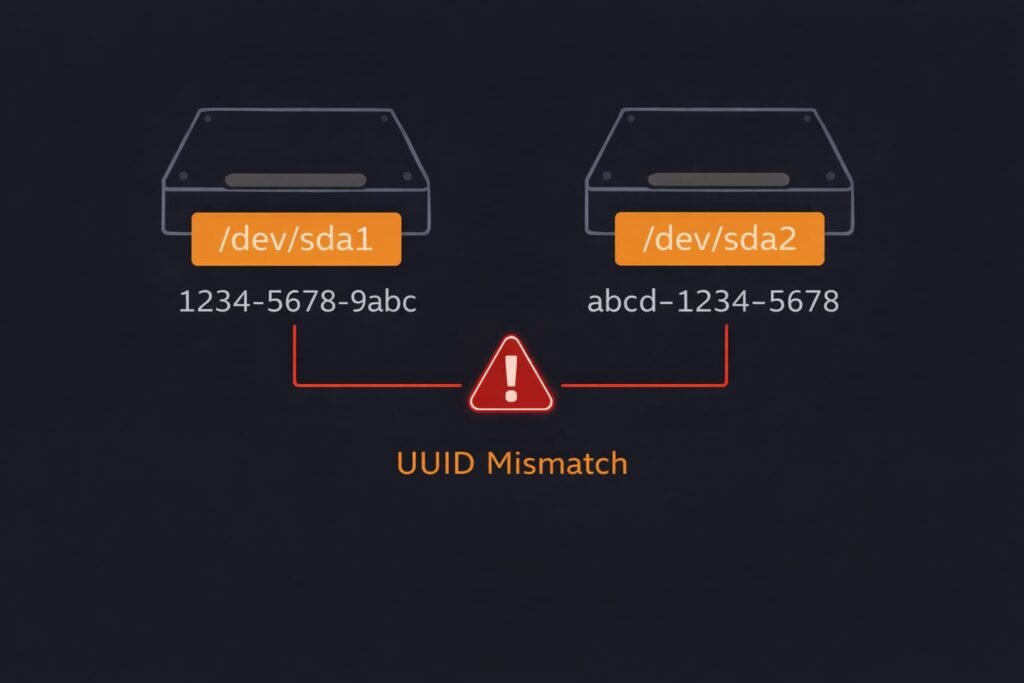
Did you clone your drive or transplant it into another machine recently? If that’s the case, GRUB would be confused due to a different UUID (Universally-Unique Identifier) of the disk.
Steps to Fix UUID Issues
- Boot from the Live USB as per Solution 2.
- Open terminal and run command:
sudo blkid
Then make note of the UUID of your primary partition.
- Mount your partition (as in Solution 2) and open /boot/grub/grub.cfg or as /etc/fstab.
- Recheck UUID from blkid and compare this to the value in these files.
If they don’t match, you will have to correct /etc/fstab with proper UUID’s otherwise kernel panic vfs unable to mount root fs.
Troubleshooting Virtual Machines
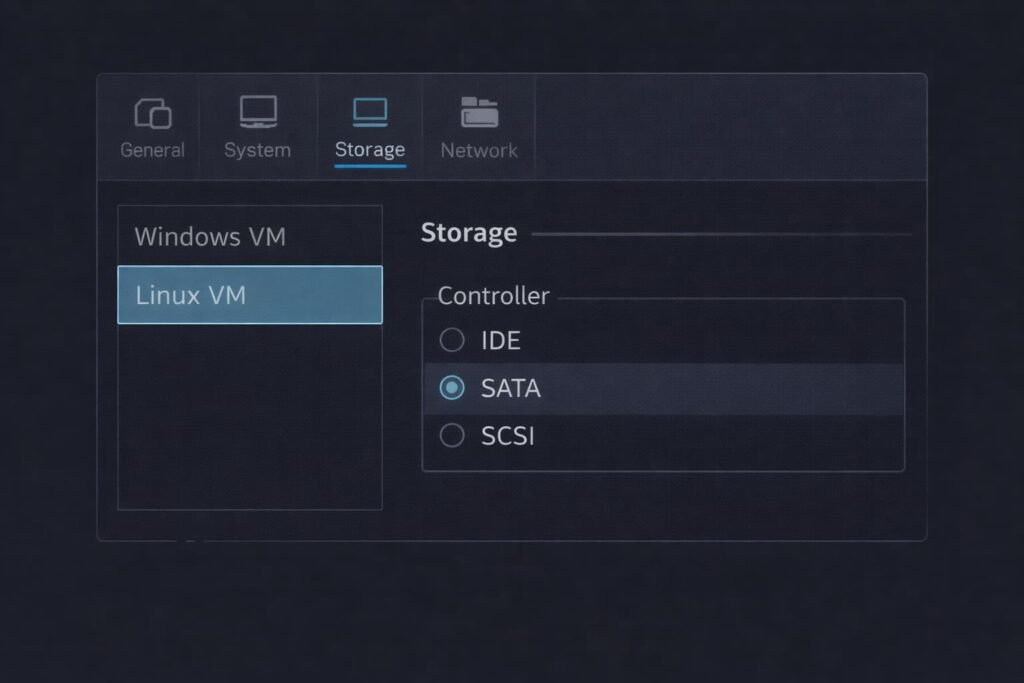
This mistake is also present in virtual scenarios. In the event that you come across a kernel panic vfs unable to mount root fs virtualbox or vmware, corruption is seldom the culprit. It’s almost always a settings mismatch somewhere.
Inspect Your Storage Controller
If you brought your VM from one hypervisor to another (such as VMware to VirtualBox), your storage controller setting might have changed to SATA or SCSI from IDE. This is because the Linux kernel assumes the drive in place of where it had been installed. You can try modifying the storage controller to something else (VM settings).
Amount of Allocated RAM
You might have provided too little RAM to your VM and so the image might not be getting loaded into initramfs. Create a VM with RAM size of at least 2048MB and see if it helps.
Common Mistakes & Prevention
And fixing the problem is all very well, but avoiding it is better. Here is how users are often causing this nonsense by mistake and what you can do to prevent this from happening.
Interrupting Updates
Do not ever power down your computer while it says “Updating” or when you are using apt upgrade/yum update. This is why most initramfs images are corrupted!
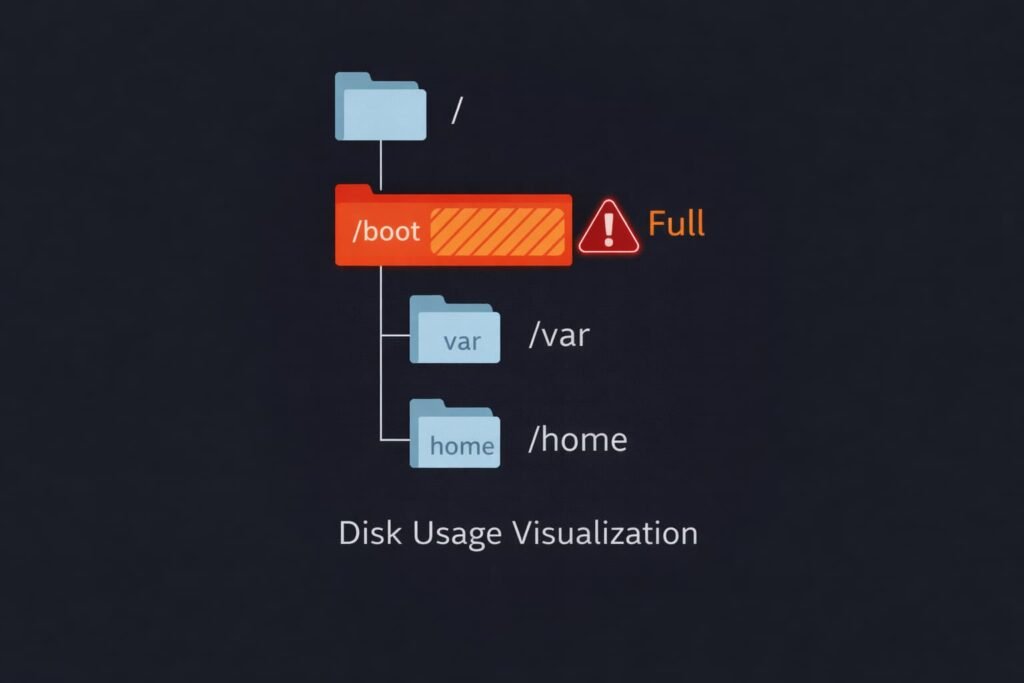
/boot Partition
The kernel code is put in the /boot partition of the system. If this fills up with old kernel versions, then the updating process for a new kernel will run out of space and panic. Keep cleaning out old kernels with:
sudo apt autoremove
Blind Overwriting of Update Errors
If you have seen an error at the terminal for an upgrade, don’t just reboot in the hope that it will vanish. Now, take the error reading it will reflect that your initramfs is not built.
FAQ: Frequently Asked Questions
What if kernel panic vfs unable to mount root fs after reboot but no update?
If you updated nothing, it is a hardware failure or file system corruption. There may be bad sectors on your hard drive. Boot into Live USB and run something like fsck on your main partition to try fixing it.
Dual boot Error: can I solve it?
Yes. The kernel panic vfs unable to mount root fs dual boot issue is mainly due to corrupted GRUB configuration, and a Windows update messes up the partition table or EFI partition. The above solutions (reinstall GRUB and update initramfs through chroot) will solve this without damaging the Windows installation.
Does this mean my hard drive is toast?
Not necessarily. In 90% of instances, this is due to a software configuration problem and not an issue with product hardware. If fsck discovers a large number of errors that cannot be repaired, the drive will probably have to be replaced.
But why do I observe this on Raspberry Pi?
On a Raspberry Pi, this typically means your SD card is corrupted or not inserted properly. Try unseating and reseating the SD card. If that doesn’t work, you’ve probably just corrupted the filesystem on the SD card and need to reflash it.
Conclusion
It’s never fun to see it, but the Kernel panic – not syncing: VFS: Unable to mount root fs error isn’t usually a death sentence for your data. It’s just that the roadmap your computer depends on to get started has a smudge on it.
If you switch to an older kernel, or regenerate your initramfs and GRUB configuration, however, you know that within 20 minutes (restoring from a backup point), you will be back in business.
Pro Tip: Always have a “Live USB” of your Linux distro in arm’s reach. It is the master key that unlocks the door when being locked out by the operating system. When you get back in, trigger updates at a calm pace and delete old kernel files to keep your /boot partition tidy.
Leave a Comment