
There’s few experiences more aggravating than seeing nothing but an error message when hitting “Print.” If you’re being affected by error 0x00000002, you’ve probably tried adding a printer or installing a driver and Windows prevents you from doing it. The enigmatic code is in hex and generally means that the system cannot locate the file, or if it can be located then there are issues within the printer driver stack.
Technical hiccups like this might look scary, but the answers are usually simple once you’re pointed in the right direction. That’s where this guide comes in. We’ll go over exactly what this error is and why it happens first, then delve into some step-by-step ways to fix it. Whether you are a tech guy or a housewife, we offer you the solution to resolve 0x00000002 with your hands.
Understanding Error 0x00000002
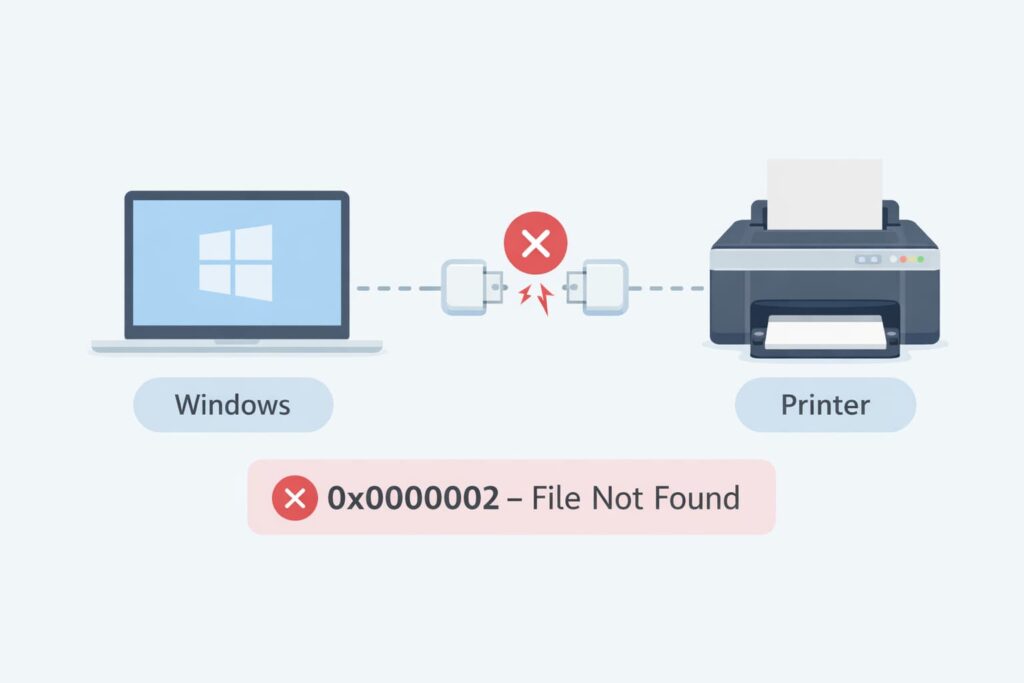
What is the error code 0x00000002?
This is a system error in Windows and it can happen to you at any point. Errors of this type always translate to ERROR_FILE_NOT_FOUND. Although it can technically manifest in a variety of software environments (and even in some games), it’s best known for being a problem with printer connectivity and installation.
When you connect to a new network printer or try to install a new driver, Windows looks in its internal registry and driver store. If you have a corrupted or missing driver, and the print spooler service fails to connect between Windows 10 and the printer, then this error will occur.
Why Does It Happen?
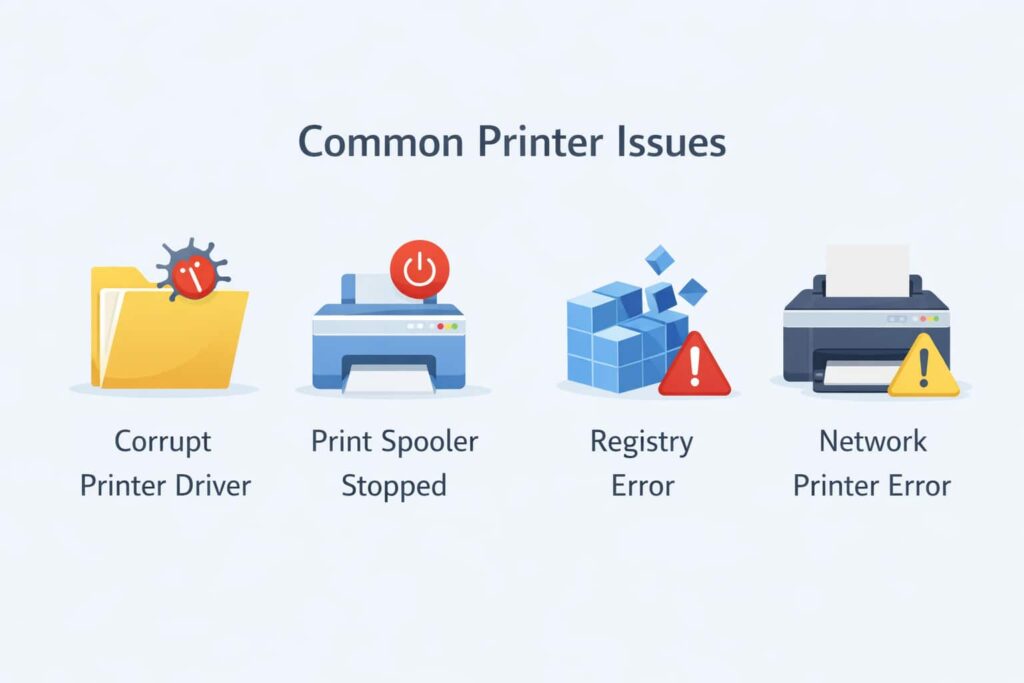
Knowing why is essential to preventing the same pain in the future. The most common triggers include:
- Corrupt Printer Drivers: Old and/or corrupted printer drivers can interfere with the installation of new printers.
- Print Spooler errors: The printing jobs service is jammed or corrupted.
- Registry Errors: If you have incorrect entries in your Windows Registry, the file can direct the system to a file that does not exist.
- Network Conflicts: In other instances, the issue may be permissions or network protocols that don’t allow Windows to contact the printer.
How to Resolve Error 0x00000002: Step by Step Solutions
We’ve ordered these solutions from the simplest to the most complex. Start at the top and move your way down until the problem is solved.
Method 1: Restart the Print Spooler
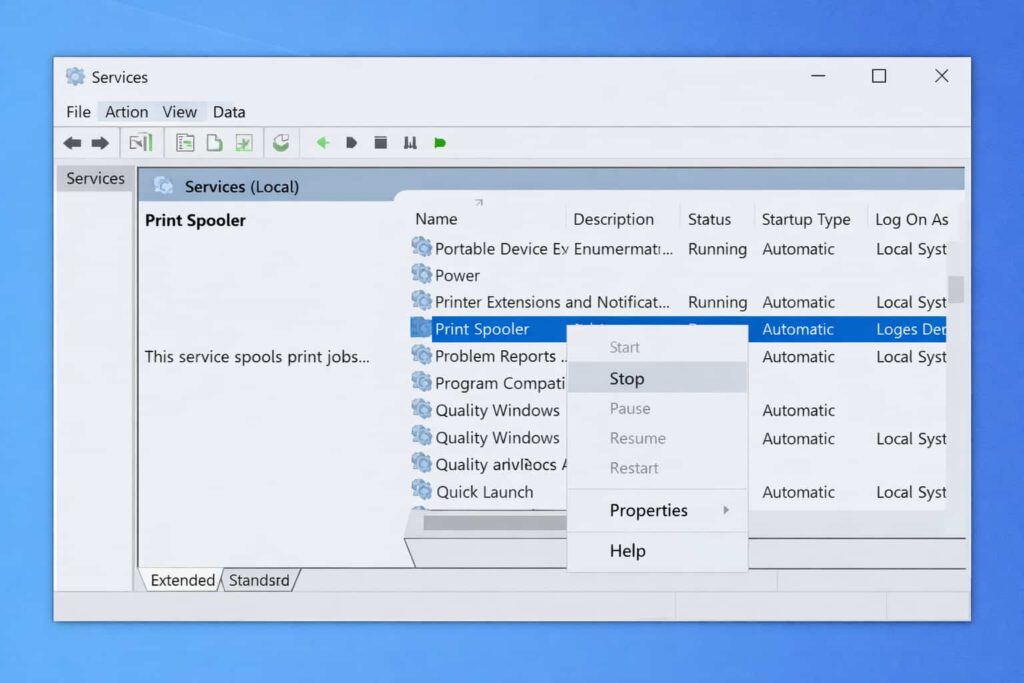
Step 1: Through The Service Manager
- Open the Services Console. Press Windows + R, type services.msc, and press Enter.
- The Print Spooler is the bridge that makes Windows the intermediary between your computer or laptop and the printer. A simple restart of this service will usually resolve temporary glitches.
- Scroll towards the end of the list and find Print Spooler.
- Right-click it and press Stop.
- Wait a couple of seconds, then right-click again and select Start.
- Right-click again, select Properties, and make sure the “Startup type” is set to Automatic.
Method 2: Add a New Local Port
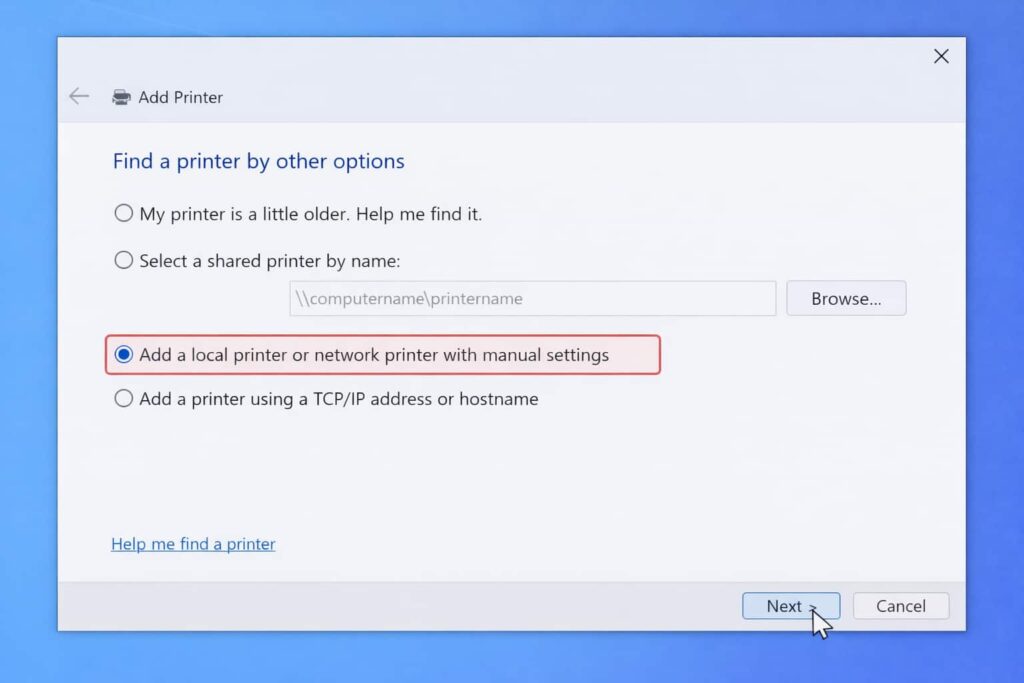
If you get the “cannot connect to the printer on your network” message with Windows, adding a local port manually might solve the issue.
- Navigate to Control Panel > Devices and Printers.
- Click Add a printer.
- Choose “The printer that I want isn’t listed.”
- Select “Add a local printer or network printer with manual settings” and click Next.
- Select Create a new port.
- From the Type of port dropdown, select Local Port.
- In the printer dialog box that opens, type the path to the printer you want to add in the following format:
\\ComputerName\PrinterName(if using IP address). - Click OK and follow the prompts to choose your driver.
Method 3: Clear Out Old Printer Drivers
From time to time, 0x00000002 errors persist due to a driver that is “haunting” your computer. You need to uninstall the old driver first and then reinstall.
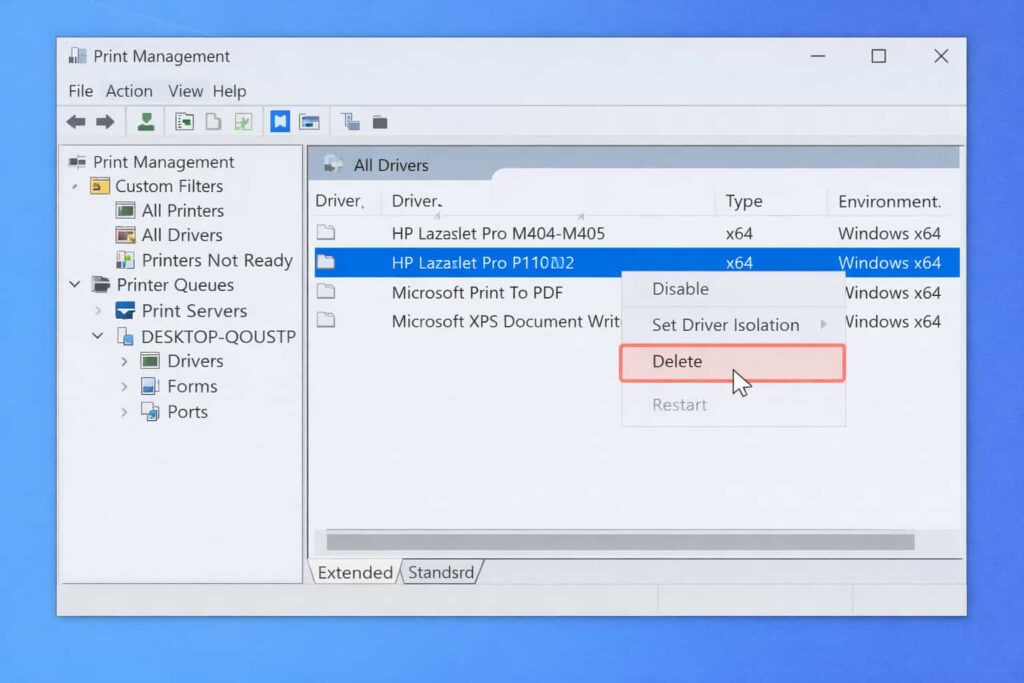
- Press Windows Key + R and enter printmanagement.msc. (Note: This feature is available for Windows Pro and Enterprise users. For Home editions, use settings to remove printers).
- Expand Custom Filters > All Drivers.
- Right-click the problematic driver and click Delete.
- Select to delete/install the driver package if prompted.
- Restart your computer, then try to install the printer again.
Method 4: Modify Registry Settings (Advanced)
Warning: Be careful in the Registry, as it is a hazardous place to venture. Make sure to back up your registry before making any changes.
This solution is only valid when driver leftovers are left behind in the registry.
- Press Windows Key + R and type regedit, then click Enter.
- Navigate to the following path:
HKEY_LOCAL_MACHINE\SYSTEM\CurrentControlSet\Control\Print\Environments\Windows x64\Drivers\Version-3
(It could also be Version-4 based on your driver). - Find the key that corresponds to your corrupted printer.
- Right-click the printer name and click Delete.
- Navigate to
C:\Windows\System32\spool\drivers\x64\3and delete the driver files in that directory if they match the deleted registry key. - Try restarting your PC and reinstalling the printer.
Best Practices and Prevention
To prevent the “can’t connect printer” issue from recurring, follow this maintenance advice:
- Keep Windows Up to Date: Microsoft regularly issues patches for printing subsystems, particularly after security vulnerabilities (such as “PrintNightmare”).
- Use Manufacturer Drivers: Always download the driver from the manufacturer (HP, Canon, Brother, etc.) directly.
- Clean Unused Printers: Only use printers you are currently using. Delete unused printers properly through settings to avoid driver issues.
Frequently Asked Questions
What is 0x00000001?
Though it has a similar look, 0x00000001 generally stands for an “Incorrect Function” error. This occurs frequently with printers when the drivers are a different version on the print server from the client machine. Fixing it usually requires some driver updates on both the server and client machines.
Can’t connect printer 0x00000002?
This is the textbook example of the bug. That means your computer can see the printer, but can’t download or initialize the required driver files. A fail-safe workaround for this specific failure to connect is often to use Method 2 (Create a new local port).
Can’t install printer driver 0x00000002?
If your installation does not complete and throws this error, it means there is a file the installer expects to be on the system but cannot find. This is usually resolved by removing the old driver package entirely (Method 3) or ensuring that the Print Spooler service works correctly (Method 1).
How can I fix error 0x00000002?
The best fix is to restart the Print Spooler, delete stale driver files, and manually add the printer using a Local Port. If you updated Windows recently, also look for newer drivers from your printer manufacturer.
How to fix 0x00000002 in games?
If you receive this error when opening a game, rather than printing, it usually means one of the game files is missing, stolen, modified, or overwritten. To fix this:
- Check the game files.
- Reinstall the game.
- Check your antivirus quarantine feature to ensure the game file hasn’t been wrongly identified and quarantined.
Conclusion
The 0x00000002 error can be a hard nut to crack, interrupting your work and causing unnecessary stress. However, by following the steps above — restarting the Print Spooler, deleting corrupt drivers, or manually assigning a Local Port — you should be able to resolve the issue and get your printer working again.
Leave a Comment