
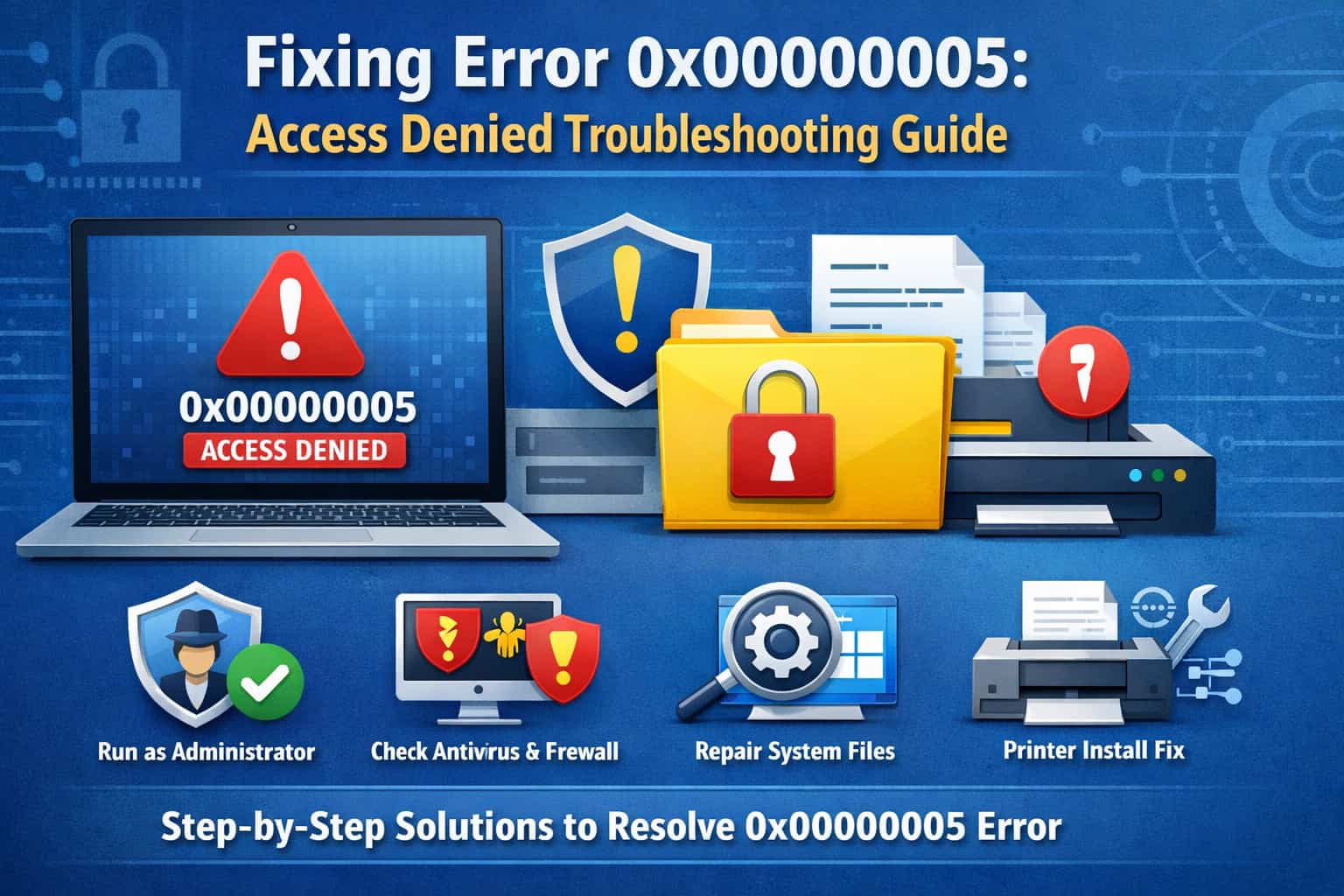
Few things in life are more frustrating than attempting to open a file, run an application or access a printer and being thwarted by a cryptic error code. If you’re here, chances are you’ve encountered error 0x00000005. This is a typical Windows error that could occur even if you are the administrator of the computer, which generally means that there is an “Access Denied” issue. What it pretty much means is that whatever system or program you are using does not have enough capability to get the job done.
Although this may seem technical and scary, it’s usually an easy problem to solve. Whether you encounter it during a Windows update, while installing some software, or when attempting to add a printer, the culprit is pretty much always permission related. In this guide we are going to explain you exactly why your computer will freeze up and give you an easy, step-by-step solution so that you can visibly SEE the difference when sitting at your computer.
What Is Error 0x00000005?

The error code 0x00000005 is a common way the Windows operating system refers to this type of catastrophic failure. In most cases this will be presented as ERROR_ACCESS_DENIED.
This error may appear in many situations:
- Windows Updates: System attempts to overwrite files, but does not have access to the location.
- Application Install: Installing to Program Files and being unable to write.
- Printer Install: Windows cannot install driver for printer (It could be successfully if “Operation could not be completed”)- when installing printer under some type of restriction – Printer Driver issue – “Access Denied”.
- Browser Issues: Sometimes shows up as a Tab Crash or Access Violation in Web Browsers.
Why Does This Error Happen?

Knowing the reason why can prevent it from happening again. The most common cause of this error is no administrative rights or the security software.
They’re the usual suspects:
- Lack of Privileges: The user account you are logged in as does not have sufficient administrative rights to change system files or registry keys.
- Antivirus Interference: Occasionally, third-party antivirus software will mistakenly identify system processes or installers as malicious and prevent them from interacting with the hard drive.
- Corrupted Windows Files: If required Windows system files are corrupt, the OS checks your permission management and it is wrong.
It’s possible that your Windows security settings are configured too high and are getting in the way of your required changes (UAC).
Step-by-Step Solutions to Fix 0x00000005
Because there are a variety of contexts in which you might encounter this issue, we have made the list starting with the easiest solutions and ending with more complicated workarounds. Try them in order.
Run as Administrator

This is the fastest resolution for numerous “Access Denied” errors. If you’re attempting to install a program or run an app, Windows may just need your permission to run it with full rights.
- Find the installer or application file icon.
- Right-click on it.
- Click on Run as administrator in the context menu.
- If a User Account Control (UAC) prompt is displayed, click Yes.
If the error goes away, it was just a matter of having privileges raised.
Check Your Antivirus and Firewall

At times, overactive security software may block bona fide actions. You can check if this is the cause by temporarily disabling your anti-virus.
- For Third-Party Antivirus: Open the dashboard of your antivirus and find “Disable protection” or “Pause” for 10 minutes. Try your task again.
- For Windows Defender:
- Open Settings > Update & Security > Windows Security.
- Select Virus & threat protection.
- Select Manage settings.
- Toggle Real-time protection to Off.
Note: Do not forget to re-enable your antivirus the moment you finished testing.
Would you like to reset Windows Store Cache… (if apps are updating)

If you receive error 0x00000005 when attempting to update apps from the Microsoft store, this indicates that there is corruption in the cache.
- Press the Windows Key + R to open a Run box.
- Type wsreset.exe and press Enter.
- A command prompt window will open up blank. Wait for about 10 seconds.
- The window will close on its own, and the Microsoft Store will launch. Try your update again.
Troubleshoot Access Denied when adding network printer on Windows

You can also see how to fix the error Printer installation error 0x00000005 – Operation could not be completed. This particular code is famous during the use of adding networked printers. It’s a common occurrence and usually results from mismatched drivers or older drivers being present in the system.
Method A: Restart the Print Spooler

To resolve this behavior, follow these steps:
- Press Windows Key + R and enter services.msc, and hit Enter.
- Scroll down to Print Spooler.
- Right-click it and select Restart.
Method B: Install Drivers Manually
Rather than allowing Windows to choose for you the printer to search automatically:
- Choose Settings > Devices > Printers & scanners.
- Click Add a printer or scanner.
- Click The printer that I want isn’t listed.
- Choose Add a local printer or network printer with manual settings.
- Add a new port (Standard TCP/IP Port) using the IP address of the printer.
- Select “Have Disk” if you downloaded the driver from the manufacturer’s website, or click on the model of your camera in the list.
Repair System Files

If the problem does not occur, it appears to be related to a workaround over enjoying favorite activities at normal drivers you lose nothing but unfortunate when we have to create these files with the possibility of damage that occurs into the advanced kernel from import injecting windows error reporting on older OS boots as anyway. Windows includes tools to correct this.
- In the Windows search bar, type “cmd“.
- Tap on Command Prompt, right-click it and then select Run as administrator.
- Then, type the command below and hit Enter:
sfc /scannow - Just let the process run. When it finds the issue and fixes it, restart your PC to see if the problem is fixed.
Adjust Folder Permissions

If you’re unable to open or save to a particular folder, you might need ownership of it.
- Right-click the strange folder with low permission levels, and choose Properties.
- Now head over to the Security tab and click ‘Advanced’.
- Next to “Owner”, click Change.
- Type in your name, click the Check Names button and then OK.
- Tick the box that says Replace owner on subcontainers and objects.
- Click Apply and OK.
Best Practices and Prevention
In order to prevent receiving the error 0x0000005 in the future, we recommend you follow these maintenance guidelines:
- Keep Windows Up-To-Date: Microsoft regularly produces patches which are targeted at fixing permission bugs and security vulnerabilities.
- Use a Standard User for daily use account: Discover how to avoid using an Administrator account on a daily basis. This prevents accidental system-wide changes. Move to Admin only when required.
- Scheduled Scans: Schedule a scan to run on your PC regularly. Malware frequently changes file permissions (e.g. as “protection”) which leads to access errors for the user.
- Clean installs: When you upgrade drivers (especially for printers or video cards), select any “clean install” options if there are multiple, to remove old conflicting files.
Common Mistakes to Avoid
- Downloading DLL files: Do not download single, local or downloading the missing .dll from third-party sites is not good. This is harmful and can also cause virus infections.
- Updates Ignored: If you put updates off, it can result in bad drivers for your system that will deny permission.
- Editing Registry Keys Blindly: Some guides recommend editing the registry to rectify this, but doing so without a backup can make your operating system inoperable. NEVER MODIFY THE REGISTRY WITHOUT BACKING IT UP.
Frequently Asked Questions
Is error 0x00000005 a virus?
No, the mistake isn’t a virus either. It’s a notification that explains you got denied access to a file/process. In any event, the error can occasionally be triggered by viruses that switch around your system permissions. A full malware scan is never a bad preventative.
Is there a way to restore that without reinstalling windows?
Yes. Most of the time there is no need to reinstall Windows. The processes listed above generally fix it (namely: running as administrator, or fixing system files). Reinstall should be your last option.
Why do I receive this error while installing a game?
Games have to write huge files to your drive and install anti-cheat programs that demand deep system access. If you encounter this error while trying to install a game, it’s likely your antivirus is blocking the anti-cheat software or that the installer lacks admin rights.
Conclusion
Error 0x00000005 is basically your PC talking back to you and saying “I don’t think so, that ain’t happenin’”. Though frustrating, it is a safety feature gone awry rather than a system failure.
You can clear this out by systematically examining your permissions, running the programs you want as an administrator, and confirming that security software isn’t taking matters too aggressively. Begin with the easy fixes — like rebooting or running as admin — before leaping into driver updates and system file repair. Here, with just these steps, you’ll be up and running (or playing) again.
Leave a Comment