
Few things are more frustrating than having an assignment open or being in the heat of a game and suddenly—el crasho! Whether it’s the Blue Screen of Death (BSOD) or a running application simply ceasing to work and closing, getting the error code 0x0000000C is an indication that your system just came across a brick wall.
Technical error codes, even though they can appear to be an indistinguishable mess, are actually very specific clues as to what went wrong somewhere deep inside your computer’s operating system. The 0x0000000C error in particular indicates that there are problems with the way Windows is managing its system resources, but it might be related to how Windows works with “wait objects” – an internal indexing object.
In this guide we are going to discuss exactly what this error is, why it occurs and most importantly how you can fix it. By the time you finish reading, you will know how to easily return your computer to a reliable state and avoid – or at least be ready for – future crashes.
What Is the 0x0000000C Error?
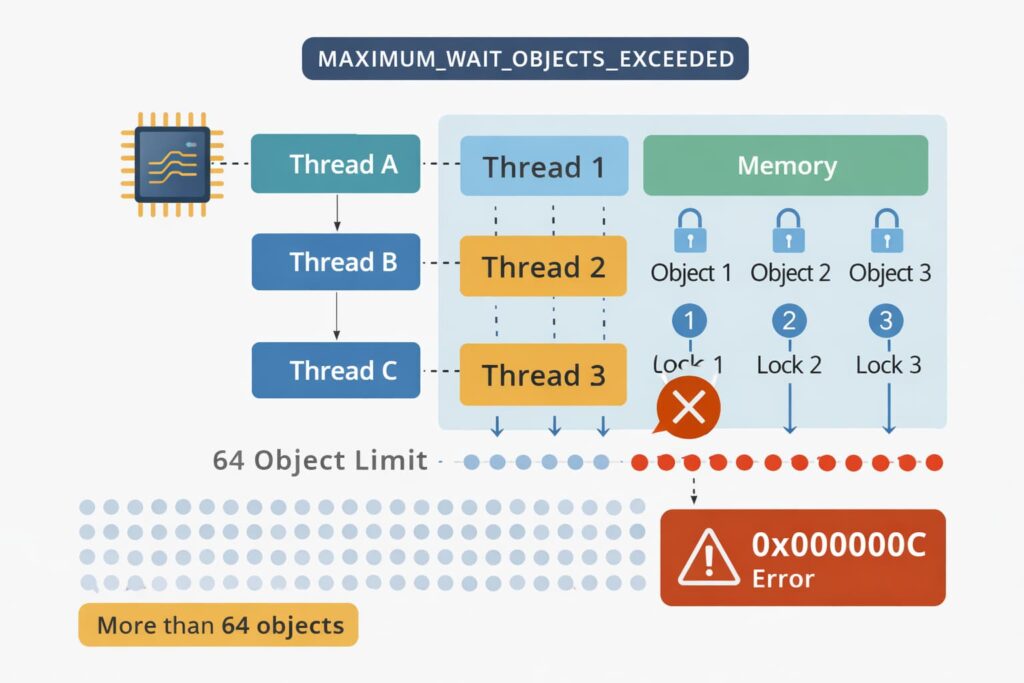
In technical terms the 0x0000000C error is Often A stop code MAXIMUM_WAIT_OBJECTS_EXCEEDED.
Let’s break it down: Windows runs on “threads” — these are small sets of programmed instructions that can be handled independently. In other words, a thread may need to wait for several events to occur before it can continue. In the Windows operating system, an ingest thread is limited to the number of events (or “objects”) it can wait for at any one time.
If a thread attempts to wait for more objects than the system is configured to handle (typically 64) the operating system raises a safety stop in order to prevent data corruption or crash. The safety stop is the 0x0000000C error.
In other situations (particularly in software development or specific driver crashes, such as with Thrustmaster devices or C++ programming in general), it may mean an “Access Violation” which can occur when software screws up and tries to access a memory address that’s off limits.
Why Does the 0x0000000C Error Occur?
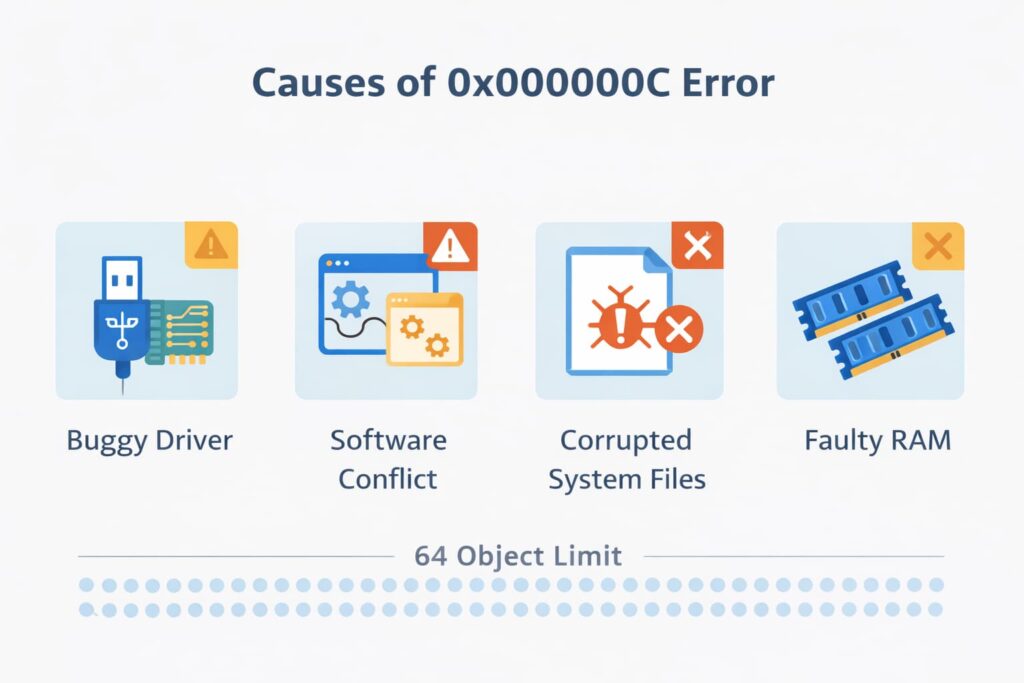
Diagnosis is halfway to cure. It isn’t often that this error will pop up without something to key it. The most common culprits include:
- Corrupted system files: System could not handle threads or resources if core windows file is broken of lost.
- Old and Incompatible Drivers: Here the drivers are the mediator between hardware and software. If a driver is buggy, it may ask for more resources than it’s supposed to, prompting the crash.
- Software Conflicts: Occasionally two programs may attempt to access the same resources concurrently in such a way that surpasses the system’s “wait” factor.
- Malware Infection: Malware can execute poorly-written code that disregards system parameters, which may lead to crashes.
- Bad Memory: Incorrectly read memory can give the system an impression that there has been an overflow when in fact it hadn’t happened yet.
How to Resolve 0x0000000C Error
Curing this fault is typically a process of elimination. Use the following steps to determine and correct the problem.
Update Your Drivers
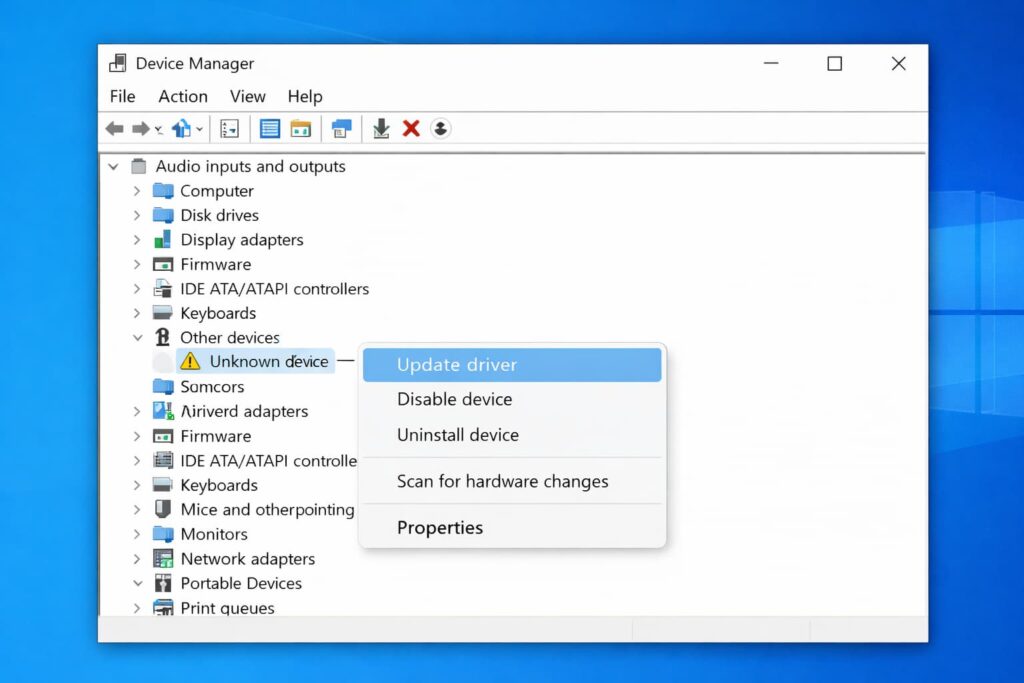
Because driver conflicts frequently trigger the 0x0000000C stop code, keeping everything in order is your best line of defense.
Right-click the Start button and choose Device Manager.
See if you can find any devices that have a yellow exclamation mark.
Right-click on the device, and then click Update driver.
Choose Search automatically for drivers.
Reboot your computer if an update is applied.
Note: You’re going to want to be especially alert for graphics card drivers and peripheral drivers (joysticks or racing wheels, etc), as they’re the most frequent culprits of this particular error.
Use the built-in System File Checker (SFC)
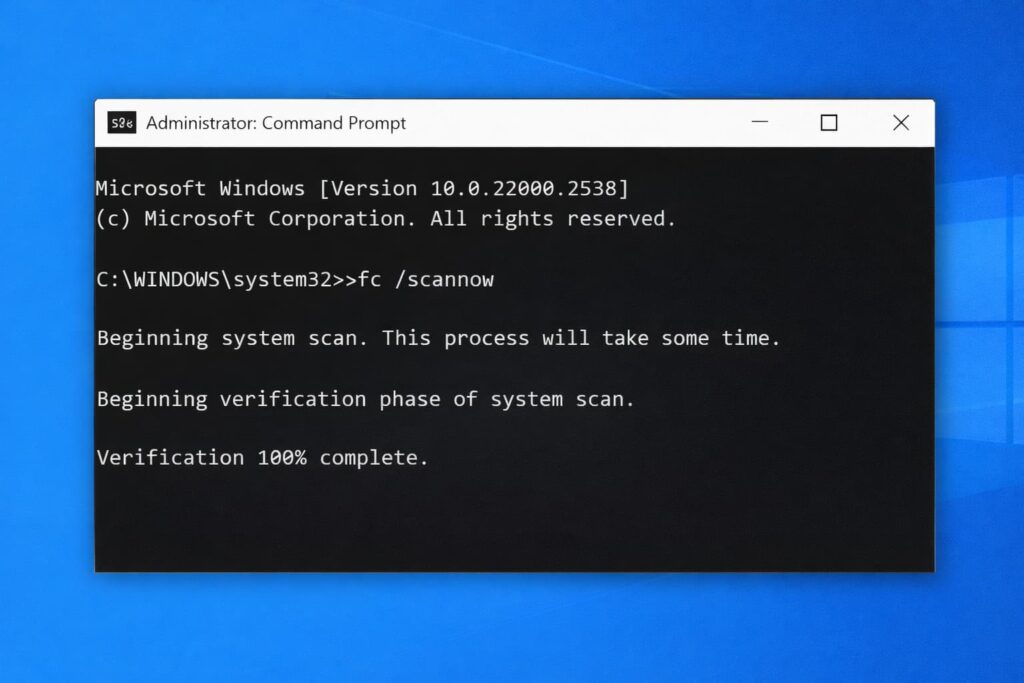
Windows comes with an inbuilt tool for fixing corrupt system files.
The type cmd in the Windows search.
Right-click the Command Prompt and choose Run as administrator.
Enter the below command and tap on Enter.
sfc /scannow
Wait for this process to finish. Should it find and fix files, restart your PC then check whether the error is resolved or not.
Check for Windows Updates
Microsoft regularly releases patches for bugs that can cause BSOD errors.
Go to Settings > Update & Security > Windows Update.
Click Check for updates.
Install any available updates, including optional updates Drivers are now hidden selected drivers will only be installed.
Run the DISM Tool
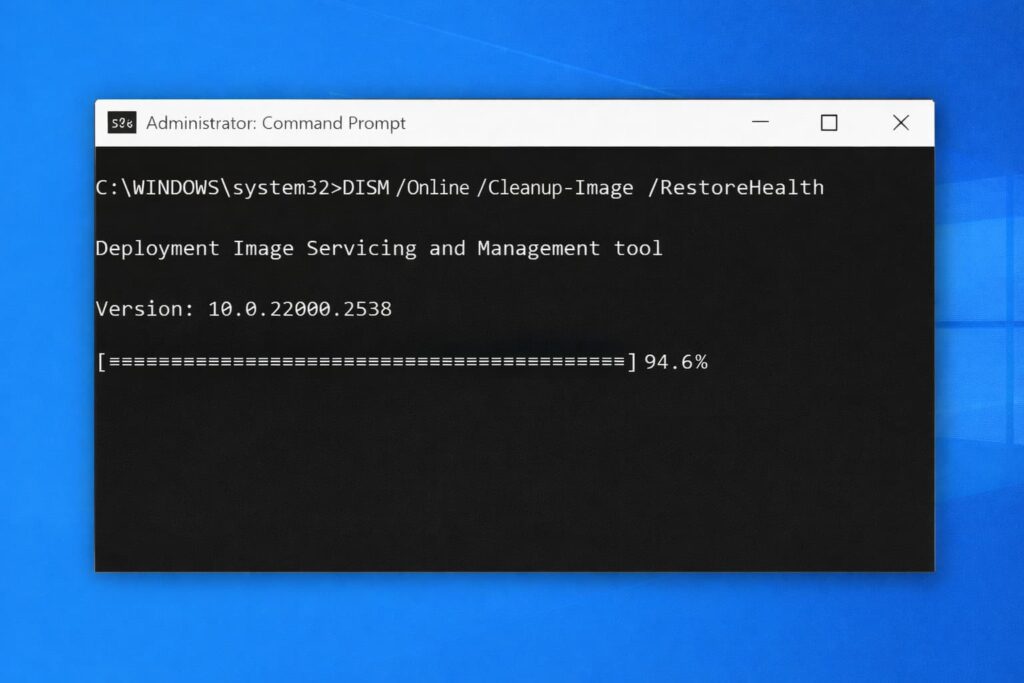
If the issue is not fixed by running the SFC scan, you can use Deployment Image Servicing and Management (DISM) to repair a Windows image.
Now Type CMD Right click on CMD and Select run as administrator.
Copy and paste the following command and hit Enter.
DISM /Online /Cleanup-Image /RestoreHealth
Wait until this process is completed it can seem like its stuck at moments be patient.
Check Your RAM (Memory)
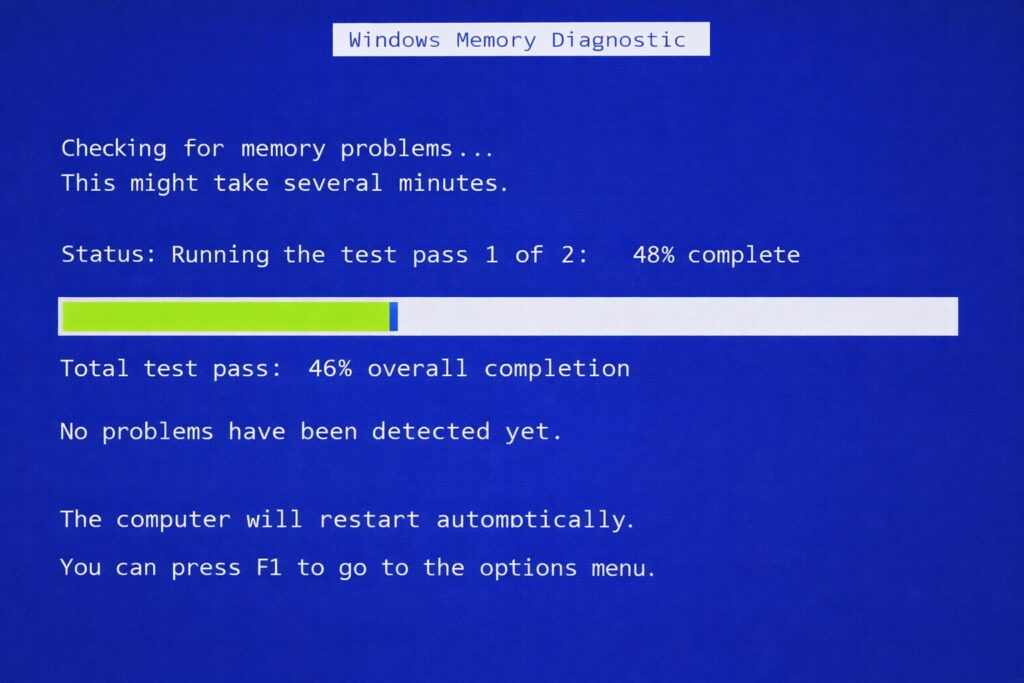
Bad memory is one of the hardware Issues For “0x” Errors.
Hit the windows key and the letter R to open up the Run facilitytype mdsched. exe, and press Enter.
Choose Restart now and check for problems.
Your computer will then restart and execute a memory diagnosis. If your computer reports it and you have no errors, a chip may need replacing.
Perform a Clean Boot
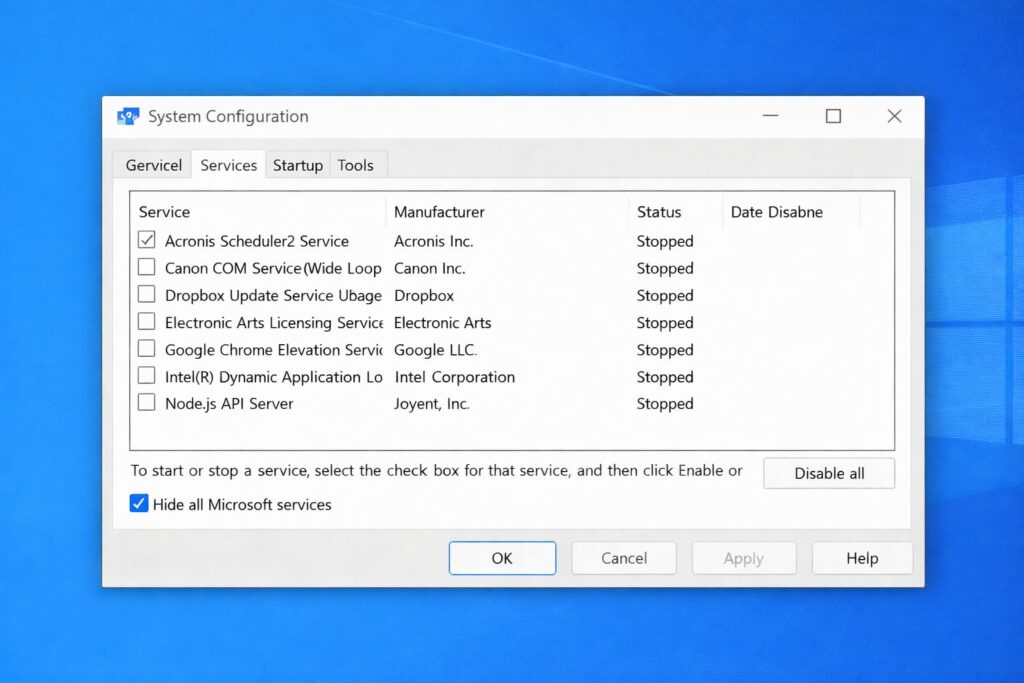
Otherwise, there could be a third-party application that’s responsible. A clean boot is a method of starting Microsoft Windows with the fewest drivers and startup programs.
In the Windows search type msconfig and hit Enter.
Go to the Services tab.
Select the box Hide all Microsoft services.
Click Disable all.
Under the Startup tab launch “Task Manager”. Disable all startup items.
Restart your computer.
0x0000000C error If the 0x0000000C error goes away, one of your disabled programs may be causing the problem. One by one, turn them back on to determine the culprit.
Best Practices and Prevention Tips
After you fix the error, how can you avoid it happening again?
- Keep Windows Updated: Make sure, that updates are installed automatically.
- Everyday wear and tear: Clean the system environment dust free. Run disk clean up and virus scan regularly.
- Be mindful with new hardware: If you have recently added some hardware check the manufactures site for drivers before simply accepting the default generic ones Windows installs.
- Track System Temps Heat is not your friend if your system heats up hardware can behave erratically especially if broke code execution.
Common Mistakes to Avoid
- Dismissing the Error: When you receive a BSOD and you only reboot, then it is something you should not ignore. Typically, it is a sign of an underlying problem.
- “DLL Fixers”: Never download freely distributed third-party websites that automatically attempt to resolve specific DLL or system files for you. These are often malware traps.
- Overclocking Extensively: If you are one of those guys who has overclocked everything, your CPU or RAM or both and started getting this error then reset clock speeds back to default.
Frequently Asked Questions
What causes the 0x0000000C error?
The 0x0000000C error occurs when a thread in the operating system becomes blocked waiting for objects to be signalled (waiting infinitely) and exceeds the number of these “objects” that is allowed (MAXIMUM_WAIT_OBJECTS_EXCEEDED). This can be caused by faulty drivers, corrupt system files, improper software conflict handling and sometimes due to defective hardware like RAM.
How to fix 0x0000000C BSOD error?
You can resolve this BSOD error by updating your drivers, running the System File Checker (sfc /scannow), checking for new Windows updates and examining your computer’s memory for errors. If the problem is caused due to software, a clean boot may be used to determine which program is causing such issue.
How can you avoid 0x0000000C issues?
Avoiding this error is fairly simple: always keep your operating system and drivers up to date, try not to install untrusted software, and run routine system maintenance. Make sure your hardware is not running too hot and refrain from overclocking your processor to the extreme.
Conclusion
The 0x0000000C blue screen error is the one that brings about some of the concerns when it appears. But it is a logical fallacy, and falsifiable. Knowing that it is related to a resource management problem, which is typically due to driver or system file corruption, you can gradually address the issue.
Begin with the simple stuff: make sure your drivers are all up to date, and run through Windows’ built-in repair tools. In most cases this should fix the problem and your system will return to normal.
If you are now the proud owner of a blue screen, don’t panic, just breathe out and reboot your machine, then follow the instructions above to be mistress or master of all it surveys (a.k.a. your computer.)
Leave a Comment