

We have all been there. You turn on your Linux computer and open the door to get some work done (or check a server) and you’re greeted by an impenetrable wa…tt wait, that isn’t your normal login screen! The last line glares at you ominously: Kernel panic – not syncing: No init found.
It’s a heart-stopping moment for any Linux user: you try to shut down your system, and instead of shutting down, it spits a bunch of errors and refuses to boot back up. So what this error really means is that your kernel has booted but could not find the first process which it would like to start. “No ‘init’ no nothing,” nothing can run without init. At least the application stops with some kind of error in order to not corrupt your data.
Don’t panic—despite the name. In this guide, we’ll be explaining why it happens and how to fix the “kernel panic – not syncing: no init found” error so that you can get your system back up and running.
What Is the “Kernel Panic – Not Syncing: No Init Found” Error?
In order to understand this error, you have to know how Linux boots. When your computer starts up and the bootloader (GRUB or something) loads, it loads the Linux kernel into memory. After completing its task, the kernel has one last chore: it gives control to a special user-space program named init.
The init process is the “mother of all other processes” on your system. It controls services, the network, and your graphical interface.
The message “Kernel panic – not syncing: No init found” (or a similar variant) is the kernel’s way of screaming, “I’m looking for all of the stuff you told me to look for but I can’t find that program that boots everything else!” The kernel panics and stops the system, because it has no idea what to do. The “not syncing” part just means it crashed so hard, that it didn’t even try to write cache to disk as the system was blowing up.
“Kernel Panic – Not Syncing: No Init Found”: Why It Occurs
This is happening for numerous reasons. It is hardly ever a random bug, something is generally changed in your system configuration.
Below, some possible suspects:
- Corrupted File System: Your root file system could be located on an improper disk partition. If this is the case and it is corrupted, init files called by the kernel will not be read.
- Incorrect Root Partition in GRUB: If your bootloader lists the wrong partition (i.e. /dev/sda1 instead of /dev/sda2), then kernel searches in an incorrect location.
- No Initramfs Image: The Initial RAM filesystem (initramfs) is used by the kernel in order to initialize your machine. And the boot fails if this file is missing or damaged—which it often becomes after a failed update.
- Update Problems: “Kernel panic no init found after update” happens a lot. If there was a kernel update and that update was interrupted or did not complete putting the correct init scripts into place, your system is borked.
- Hardware Alterations: Transplanting a hard drive to another computer or changing certain BIOS settings (such as enabling AHCI when you are using disk controller that requires IDE compatibility), can confuse the bootloader.
Kernel Panic No Init Found – Fix for Unix Tips
This panic error message does not describe the problem itself but it means Unix can’t find any init found.
Typically, the solution to this type of error will entail booting into a rescue mode or live USB environment in order to restore the boot settings. The following are some solutions for different sets of numbers and scenarios.
Solution 1: Boot into a Previous Kernel (The Quick Fix)
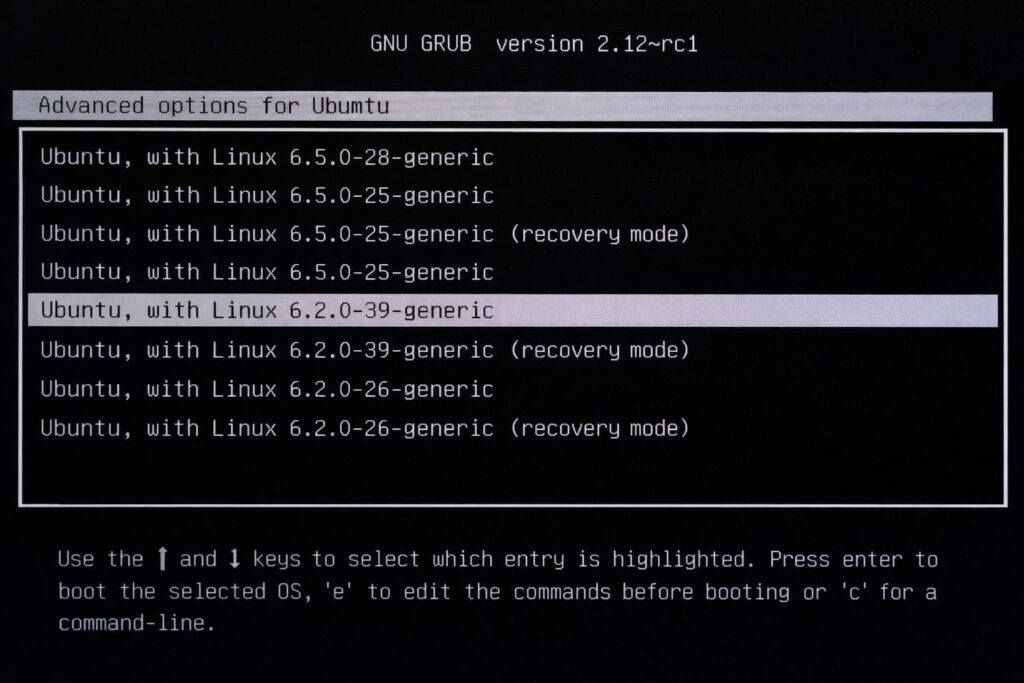
If after doing all that you still are freezing on boot up then it is time to try something a little different.
- Reboot your computer.
- Press and hold down the Shift key (sometimes Esc on some systems) to display the GRUB 2 menu.
- Choose Advanced options for Ubuntu (or your distro).
- Select the kernel version that lies below the highest one (Usually its preceding or previous release).
- Press Enter.
If the system is able to boot normally, then the issue lies with that particular kernel installation. You can just reinstall that kernel, or you could wait for a newer update.
Solution 2: Fix File System (FSCK)
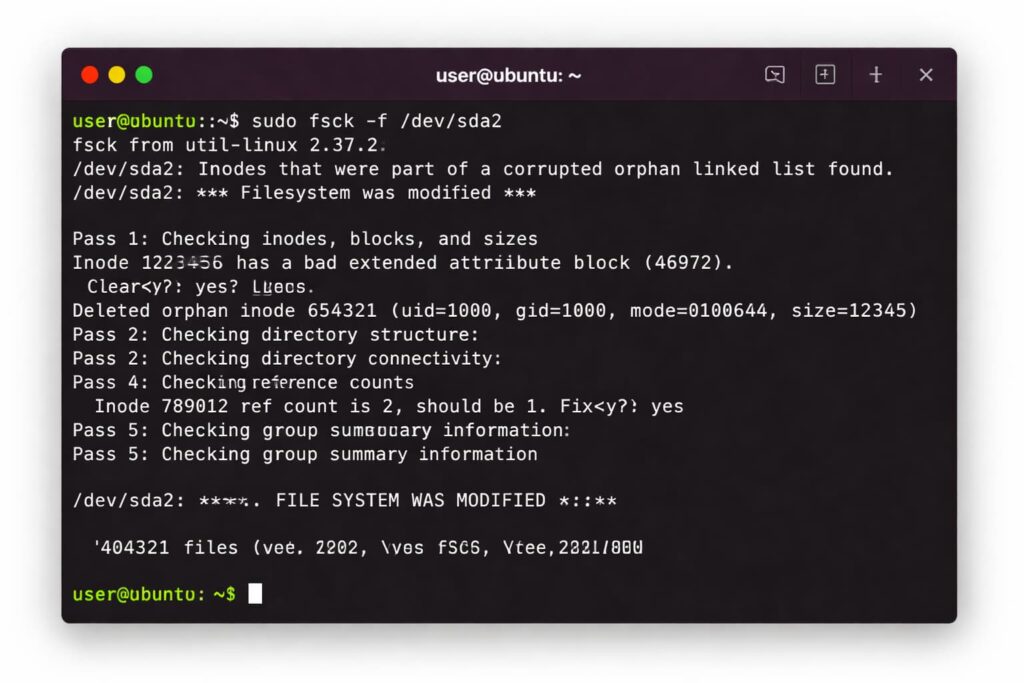
Step #1.
Kernel Panic no init found on Ubuntu and Debian due to a corrupted file system A corrupted FS.
- Boot up a Linux Live USB (preferably the same distro that is installed on yours).
- Open a terminal.
- First, find out the main partition with
lsblkorsudo fdisk -lfor example /dev/sda2. - Do a file system check, like this:
sudo fsck -f /dev/sda2 - [Yes] to correct any errors [No] to abort.
- Reboot your system.
Solution 3: Installing Grub and Creating a New Initramfs File
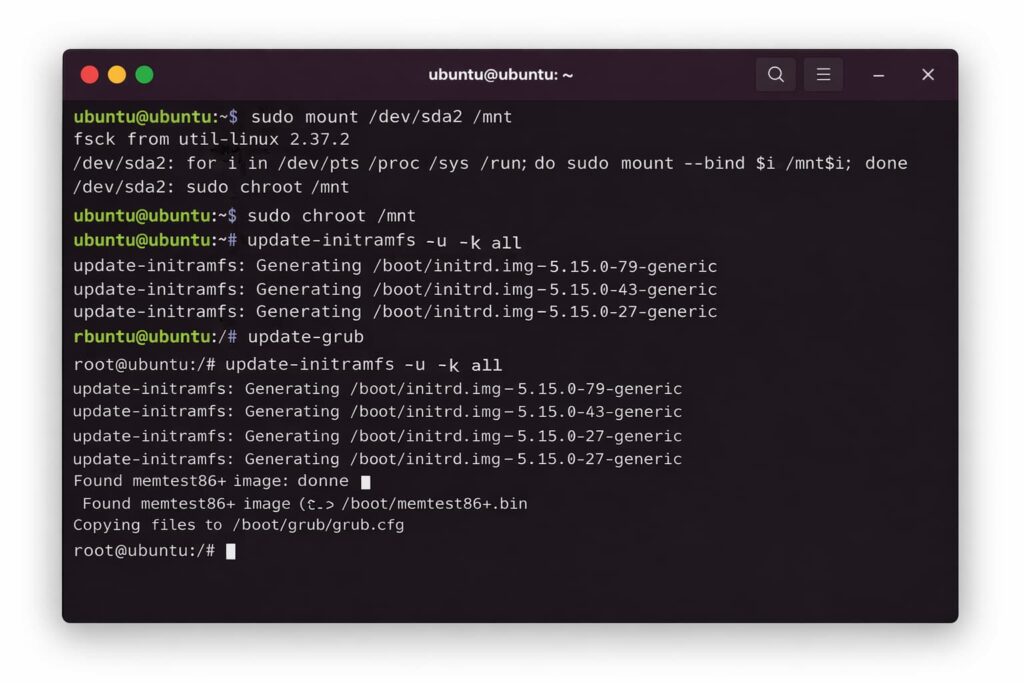
This is the ultimate fix indeed, for those who encounter a kernel panic no init found on Arch Linux or Debian following an upgrade. To fix it from the inside you need to chroot (change root) into your system.
For Ubuntu/Debian Systems:
- Boot from a Live USB.
- Mount your root partition (change /dev/sda2 with yours):
sudo mount /dev/sda2 /mnt - Mount special system directories for
i in /dev /dev/pts /proc /sys /run; do sudo mount -B $i /mnt$i; done - Now we’re going to chroot into our system:
sudo chroot /mnt - Update your initramfs images:
update-initramfs -u -k all - Update GRUB:
update-grub - Exit and reboot:
exitsudo reboot
For Arch Linux:
- The process is the same, but with tools specific to Arch.
- Boot from Arch ISO.
- Now mount your partition:
mount /dev/sda2 /mnt - Arch-chroot into it:
arch-chroot /mnt - Further rebuild the kernel image:
mkinitcpio -P - Re-run your bootloader config (e.g.:
grub-mkconfig -o /boot/grub/grub.cfg).
Solution 4: Resolving Virtual Environment (VirtualBox/VMware/Docker)
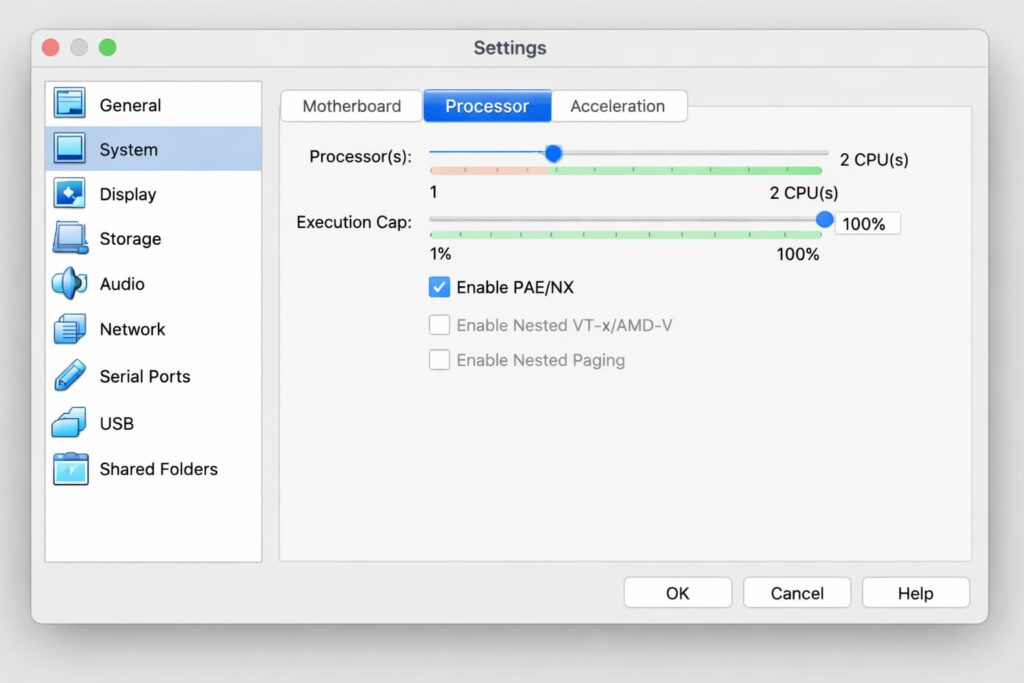
If you come across “kernel panic not syncing vfs unable to mount root fs on unknown-block” in VirtualBox or VMware, the problem frequently lies with the virtual hardware settings rather than the software inside that VM.
- Verify PAE/NX: In VirtualBox, select Settings > System > Processor and verify that “Enable PAE/NX” is checked.
- Storage Controller: Check that your storage controller type isn’t different. If you had installed Linux with a SATA controller, changing the VM configuration to IDE can make it so your kernel no longer knows where the root partition is.
Docker Issues Kernel Panic-No Init Found in Docker: While rare, a kernel panic no init found in Docker generally indicates that the container is attempting to boot up an init system (e.g. systemd) that may require privileges not granted to the container. Either run the container with –privileged or use a smaller initialization process like tini.
Common Mistakes & Prevention
Kernel panics are stressful to troubleshoot and can lead to mistakes that will only make matters worse. Here’s how to not fall victim and tamp down panics in the future.
Mistakes to Avoid
- Reinstalling ASAP: Some users will erase their drive and re-install the OS at the first sight of a kernel panic. This is usually overkill. The majority of kernel panics are resolvable without loss of data.
- Dismiss GRUB Errors: If you received an error during a past update (it might have said something like “failed to write disk”), don’t restart your system until you’ve resolved it! incomplete-kernel reboot is a natural panic wait to happen.
- Don’t Blindly Copy Commands: Please be careful when you copy/paste repair commands. Make sure to substitute the drive identifiers (e.g. /dev/sda1) with those applicable for your own hardware.
How to Prevent Future Errors
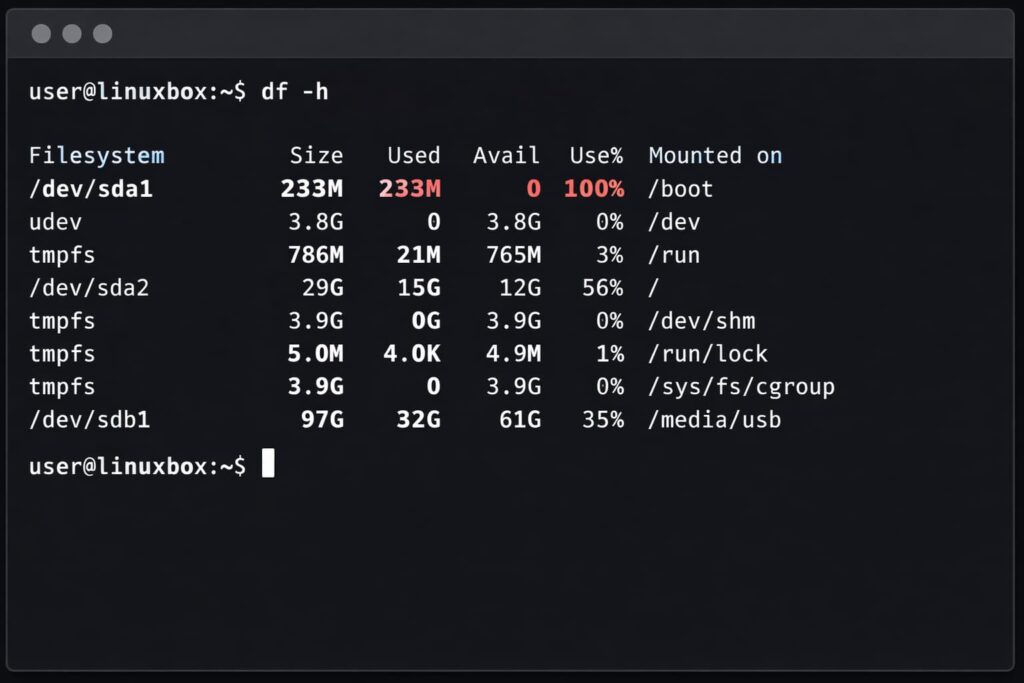
- Keep /boot Tidy: Every now and then, your /boot partition may fill up with old kernels. Since it reaches 100% usage during an update, the initramfs generation breaks and a panic occurs. Remove old kernels regularly using
sudo apt autoremove(Debian/Ubuntu). - Use a UPS: Power failure when upgrading your system is one of the largest causes of file system damage.
- Backups: Always backup your important data. Also, if a kernel panic is due to actual drive failure, no software fix will help you.
Frequently Asked Questions (FAQ)
What is “No init found”?
It indicates that the Linux kernel has loaded, however it was unable to find the init program (typically located in /sbin/init or /bin/init or linked with systemd). Because init is the first process needed to launch all other system operations, booting cannot proceed.
How do I repair kernel panic after update?
Changing the kernel is very simple, just reboot and when you get to the GRUB menu select an older version of your kernel (under “Advanced options”). When you signed in, do a sudo update-initramfs -u and a sudo update-grub to see if the newer kernel install can be corrected.
Is it possible to see such a mistake in virtual environments, as Virtual Box or VMware?
Yes. It commonly occurs when you modify the configuration of the virtual machine after initial setup. For instance, changing the number of CPUs or storage controller type can confuse the guest OS kernel causing it to not be able to see where the virtual hard drive containing init is.
How can I avoid getting kernel panic messages if spindump is not to Read moreaSID fSentyp11entyI am generating the detailed panic report using command + option key?
Make sure your /boot partition is large enough before running updates. Do not hard-shut-downs by unplugging power causing file system corruption. Additionally, use stable repositories for your Linux distro instead of the experimental ones that may have unstable versions of the kernels.
Conclusion
The “Kernel panic – not syncing: No init found” error is scary but makes sense. It just means that the map your system uses to boot is missing a piece. You can usually solve this issue without losing data by checking the health of your file system, updating your bootloader config or reverting to an older kernel.
It does not matter whether you are trying to repair kernel panic no init found on Ubuntu, Debian, or a VirtualBox VM because what matters is patience. Take the above processes, verify your partition paths and you’ll be up in Linux nearly as fast as when they went down!

Leave a Comment